



Microsoft Planner and Trello are two of the most popular task management tools on the market. Both help teams organize work visually, assign tasks and track what’s getting done. On the surface, they can look almost identical. But once you dig into features, integrations and pricing, the differences start to matter.
Choosing between Microsoft Planner vs. Trello usually comes down to your tech stack and how complex your projects are. Planner is built for teams already living in Microsoft 365, while Trello is a flexible, standalone kanban tool that works with just about anything. Neither, however, was designed to handle the full scope of project management.
Below, we’ll break down what each tool is, compare their features and pricing, weigh the pros and cons and help you decide which is right for you. We’ll also show why ProjectManager is a more powerful alternative for teams that need more than a to-do list.
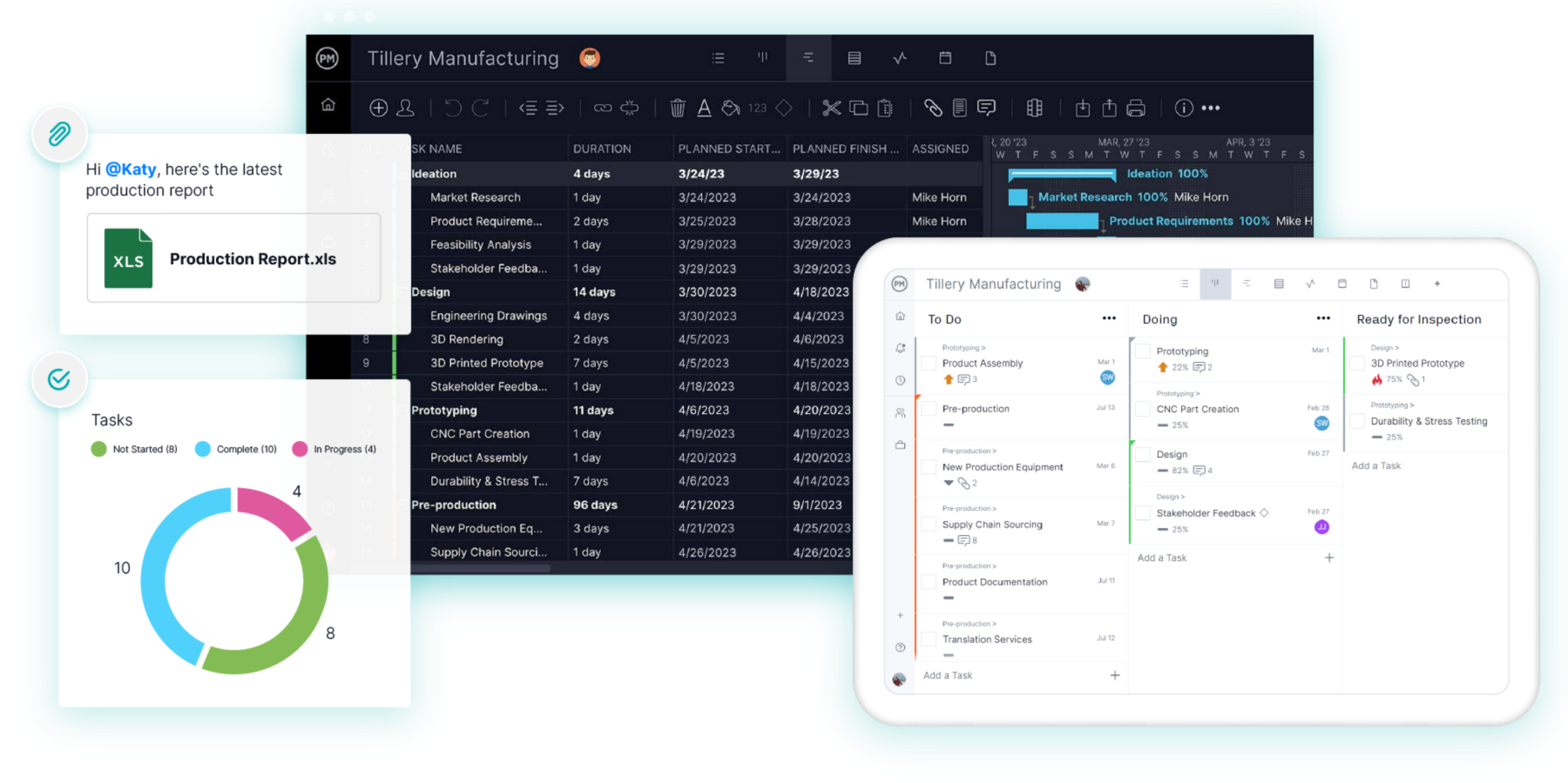
If you’re open to trying something other than Microsoft Planner or Trello, and you need project management software that fosters collaboration and gives you the tools to plan, schedule and track projects so they’re delivered on time and within budget, then you want ProjectManager. Our award-winning software combines the simplicity of Trello’s kanban boards with more powerful planning tools than Planner, without the add-ons, extra licenses or steep learning curve. Get started with ProjectManager today for free.
What Is Microsoft Planner?
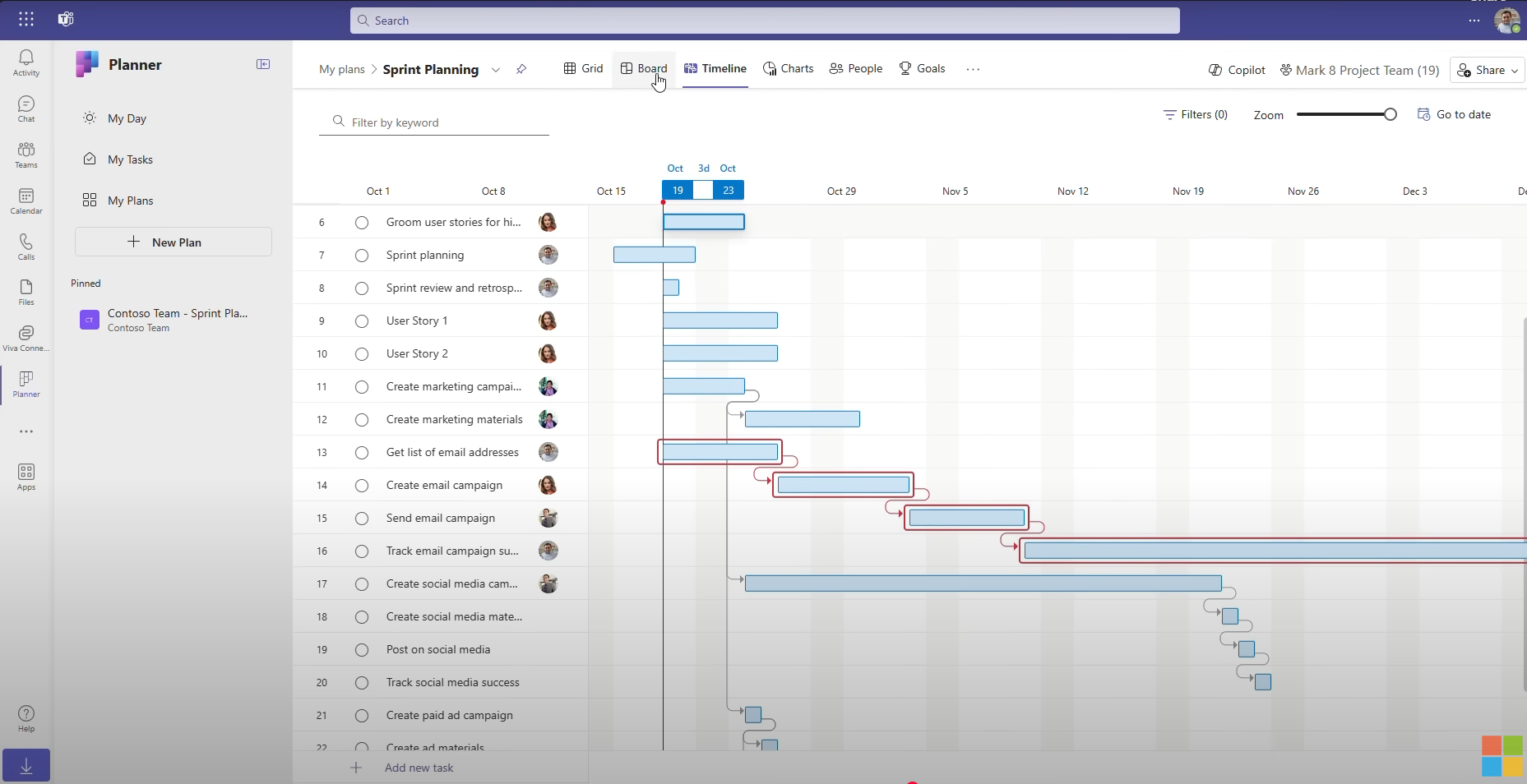
Microsoft Planner is a task management app that’s part of the Microsoft 365 ecosystem. It lets teams create plans, organize tasks into buckets and track progress on a kanban-style board. Because it’s built into Microsoft 365, Planner connects directly with Teams, Outlook, SharePoint, OneNote and To Do.
In recent years, Microsoft has folded Microsoft To Do, Project for the web and Loop tasks into a single, unified Planner experience. The basic version is included with most Microsoft 365 business subscriptions. Premium plans add more advanced project management features such as timelines, sprints, baselines and portfolios, while a Microsoft 365 Copilot add-on brings AI assistance to plans.
Planner works best for small to midsize teams that already use Microsoft 365 and want a simple way to manage everyday tasks without adding another tool to their stack.
What Is Trello?
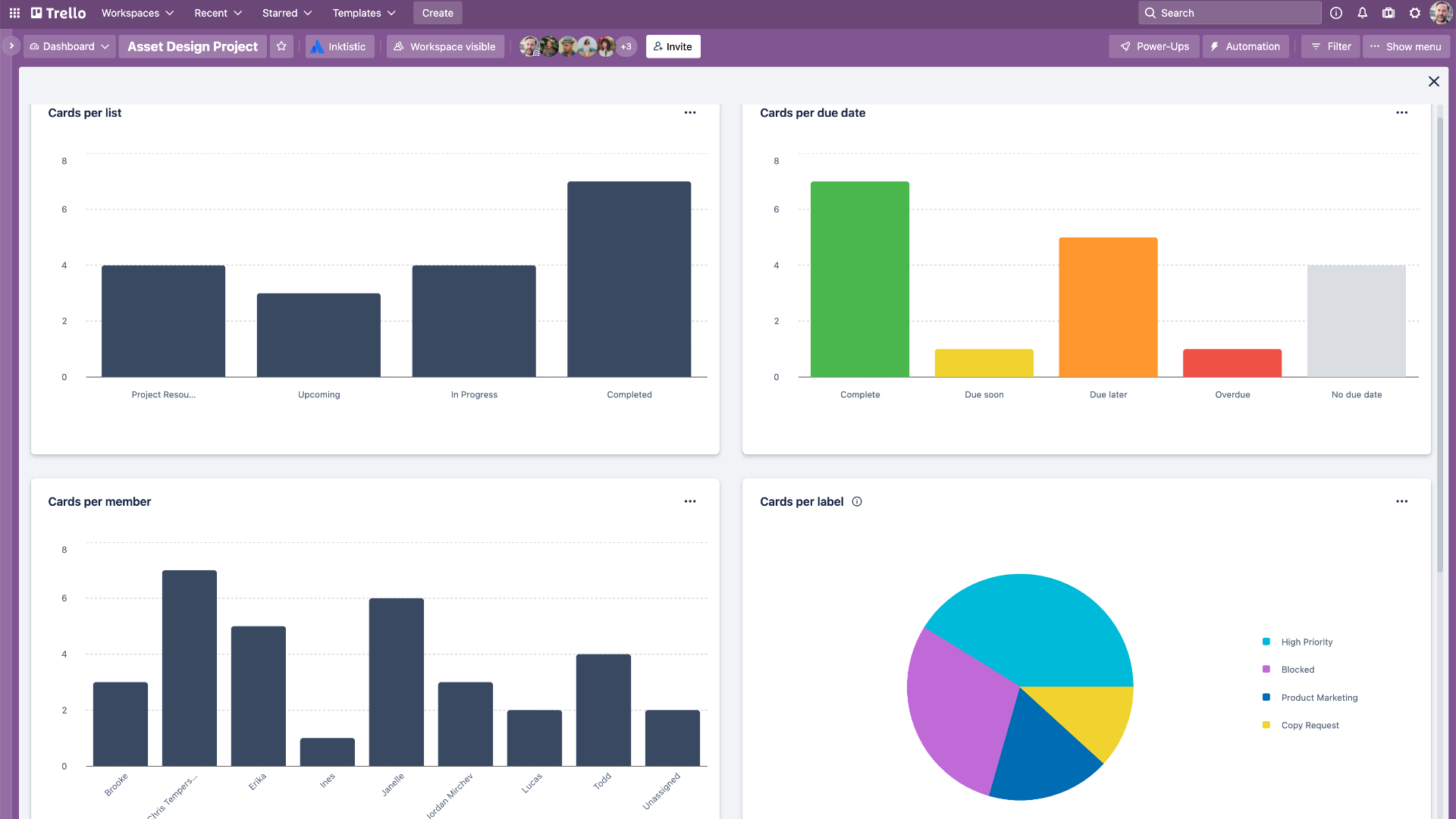
Trello is a visual collaboration and task management tool owned by Atlassian. It’s best known for its kanban boards, where work is organized into lists and cards that team members drag and drop as tasks move from one stage to the next.
Trello is intentionally simple. Anyone can start a board in minutes, and its free plan is generous enough for small teams and personal projects. For teams that need more, Trello offers Power-Ups, which are add-ons that connect it to other apps, and Butler, its built-in automation tool. Paid plans unlock additional views, such as timeline, calendar and table views.
Trello is popular with marketing teams, creative agencies, startups and anyone who wants a flexible, tool-agnostic way to visualize their workflow.
Microsoft Planner Features
Planner covers the basics of task management well, and its premium plans push it closer to a light project management tool. Key features include:
- Multiple views: Grid, board, schedule and chart views in the basic version, with timeline (Gantt), calendar and people views on premium plans
- Buckets and task cards: Group tasks into buckets and add checklists, labels, attachments, priorities and due dates
- Microsoft 365 integration: Create and manage plans directly in Teams, get task notifications in Outlook and store files in SharePoint
- Task dependencies and milestones: Link related tasks and mark key dates (dependencies are more advanced on higher tiers)
- Sprints and backlogs: Plan agile work in sprints on Planner Plan 1 and above
- Portfolios and baselines: Roll up multiple plans and track the critical path on Planner and Project Plan 3
- Copilot and the Project Manager agent: Generate plans, tasks and status reports with AI (requires a separate Microsoft 365 Copilot license)
Trello Features
Trello’s strength is its simplicity. Its features are designed to make it easy to see work at a glance and customize boards to fit almost any workflow:
- Kanban boards: Organize work into lists and cards that move across stages
- Cards with details: Add assignees, due dates, checklists, attachments, labels and comments to each card
- Inbox and Planner: Capture to-dos from email, Slack and Teams, then schedule them on a synced calendar
- Butler automation: Set up rules, buttons and scheduled commands to automate repetitive work
- Power-Ups: Connect Trello to hundreds of apps, including Slack, Google Drive, Jira and Microsoft Teams
- Additional views: Timeline, calendar, table, dashboard and map views on the Premium plan and above
- Atlassian Intelligence: AI features that help summarize cards and generate content on paid plans
- Templates: Hundreds of board templates for marketing, sales, HR, product and more
Related: Best Microsoft Planner Alternatives
Microsoft Planner Pricing
- Planner in Microsoft 365: Included with Microsoft 365 business subscriptions
- Planner Plan 1: $10 per user/month, billed annually
- Planner and Project Plan 3: $30 per user/month, billed annually
- Microsoft 365 Copilot add-on: $30 per user/month, billed annually
Trello Pricing
- Free: $0 for up to 10 collaborators per workspace
- Standard: $5 per user/month billed annually, or $6 billed monthly
- Premium: $10 per user/month billed annually, or $12.50 billed monthly
- Enterprise: $17.50 per user/month, billed annually
Microsoft Planner vs. Trello: Key Differences
The biggest difference between Microsoft Planner and Trello is ecosystem. Planner is the natural choice if your organization already pays for Microsoft 365, while Trello is better for teams using a mix of tools that want a flexible, standalone board.
| Feature | Microsoft Planner | Trello |
|---|---|---|
| Best for | Teams already using Microsoft 365 | Small teams wanting a simple, flexible kanban tool |
| Free option | Included with Microsoft 365 business plans | Free plan for up to 10 collaborators |
| Starting paid price | $10/user/month (Plan 1) | $5/user/month (Standard) |
| Views | Grid, board, schedule, chart; timeline, calendar and people on paid plans | Board; timeline, calendar, table, dashboard and map on Premium |
| Gantt/timeline | Paid plans only | Premium plan and above |
| Automation | Through Power Automate | Built-in Butler automation |
| Integrations | Deep Microsoft 365 integration | Hundreds of Power-Ups across many apps |
| Agile support | Sprints and backlogs on paid plans | Kanban boards; sprints through Power-Ups |
| AI | Copilot add-on ($30/user/month) | Atlassian Intelligence on paid plans |
| Timesheets and resource management | Not built in | Not built in |
Choose Microsoft Planner if your team works in Teams and Outlook every day and needs a task tool that’s already included in your subscription.
Choose Trello if you want a simple, visual board that’s quick to set up, works with any tech stack and has a strong free plan.
Choose neither if you manage projects with detailed schedules, budgets, resources and reporting. Both tools are task managers at heart, and teams often outgrow them as projects become more complex.
Pros and Cons of Microsoft Planner
Pros
- Included at no extra cost with most Microsoft 365 business plans
- Deep integration with Teams, Outlook, SharePoint and the rest of Microsoft 365
- Familiar interface for anyone who already uses Microsoft products
- Premium plans add sprints, timelines, baselines and portfolio views
- Enterprise-grade security and admin controls through Microsoft 365
Cons
- The free version is limited to basic task management; timelines, sprints and advanced dependencies require a paid plan
- Limited value for teams that don’t use Microsoft 365
- Few integrations outside the Microsoft ecosystem compared to Trello
- Microsoft’s frequent product changes (merging To Do, Project for the web and Loop into Planner) can confuse users and admins
- No built-in timesheets, and cost tracking and resource management are basic
- AI features require a separate Copilot license that costs more than Planner Plan 1
Pros and Cons of Trello
Pros
- Extremely easy to learn and set up
- Generous free plan for small teams and personal use
- Hundreds of Power-Ups and integrations with popular apps
- Built-in automation with Butler on every plan
- Works on any platform, with strong mobile apps
Cons
- Built around kanban boards, so it’s not well-suited to complex, multi-phase projects
- Timeline, calendar and table views are locked behind the Premium plan
- Free plan caps workspaces at 10 collaborators and 10 boards
- Automation runs are limited on the Free and Standard plans
- No native timesheets, budgeting or resource management; these require Power-Ups or other tools
- Reporting is minimal, making it hard to track project performance at a high level
ProjectManager Is a Better Alternative to Microsoft Planner and Trello
If you like the simplicity of Microsoft Planner or Trello but need more than task lists and kanban boards, you’re not alone. Many teams outgrow these tools as soon as projects involve tight deadlines, shared resources and budgets. ProjectManager is award-winning project management software that gives you the tools to plan, manage and track projects from start to finish, all in one place. Try it free today.
Plan Projects With Powerful Gantt Charts
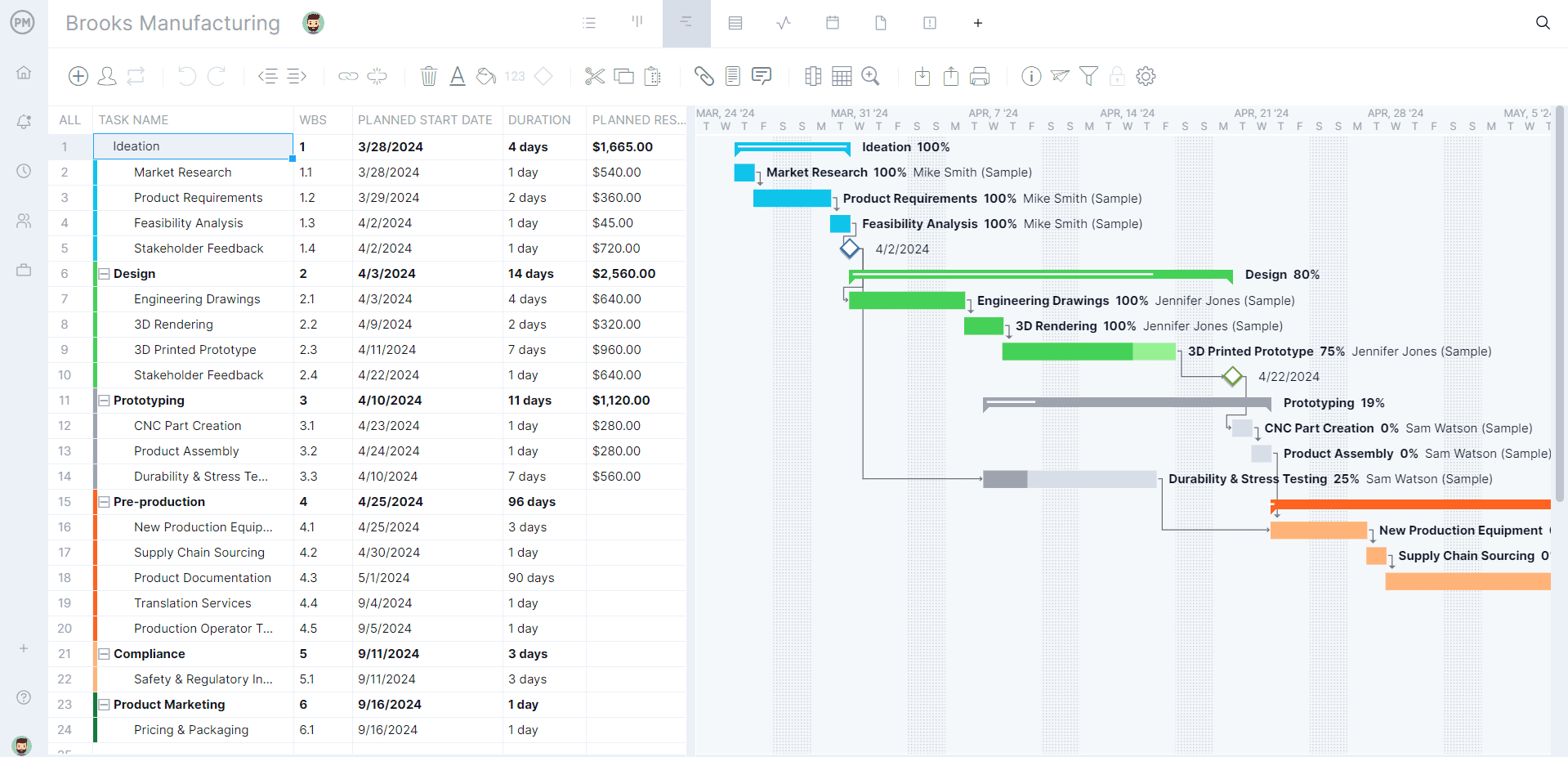
In Planner and Trello, timelines are locked behind paid tiers and offer limited functionality. ProjectManager’s Gantt charts do far more than show a static schedule. Link all four types of task dependencies to avoid costly delays, set milestones, filter for the critical path and set a baseline to compare your planned progress against actual progress in real time.
Switch Between Multiple Project Views
Everyone on your team works differently. Our kanban boards give team members the same visual workflow they love in Trello, while managers can plan on the Gantt chart. Switch to the list, sheet or calendar views anytime. Every view is updated together in real time, so the whole team always works from the same data.

Manage Resources and Workloads
Neither Planner nor Trello offers real resource management. ProjectManager’s workload chart shows how many tasks each team member is assigned, so you can reallocate work in a few clicks and avoid burnout. Set team availability, holidays and PTO, and see who has capacity before you assign new tasks.
Track Time With Secure Timesheets
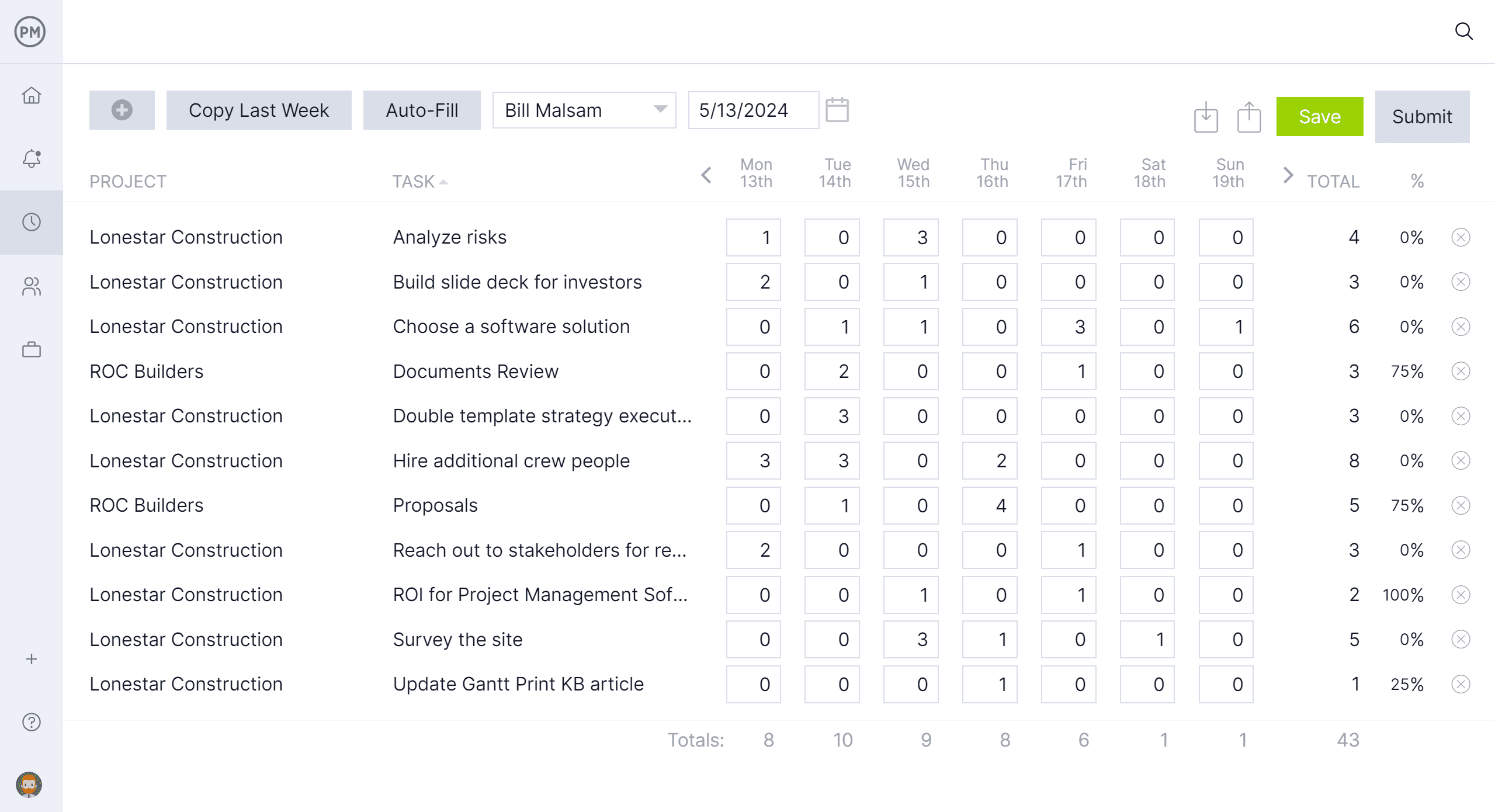
Planner and Trello don’t have built-in timesheets, which means adding another tool just to track hours. ProjectManager’s timesheets are linked to tasks, so team members can log time quickly and managers can approve timesheets and see labor costs as they’re incurred.
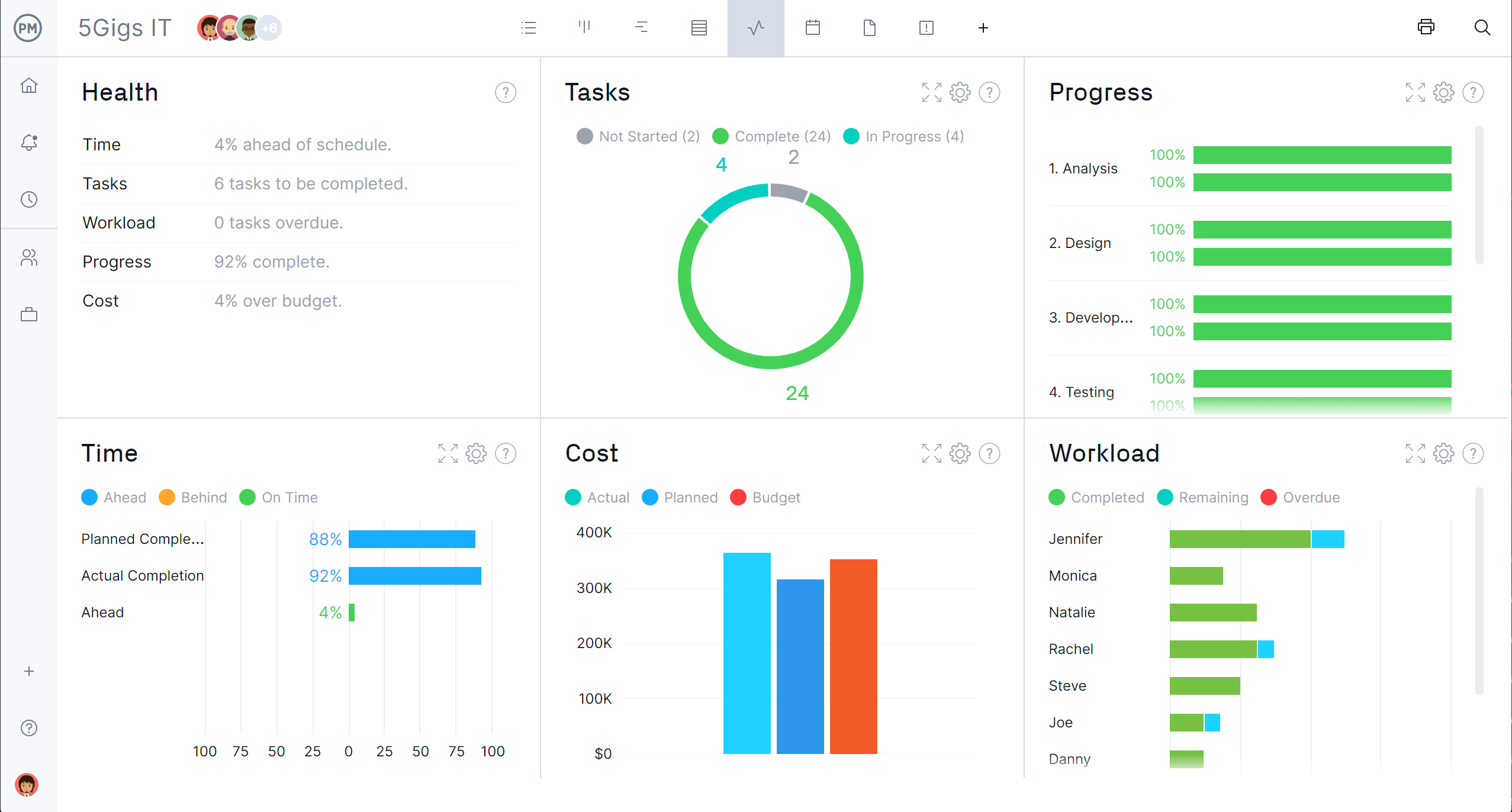
Monitor Progress With Real-Time Dashboards and Reports
Track project performance at a glance with real-time dashboards that show time, costs, workload and more. When stakeholders need an update, generate one-click reports on project status, portfolio status, timesheets, workload and more, then filter and share them in seconds.
Collaborate and Automate Workflows
Comment, tag teammates and attach files directly on tasks so conversations stay with the work. Set up workflow automation and task approvals to keep projects moving. ProjectManager also integrates with the tools your team already uses, including Microsoft 365, Teams, Google Workspace and Slack.
ProjectManager is online project management software that connects teams in the office, in the field and anywhere in between. Join teams at organizations of all sizes that use our software to plan, manage and track their work. Get started with ProjectManager today for free, no credit card required.
