


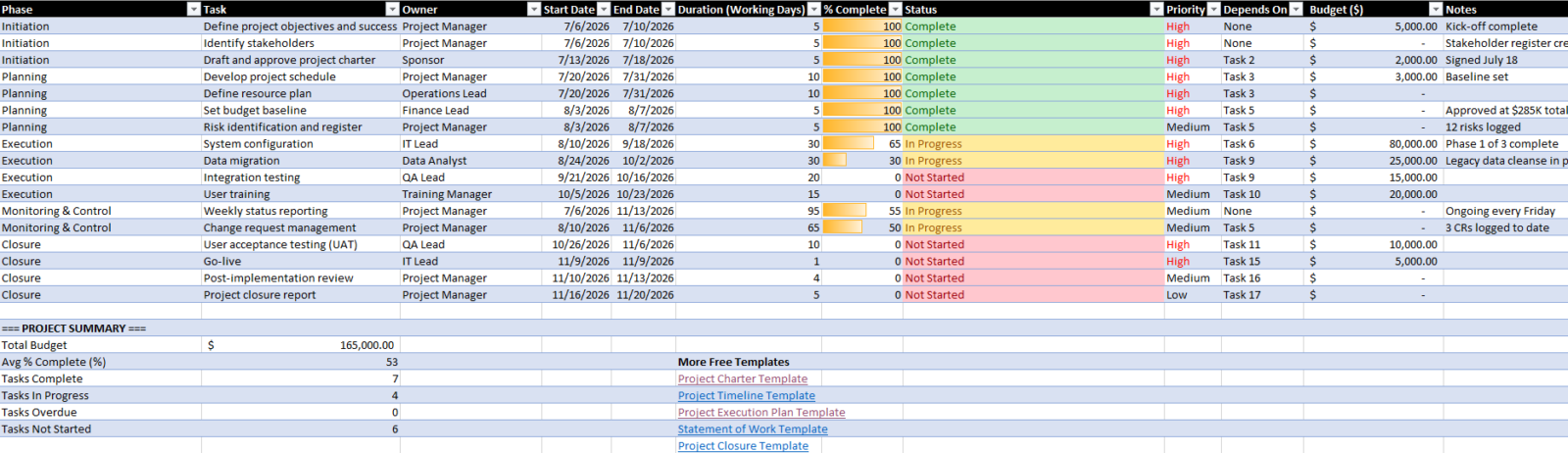
This high-level project plan template gives project managers a structured, ready-to-use Excel spreadsheet for planning and tracking projects from initiation through closure. It includes all the essential columns — phases, tasks, owners, dates, budget and priority — plus built-in formulas that automatically calculate task duration and status based on the current date. Download it free, replace the sample data with your own project details and start tracking immediately.
What Is a High-Level Project Plan Template?
A high-level project plan template is a pre-built spreadsheet that captures the key information needed to plan, assign and monitor a project without getting into granular task detail. It organizes work by phase — initiation, planning, execution, monitoring and closure — and tracks who is responsible for each task, when it starts and ends, how complete it is and what it costs.
Unlike a detailed project schedule, which maps out every sub-task and resource at a granular level, a high-level project plan is designed to give project managers, sponsors and stakeholders a clear view of the overall project. It is the right tool for early-stage planning, executive communication and cross-departmental coordination. For a more detailed schedule, see our project timeline template.
When to Use a High-Level Project Plan Template
This template is designed for the planning phase of a project and remains useful through execution and closure. Use it when you need to:
- Establish a structured plan at the start of a project before detailed scheduling begins
- Present project scope, timeline and budget to a sponsor or executive team
- Coordinate across multiple departments or teams who each own a phase of the work
- Track overall project health without the overhead of a full project management tool
- Document a baseline plan that can be compared against actual progress
Why You Need a High-Level Project Plan Template
Starting a project without a written plan creates the conditions for scope creep, missed deadlines and budget overruns. A high-level project plan template addresses this by giving every project a documented structure before work begins.
The template enforces clarity at the outset: every task has a named owner, a defined timeline and a budget allocation. The built-in status formula automatically flags tasks as Complete, In Progress, Overdue or Not Started based on the percentage complete and the current date — which means the plan stays current without requiring manual updates to a separate status tracker. The summary section at the bottom rolls up total budget, average completion rate and a count of tasks by status, giving any stakeholder a snapshot of overall project health in seconds.
A project charter defines what the project is and why it exists. This template is what comes next — it turns that authorization into an executable plan with assigned tasks, deadlines and a budget.
How to Use This High-Level Project Plan Template
After downloading the template, follow these steps to adapt the sample data to your own project.
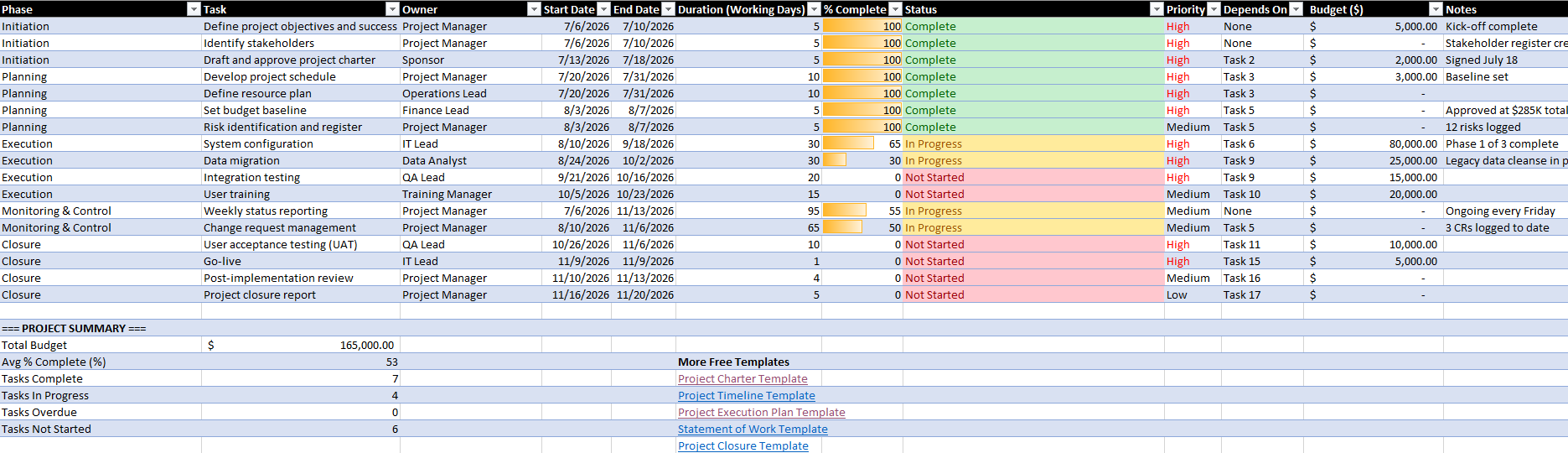
- Replace the sample project data. The template comes pre-loaded with a sample ERP implementation project. Delete the sample rows and add your own tasks, or edit the existing rows directly. Keep the formula rows intact — the Duration and Status columns calculate automatically and do not need to be edited.
- Enter your project phases. Group tasks by phase in column A. The template uses five default phases — Initiation, Planning, Execution, Monitoring & Control and Closure — but these can be renamed to match your project’s structure.
- Set start and end dates. Enter dates in columns D and E for each task. The Duration column (F) will automatically calculate the number of working days between the two dates using the NETWORKDAYS formula.
- Assign owners and priority. Name the individual responsible for each task in the Owner column. Set priority to High, Medium or Low. If you have applied conditional formatting to the Priority column, the color coding will update automatically.
- Update % Complete as work progresses. Enter a number between 0 and 100 in the % Complete column. The Status column will recalculate based on the percentage and the task’s end date, flagging overdue tasks automatically.
- Review the summary section. The summary at the bottom of the template calculates Total Budget, Average % Complete and a task count by status. These update automatically as you edit the data rows above.
Who Should Use This Template?
- Project Managers: The primary user of this template. Project managers use it to build the initial project plan, assign ownership to team members, track phase-level progress and communicate overall status to stakeholders. The auto-calculated status and summary section reduces the time spent manually updating reports.
- Project Sponsors: Sponsors use the high-level project plan to confirm that the project is on track against the scope and budget approved in the project charter. The summary section gives them the snapshot view they need without requiring access to detailed schedules or project management software.
- Department Heads and Functional Managers: When a project spans multiple departments, each department lead can use the plan to understand which tasks they own, when those tasks are due and how their work connects to the broader project timeline.
- PMO Teams: Project management offices use high-level project plan templates to standardize how projects are planned and reported across the portfolio. A consistent template structure makes cross-project comparison and resource visibility far easier to manage.
What Is Included in This High-Level Project Plan Template?
The template is organized as a single spreadsheet with twelve tracking columns and a summary section.
Task Tracking Columns
- Phase: Groups tasks into the five standard project phases — Initiation, Planning, Execution, Monitoring & Control and Closure. Phases can be renamed to match any project type or methodology.
- Task / Deliverable: The name of the specific task or deliverable. At the high level, each row represents a significant piece of work, not a granular sub-task.
- Owner: The named individual responsible for completing the task. One owner per task keeps accountability clear.
- Start Date and End Date: The planned start and end dates for each task, entered manually. These drive the Duration and Status formulas.
- Duration (Working Days): Automatically calculated using Excel’s NETWORKDAYS function, which counts business days between the start and end date, excluding weekends.
- % Complete: A number between 0 and 100 entered manually as work progresses. This field drives the auto-status formula.
- Status: Automatically calculated. Returns “Complete” when % Complete is 100, “Overdue” when the end date has passed and the task is not complete, “In Progress” when the start date has passed and the task is underway and “Not Started” for future tasks. Apply Excel’s conditional formatting to color-code this column.
- Priority: High, Medium or Low. Apply conditional formatting for red, amber and green color coding.
- Depends On: Notes any task that must be completed before this one can begin. Used to communicate dependencies without a dedicated Gantt chart.
- Budget ($): The estimated or allocated cost for the task. Rolls up to the Total Budget in the summary section.
- Notes: Free-text field for status updates, blockers or relevant context.
Summary Section
Below the task rows, the template includes a project summary with five auto-calculated metrics: Total Budget, Average % Complete, Tasks Complete, Tasks In Progress and Tasks Not Started. These update automatically as the task data changes, giving any reviewer an instant snapshot of project health without requiring a separate status report.
How ProjectManager Helps You Go Beyond the Template
A spreadsheet project plan works well at the start of a project. As the project grows in complexity — more tasks, more team members, more dependencies — it becomes harder to keep the plan current and share it in real time. ProjectManager brings your project plan into a live environment where the plan updates as the work happens.
Build and Track Project Plans on a Gantt Chart
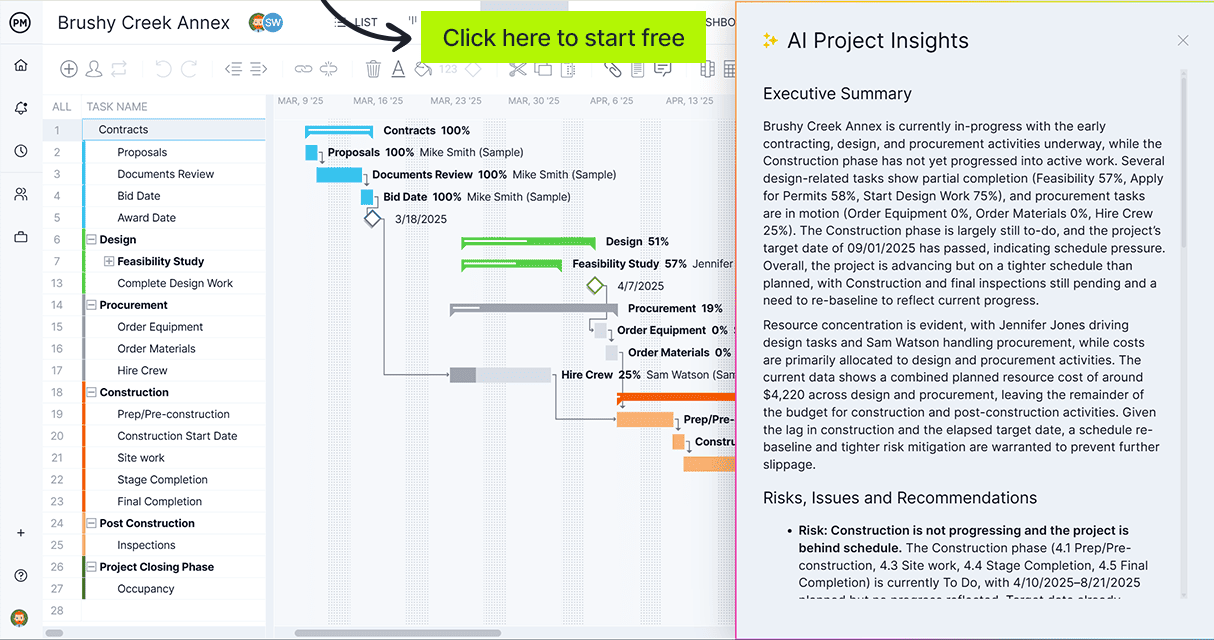
ProjectManager‘s Gantt charts let you recreate your high-level project plan as a live, interactive schedule. Add each phase and task, assign owners, set dates and link dependencies — the Gantt calculates the critical path automatically. Set a baseline from the original plan and track actual progress against it in real time. When a task slips, the Gantt shows the downstream impact immediately so you can adjust before the delay reaches the delivery date.
Monitor Overall Project Health in Real Time
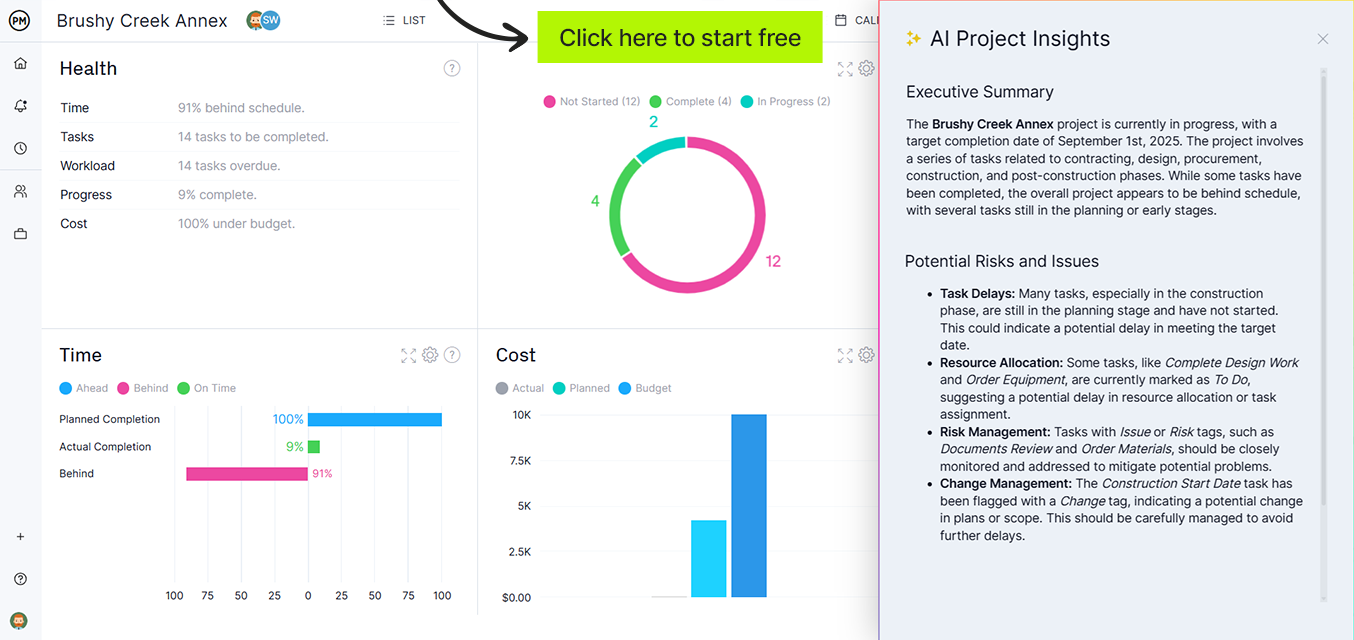
The summary section in the Excel template gives you a static snapshot. ProjectManager’s real-time dashboards pull live data from your project tasks and display completion rates, task health, budget consumed and schedule variance at a glance — updated automatically as the team works. Share a dashboard link with your sponsor and the status update runs itself.
Related Content
Try ProjectManager Free for 30 Days
Once you’re ready to move your project plan into a live environment, ProjectManager is online project management software with Gantt charts, dashboards, workload management and real-time reporting built for teams of all sizes. Try it free for 30 days.