



Last updated: November 16, 2026
OmniPlan is the better choice for individual schedulers and small teams that work entirely on Apple devices and want a native Mac and iPad app, offline work and deep desktop scheduling. ProjectManager is the better choice for teams with a mix of Macs and Windows PCs that need to work on the same schedule online, update it from iPhone and Android phones, track workload and time across projects, and send updated MPP files back to Microsoft Project users.
The two tools are built for different situations. OmniPlan, from The Omni Group, is a native project planning app for Mac, iPad, iPhone and Apple Vision Pro that you buy or subscribe to once for all of those devices. ProjectManager is online project management software where project managers, team members and stakeholders work in the same live schedule from a browser on any computer or from a phone.
This comparison covers scheduling and Gantt charts, Microsoft Project compatibility, collaboration, resources and time tracking, platforms and pricing, with an honest look at when each tool is the right fit.
Try ProjectManager on your own schedule: import an MPP or Microsoft Project XML file and share it with your team on Mac and Windows. Get started with ProjectManager today for free.
ProjectManager vs. OmniPlan at a Glance
The table below compares ProjectManager and OmniPlan side by side on price, platforms, Windows and browser access, Microsoft Project import and export, critical path, baselines, resource management, collaboration, mobile apps, offline use and free trials.
| ProjectManager | OmniPlan | |
|---|---|---|
| Best for | Mixed Mac and Windows teams that collaborate on schedules online and manage several projects | Individual schedulers and small Apple-only teams who want a native app and offline work |
| Price | $15/user/month (Team), $28/user/month (Business), billed annually | Standard $199.99 or Pro $399.99 one-time, or $199.99/year subscription with Pro features |
| Platforms | Any modern browser on macOS, Windows and Linux; no desktop app | Native apps for Mac (macOS 12 or later), iPad, iPhone and Apple Vision Pro |
| Windows or browser access | Yes, runs in a browser on Windows | No Windows or browser version |
| MPP import | Yes, plus Microsoft Project XML, Excel and CSV | Yes, MPP and XML (Pro), from Project 2003 to 2019 |
| MPP export | Yes, lossless for schedule data, plus XML, Excel and CSV | Yes, MPP and XML (Pro), with some documented losses |
| Critical path | Yes, critical path filter on the Gantt chart | Yes, highlighted on the Gantt chart |
| Baselines | Yes, with variance reports | Yes, multiple baselines, plus earned value analysis |
| Resource management | Workload page across all projects (Business and above), plus timesheets | Automatic resource leveling; multi-project dashboard (Pro) |
| Collaboration | Real-time: shared schedule, comments, file attachments, notifications; unlimited free read-only guests | Publish and sync through Omni Sync Server or WebDAV (Pro); not live editing |
| Mobile apps | iPhone and Android; iPad in the browser | iPad and iPhone; no Android |
| Offline use | No; needs an internet connection | Yes; files stay on your device |
| Free trial | 30 days | 14 days |
Prices are list prices as of November 2026 and change often.
What Is ProjectManager?
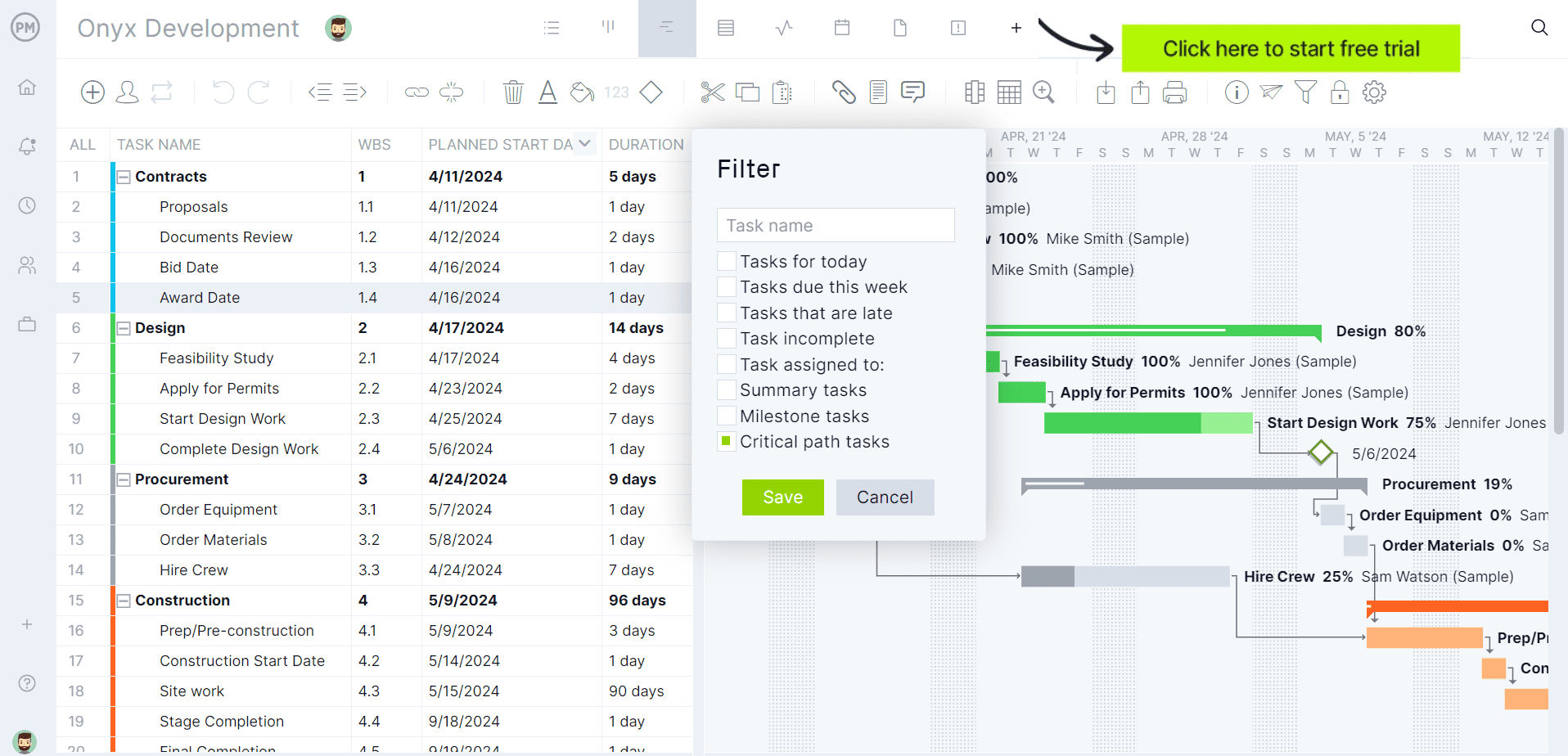
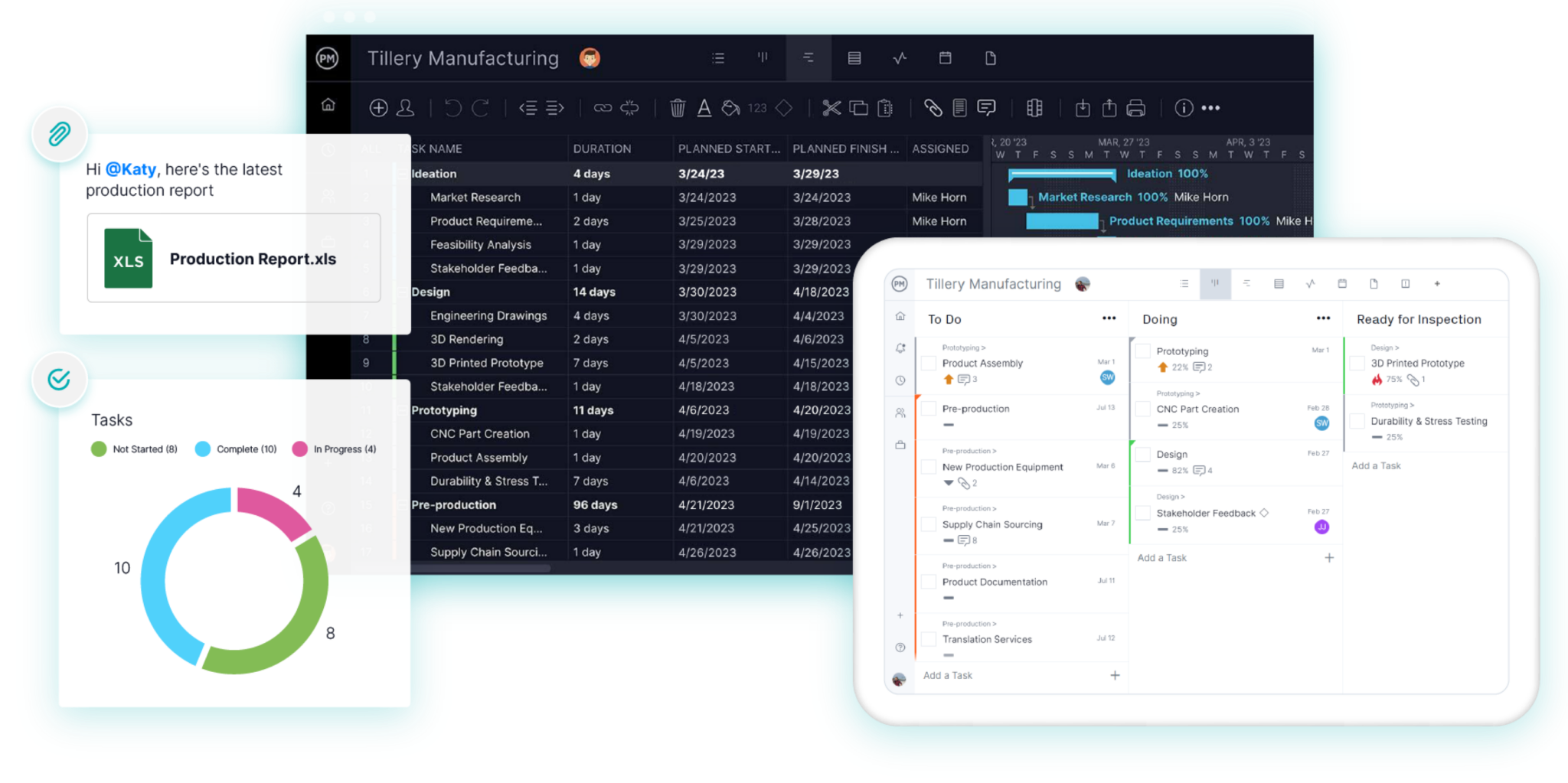
ProjectManager is online project management software for planning, scheduling and tracking projects as a team. Schedules are built on Gantt charts with all four dependency types, lag, a critical path filter and baselines, and the same tasks can be viewed as a sheet, board, list or calendar. Team members update tasks, comment, attach files and log time from a browser on a Mac or PC or from the iPhone and Android apps, and dashboards, portfolio views and a workload page show progress and hours across all your projects. Integrations include Microsoft Teams, Power BI, QuickBooks Online, Acumatica and ChatGPT.
What Is OmniPlan?
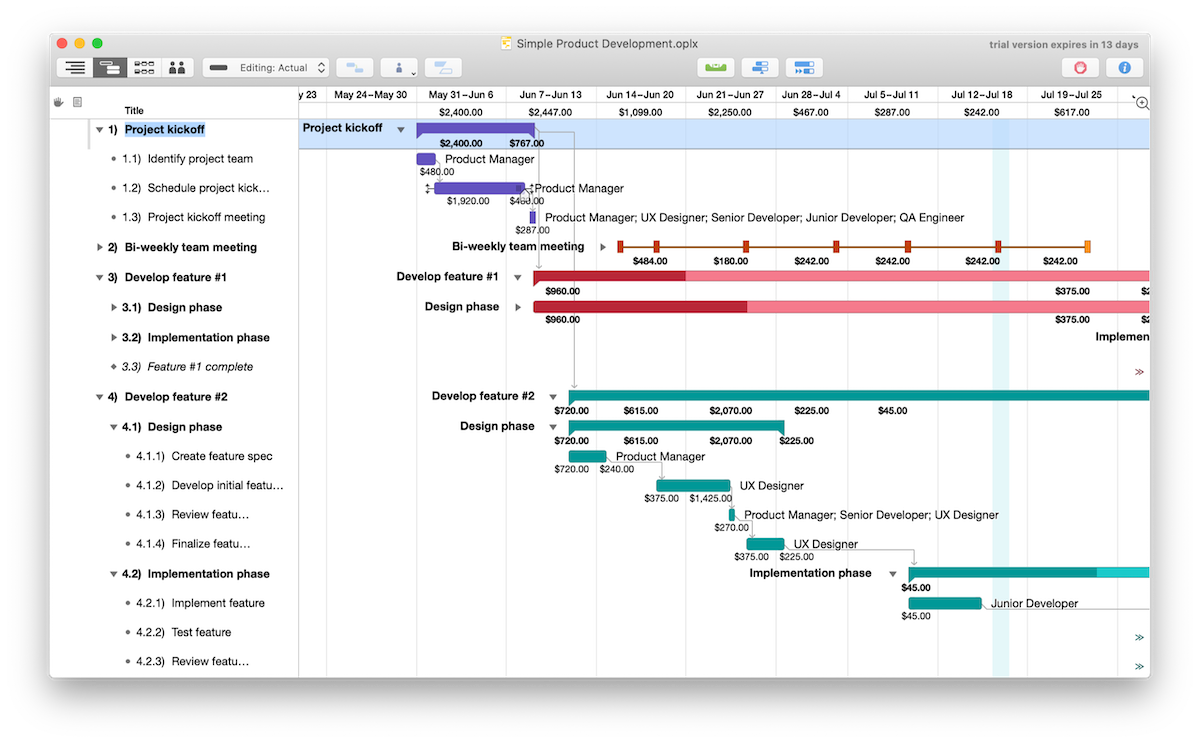
OmniPlan is project planning software from The Omni Group, built only for Apple devices. One purchase or subscription gives you OmniPlan 4 on Mac, iPad, iPhone and Apple Vision Pro, and the current version, 4.11, needs macOS 12 or iOS and iPadOS 16 or later. It schedules tasks with all four dependency types, lead and lag, highlights the critical path, keeps multiple baselines, levels resources automatically, flags scheduling violations such as double-booked people and includes earned value analysis.
OmniPlan comes in Standard and Pro editions. Pro adds Monte Carlo simulation, multi-project dashboards, Microsoft Project import and export and multi-user collaboration. For more native Mac options, see the best project management software for Mac.
ProjectManager vs. OmniPlan: Feature Comparison
Scheduling and Gantt Charts
Both tools handle professional scheduling. OmniPlan supports all four dependency types with lead and lag, highlights the critical path, keeps as many baselines as you want and levels resources automatically. It also flags scheduling violations and suggests fixes, includes earned value analysis and, in the Pro edition, runs Monte Carlo simulations to show the range of likely finish dates. That’s deep desktop scheduling for a planner who owns the schedule.
ProjectManager covers what most team schedules need. Link tasks with finish-to-start, start-to-start, finish-to-finish or start-to-finish dependencies, add lag for approvals or lead times, then apply the critical path filter on the Gantt chart to see the tasks that drive the finish date. Set a baseline and use variance reports to see how far the schedule has drifted. For more Gantt tools on a Mac, see the best Gantt chart software for Mac.
Verdict: OmniPlan for schedule analysis on one planner’s desk, including Monte Carlo and earned value. ProjectManager for a schedule the whole team builds and updates.
MPP and Microsoft Project Compatibility
Both tools exchange files with Microsoft Project, with different limits. OmniPlan Pro imports MPP and XML files from Microsoft Project 2003 to 2019 and exports MPP or XML. The Omni Group documents some losses in both directions, such as custom columns, resource efficiency and some constraints, and the Standard edition doesn’t include Microsoft Project support.
ProjectManager imports MPP, Microsoft Project XML, Excel and CSV files and exports to MPP, XML, Excel and CSV on every plan. MPP import and export are lossless for schedule data: tasks, durations, dates, dependencies and WBS structure stay intact when you import with “all data” and export back to MPP. Imports also bring in assignees, the most recent baseline and custom columns. Attachments and comments aren’t imported, and imported actual hours don’t map to timesheets automatically.
Verdict: ProjectManager for round-tripping schedules with Microsoft Project users. OmniPlan Pro works if you exchange files occasionally and can check what changed. For more options, see the best Microsoft Project alternatives for Mac.
Collaboration and Sharing
This is the biggest practical difference. OmniPlan is a document-based app: collaboration needs the Pro edition and works by publishing the project to Omni Sync Server or a WebDAV server and refreshing changes, not by editing a live schedule together. It can pull in your team’s calendars to avoid conflicts, but everyone who opens the project needs OmniPlan on an Apple device.
In ProjectManager, everyone works in the same live schedule. Team members on Macs and Windows PCs open it in a browser, people in the field use the iPhone or Android app, and stakeholders can view it as free read-only guests. They update progress, comment on tasks, attach files and get notifications when something changes.
Verdict: ProjectManager, especially for teams that aren’t all on Apple devices.
Resources and Time Tracking
OmniPlan levels resources automatically, warns you when people are double-booked, tracks effort and uses earned value analysis to show budget and value against a baseline. OmniPlan Pro adds multi-project dashboards to see your portfolio.
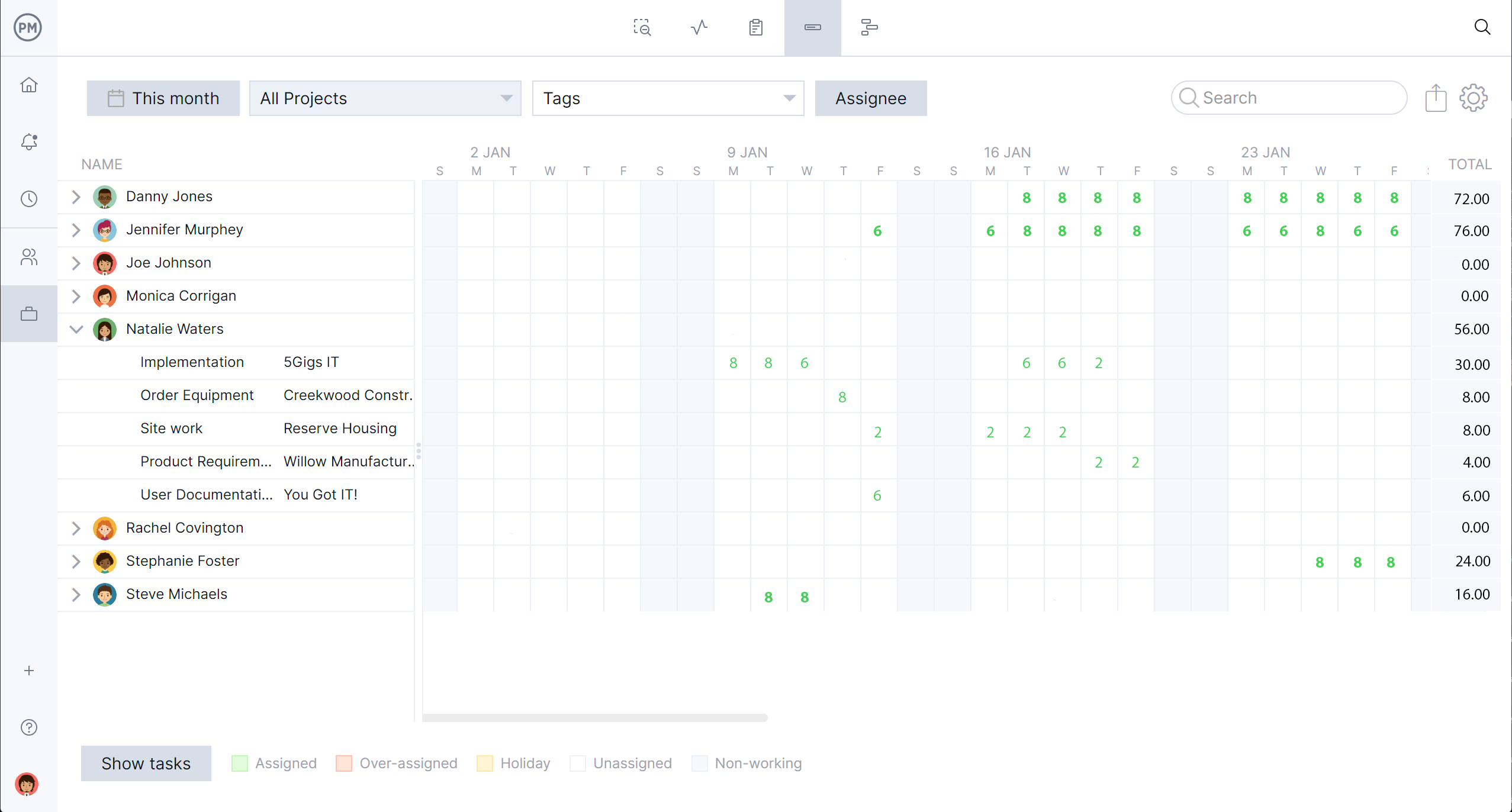
ProjectManager tracks resources across projects. The workload page shows each person’s assigned hours across all projects, with over-assigned days highlighted, and you can reassign work from the same page (Business plan and above). Timesheets record actual hours, and dashboards show time and cost across projects.
Verdict: OmniPlan for resource leveling and earned value in a planner’s schedule. ProjectManager for timesheets and workload across several projects.
Platforms and Access
OmniPlan runs natively on Mac, iPad, iPhone and Apple Vision Pro and works offline, with files kept on your device. It’s polished on Apple hardware, but there’s no Windows, Android or browser version, so anyone outside the Apple ecosystem can’t open the schedule in OmniPlan.
ProjectManager runs in any modern browser on macOS, Windows and Linux, with iPhone and Android apps; on an iPad, it runs in the browser. It has no desktop application and needs an internet connection. For other options, see Primavera P6 for Mac.
Verdict: OmniPlan for native, offline work on Apple devices. ProjectManager for access from any computer or phone.
Pricing
OmniPlan can be bought once: Standard costs $199.99 and Pro $399.99 as one-time purchases, or you can subscribe for $199.99 a year, which includes Pro features. One purchase covers Mac, iPad and iPhone, and there’s a 14-day free trial.
ProjectManager costs $15 per user per month on the Team plan and $28 per user per month on the Business plan, billed annually, with Enterprise by quote and a 30-day free trial. Read-only guests are free. One planner on the Team plan costs $180 a year, less than OmniPlan Pro’s one-time price, but OmniPlan has no recurring cost if you buy it outright.
Verdict: OmniPlan for one planner who’d rather pay once. ProjectManager for teams that want everyone in the schedule, with free guest access for stakeholders.
Pros and Cons
ProjectManager
Pros
- Real-time collaboration on one schedule for Mac and Windows users, with comments, file attachments and notifications
- Imports and exports MPP files, lossless for schedule data, on every plan
- Timesheets, dashboards and a workload page across all projects
- iPhone and Android apps, plus unlimited free read-only guests
Cons
- No native desktop app and no offline mode
- A recurring subscription, starting at $15/user/month billed annually
- The workload page needs the Business plan, and the Team plan is limited to 10 users and 20 projects
- No Monte Carlo simulation
OmniPlan
Pros
- Native apps for Mac, iPad, iPhone and Apple Vision Pro that work offline
- Critical path, multiple baselines, resource leveling and earned value analysis
- Monte Carlo simulation and multi-project dashboards (Pro)
- One-time purchase option, covering all of your Apple devices
Cons
- No Windows, Android or browser version
- Microsoft Project import and export, collaboration and Monte Carlo need the Pro edition
- Collaboration works by publishing and syncing, not live editing
- Some data, such as custom columns and some constraints, is lost in Microsoft Project round trips
Which One Should You Choose?
Choose OmniPlan if you plan alone or with a small team that’s entirely on Apple devices, and choose ProjectManager if people on Windows PCs or Android phones need to work on the schedule too.
- An individual scheduler on a Mac and iPad: OmniPlan. It’s a native, offline app with deep scheduling and a one-time price.
- A planner who needs schedule risk analysis: OmniPlan Pro, for Monte Carlo simulation and earned value.
- A small team where everyone uses Apple devices: OmniPlan Pro works, through Omni Sync Server or WebDAV.
- Teams with a mix of Macs and Windows PCs: ProjectManager, with one live schedule in any browser.
- Teams with people in the field: ProjectManager, with iPhone and Android apps.
- Teams sharing people across several projects: ProjectManager, for timesheets and workload across all projects.
- Teams exchanging files with Microsoft Project users: ProjectManager, because its MPP import and export are lossless for schedule data.
For a wider comparison, see the best project management software for Mac and ProjectManager vs. ProjectLibre.
How to Move an OmniPlan Project Into ProjectManager
To move an OmniPlan project into ProjectManager, export it from OmniPlan Pro as a Microsoft Project file, then import that file into ProjectManager with all data and check the logic.
- Export from OmniPlan. In OmniPlan Pro, export the project in Microsoft Project format (MPP or XML). Microsoft Project export needs the Pro edition or the subscription.
- Set working days. In ProjectManager, click the + button, choose Project and set working days to match your OmniPlan calendar before importing. Working days are hard to change once the project exists, and global holidays can’t be added to existing projects.
- Import the file. Choose Import File when creating the project, or click the import icon on the Gantt ribbon of an existing project. Click select file, upload the MPP or XML file and choose all data to bring in tasks, assignees, dependencies and planned dates.
- Check dependencies and lag. Compare durations, dependencies and lag with the original schedule, and re-link anything that didn’t come through. The Omni Group notes that some constraints don’t carry over to Microsoft Project format.
- Turn on the critical path filter. Check that it shows the same tasks driving the finish date as in OmniPlan.
- Set a baseline. Once the schedule is right, set a baseline in Gantt settings so you can track variance from there.
Keep your original OmniPlan file in case you need it later.
Want to see your schedule in ProjectManager? Start a free 30-day trial and import your Microsoft Project file. Get started with ProjectManager today for free.
ProjectManager vs. OmniPlan FAQ
Does OmniPlan work on Windows?
No. OmniPlan runs only on Apple devices: Mac, iPad, iPhone and Apple Vision Pro. There’s no Windows, Android or browser version, so colleagues on PCs can’t open an OmniPlan project in OmniPlan. ProjectManager, online project management software with Gantt charts, critical path, baselines and workload management across projects, runs in any browser on Mac and Windows, so both can work in the same schedule.
Can OmniPlan open Microsoft Project files?
Yes, with the Pro edition. OmniPlan Pro imports MPP and XML files from Microsoft Project 2003 to 2019 and exports MPP or XML, and The Omni Group documents some losses, such as custom columns and some constraints. The Standard edition doesn’t include Microsoft Project support. ProjectManager imports and exports MPP files on every plan, lossless for schedule data.
Is OmniPlan good for teams?
It works for small teams that all use Apple devices. OmniPlan Pro lets people publish and sync a project through Omni Sync Server or WebDAV, and it can pull in team calendars, but it isn’t live co-editing and there’s no Windows or Android version. Teams that need everyone in one live schedule, with timesheets and workload across projects, usually choose a team tool such as ProjectManager.
What’s a cheaper alternative to OmniPlan?
For one person, ProjectLibre is a free desktop scheduler for Mac, Windows and Linux with critical path and baselines, though it’s single-user. Merlin Project Express costs $69.99 a year on a Mac. ProjectManager’s Team plan costs $15 per user per month billed annually, or $180 a year for one person, and adds collaboration across Mac, Windows and phones.
Does ProjectManager work offline like OmniPlan?
No. ProjectManager runs in a browser on Mac, Windows and Linux and on iPhone and Android apps, and it needs an internet connection. That’s what lets a whole team work in one live schedule from any device. If you need to work fully offline on a Mac or iPad, such as on a flight or at a site with no signal, OmniPlan is the better fit.
Related Content
- 8 Best Project Management Software for Mac (2026)
- 7 Best Gantt Chart Software for Mac (2026)
- Best Microsoft Project Alternatives for Mac (2026)
- Primavera P6 for Mac: How to Run It and the Best Alternatives (2026)
- ProjectManager vs ProjectLibre: Software Comparison (2026)
- ProjectManager vs GanttPRO: Software Comparison (2026)
- ProjectManager vs TeamGantt: Software Comparison (2026)
- What Is OmniPlan? Uses, Features and Pricing (2026)
- Best OmniPlan Alternatives (2026)
