ChatGPT can write a polished project status report in 20 seconds. The problem is what it writes about. If the numbers come from a spreadsheet someone exported last Tuesday, your report is a well-written guess. It won’t know the vendor delivery slipped yesterday or that the team logged 40 more hours than planned this week.
That’s the catch with ChatGPT reporting. The AI is excellent at turning data into clear, readable reports. It can’t collect the data. So the project managers getting the most out of it aren’t copying and pasting spreadsheets into a chat window every Friday. They’re connecting ChatGPT to the system where the project data already lives.
In this guide, you’ll learn which project reports ChatGPT does well, which are better left to project management software, why your data matters more than your prompt and 20 free prompts for status, progress, budget, resource and stakeholder reports.
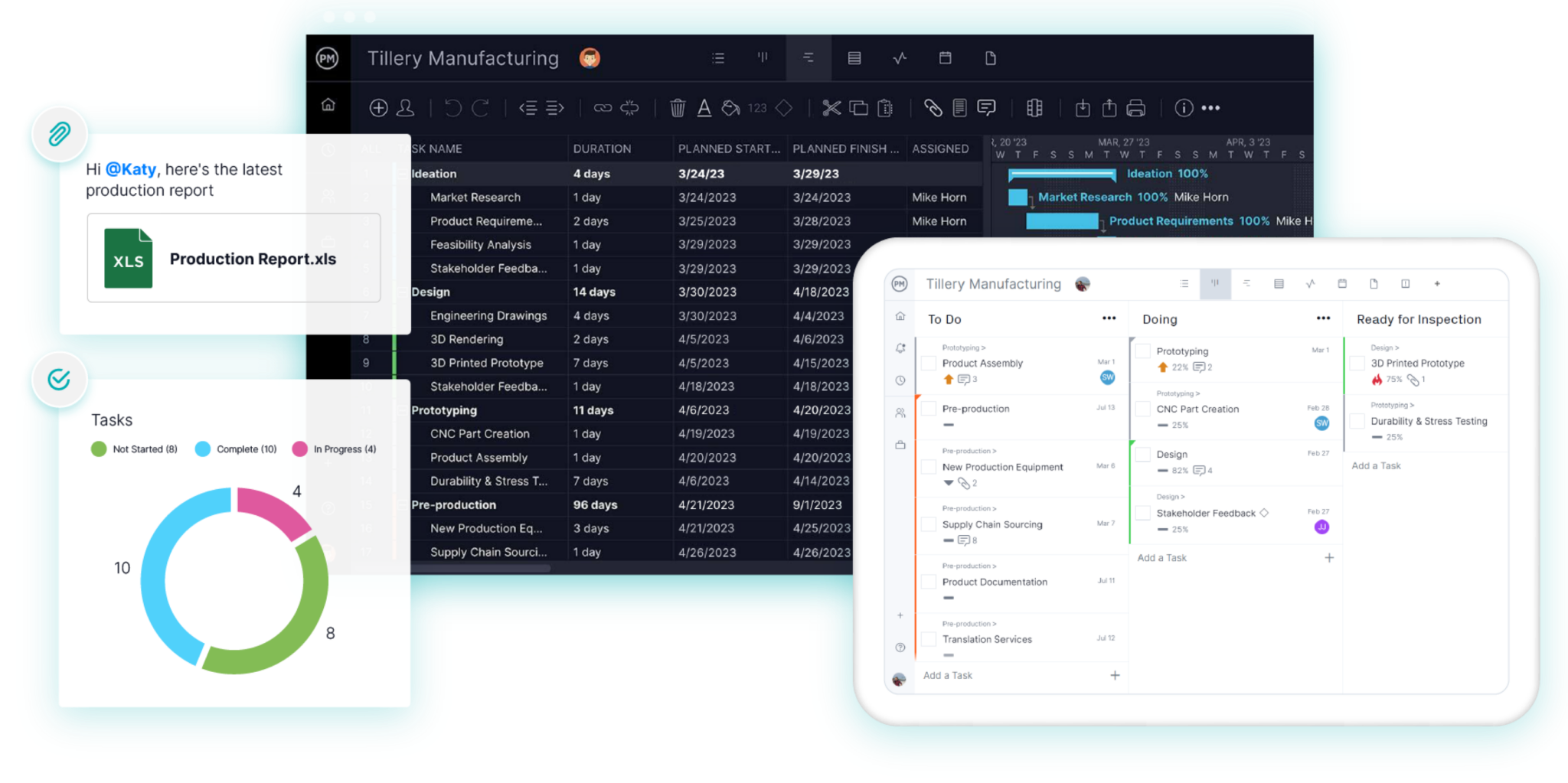
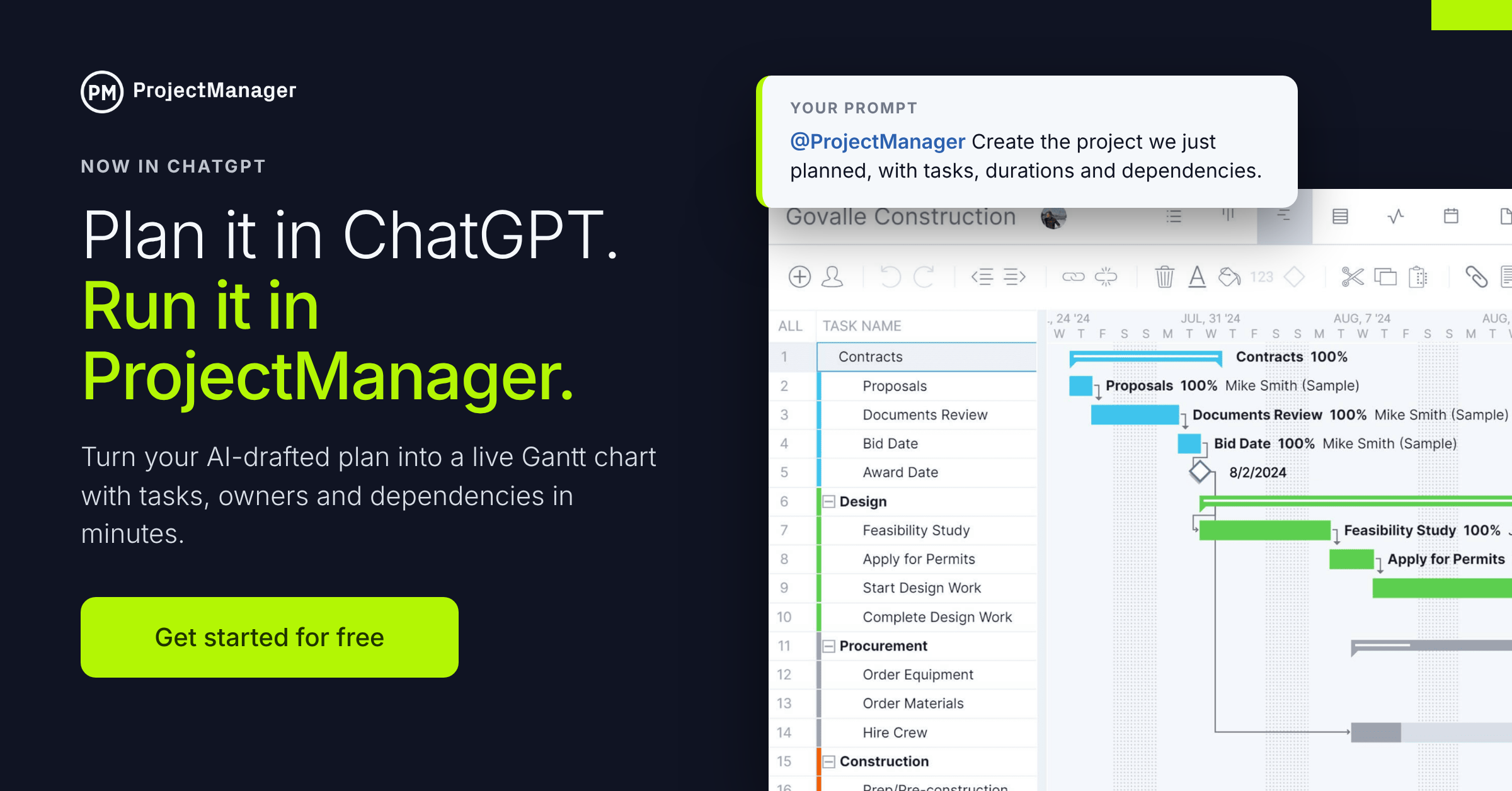
ProjectManager is award-winning project management software that connects directly to ChatGPT. Ask for a weekly status report and ChatGPT pulls the schedule, progress, hours and costs straight from your live projects. No exports, no uploads, no stale numbers. Get started with ProjectManager today for free.
Can You Use ChatGPT for Project Reporting?
Yes, and it’s one of the best uses of ChatGPT in project management. Reports are mostly writing: summarizing, explaining and tailoring the same facts for different audiences. That’s exactly what ChatGPT is good at. What it can’t do is produce or check the facts. Here’s how it splits:
| ChatGPT does well on its own | ChatGPT can’t do on its own |
|---|---|
| Turning raw numbers into a clear written summary | Collecting live schedule, progress, hours and cost data |
| Rewriting one report for executives, clients and the team | Keeping reports current as the project changes |
| Explaining why a project is behind or over budget | Calculating variance, earned value or utilization reliably |
| Drafting status emails, meeting recaps and handoff notes | Producing interactive charts, Gantt charts and dashboards |
| Suggesting a report structure or template | Rolling up data across a whole portfolio of projects |
| Flagging risks and questions hidden in the data | Giving stakeholders a self-serve, always-on view of progress |
The left column is where ChatGPT saves you hours every week. The right column is where project management software does the heavy lifting. Connect the two and ChatGPT writes the report while your software supplies the facts.
Project Reports ChatGPT Is Great At
ChatGPT shines on reports where the hard part is the writing, not the math. Give it accurate data and it turns it out in seconds:
- Weekly status reports: A summary of what got done, what’s next, what’s at risk and an overall red, amber or green rating. ChatGPT is fast at this and keeps the tone consistent week to week.
- Executive summaries: Leaders want three sentences, not three pages. ChatGPT is very good at boiling a project down to the decision or risk that matters.
- Stakeholder and client updates: The same project facts need different framing for a client, a sponsor and the delivery team. ChatGPT rewrites one report for each audience in seconds.
- Meeting recaps and action item summaries: Paste in notes or a transcript and ChatGPT pulls out decisions, owners and next steps.
- Risk and issue summaries: ChatGPT can review a list of open issues and late tasks, group them by theme and explain the likely impact in plain language.
- Project closure reports and lessons learned: It organizes what went well, what didn’t and what to change next time into a clean, readable document.
- Report narratives: Charts show what happened. ChatGPT is great at writing the paragraph that explains why.
Project Reports Better Left to Project Management Software
Some reports depend on precise calculations, live data or visuals. ChatGPT can talk about these, but it shouldn’t be the one producing them:
- Dashboards: Stakeholders want to check progress any time, not wait for Friday’s email. A live project dashboard updates as work happens. A ChatGPT report is a snapshot that starts going stale the moment it’s written.
- Gantt charts and schedule reports: ChatGPT can’t draw an accurate, interactive timeline with dependencies and a critical path. Project management software can, and it updates the schedule automatically when a task slips.
- Variance and earned value reports: Planned vs. actual cost, schedule variance and earned value need exact math. Language models can make arithmetic mistakes and state them confidently. Let the software calculate and have ChatGPT explain the results.
- Timesheet reports: Hours by person, team and project come from timesheet data. No one should rebuild that by hand in a chat.
- Workload and availability reports: Seeing who’s overallocated next week needs live assignments and capacity data across every project.
- Portfolio reports: Rolling up health, progress and cost across 10 or 50 projects is a database job, not a writing job.
The best setup uses both. Your software calculates the numbers and draws the charts. ChatGPT reads those results and writes the story around them.
Why ChatGPT Reports Are Only as Good as Your Data
A report is only useful if the numbers in it are right. ChatGPT doesn’t know your project. It only knows what you give it. Feed it outdated, incomplete or messy data and it will write a confident, professional report that’s wrong.
Here’s what manual reporting with ChatGPT usually looks like:
- Export the schedule from one tool and the timesheets from another.
- Pull the budget from a spreadsheet someone else maintains.
- Clean up the columns so ChatGPT can read them.
- Upload the files, write the prompt and wait.
- Check the output against the source files, because you’re not sure what it misread.
- Do it all again next week.
That process has three big problems:
- The data is stale. An export is a snapshot. By the time the report goes out, tasks have moved, hours have been logged and costs have changed.
- Things get lost. Every copy, paste and upload is a chance to drop a row, mix up versions or share the wrong file. ChatGPT can’t tell that a spreadsheet is missing half the project.
- It doesn’t save much time. If gathering and cleaning the data takes an hour, having ChatGPT write the report in 20 seconds barely helps.
The fix is a single, live source of truth. When your team plans, updates tasks and logs hours in project management software, the data is already complete and current. Connect ChatGPT to that system and it reads the project directly. You ask for a report and it pulls the real numbers. No exports, no uploads and no wondering whether the report matches reality.
That’s also why good reporting starts with good habits. Ask your team to update progress and log time as they work, not at the end of the month. ChatGPT can write a great report from good data, but it can’t fix missing data.
AI Reporting Tools: Built-In AI vs. Bring Your Own
Many project management tools now offer their own AI to write summaries and reports. That gets AI next to your data, but it usually costs extra and locks you into the vendor’s AI.
Approach 1: Built-in AI. ClickUp sells Brain as a per-member add-on, and its agents run on separate credits. monday.com charges for AI credits on top of seats. Asana meters AI Studio by credits, and AI rules stop when they run out unless an admin turns on extra billing.
Approach 2: Bring your own AI. Use the ChatGPT plan you already have and connect it to your project data. That’s how ProjectManager works.
| Built-in AI | ChatGPT + ProjectManager | |
|---|---|---|
| AI power | The vendor’s own AI layer | ChatGPT, a leading general-purpose AI |
| Where you write reports | Inside the PM app only | In ChatGPT or ProjectManager, your choice |
| AI pricing | Add-ons and credits on top of seats | Your existing ChatGPT plan; the integration is free on every ProjectManager edition |
| Reporting depth | Varies by tool | Dashboards, status, portfolio, variance, timesheet and workload reports |
| Lock-in | AI and PM tool come as one bundle | Best-in-class AI and project management, connected |
How to Make Project Reports With ChatGPT and ProjectManager
Once connected, ChatGPT reads your live project data whenever you ask for a report. Each person signs in with their own ProjectManager account, so ChatGPT only sees the projects that person can already see. Here’s what it can pull into a report:
- Project overviews: Schedule, budget, progress and team members for any project you manage.
- Schedule health: Overdue tasks, tasks due soon and how far along each one is.
- Hours and costs: Planned vs. actual hours by task, plus project costs and progress against the plan.
- Team workload: Each person’s open, overdue and completed task counts.
- Discussions and files: Summaries of task comments and the files attached to tasks and projects.
How to Connect ChatGPT to ProjectManager
- Open the ProjectManager app in ChatGPT and click Install.
- Sign in with your ProjectManager account.
- Start your prompt with “@ProjectManager” so ChatGPT knows to use your live project data.
- Approve changes as you go. Reporting prompts only read data, but ChatGPT asks before it changes anything by default. We recommend always allowing read-only actions and requiring approval for edits and deletes.
For admins: Access is controlled by the “Access work from ChatGPT and Claude” role setting. It’s on by default for every role except guests. The same connection also works with Claude. See the setup guide.
Don’t have an account? Start a free trial and connect ChatGPT in minutes.
A Simple Weekly Reporting Routine
With live data connected, reporting takes minutes instead of hours:
- Monday (2 minutes): Ask ChatGPT for overdue tasks and anything due this week across your projects.
- Midweek (3 minutes): Ask which tasks are behind or over their planned hours, and draft a heads-up to the owners.
- Friday (5 minutes): Generate the weekly status report, then ask for a shorter version for executives and a client-friendly version.
- Monthly (10 minutes): Pair your dashboard charts with a ChatGPT-written summary of budget, schedule and risks for leadership.
20 Free ChatGPT Prompts for Project Reports
Copy these prompts and replace the text in brackets. Prompts that start with @ProjectManager pull live data from your projects once you’ve connected ChatGPT. The rest work in any chat with data you paste in.
Status Reports
1. Weekly status report
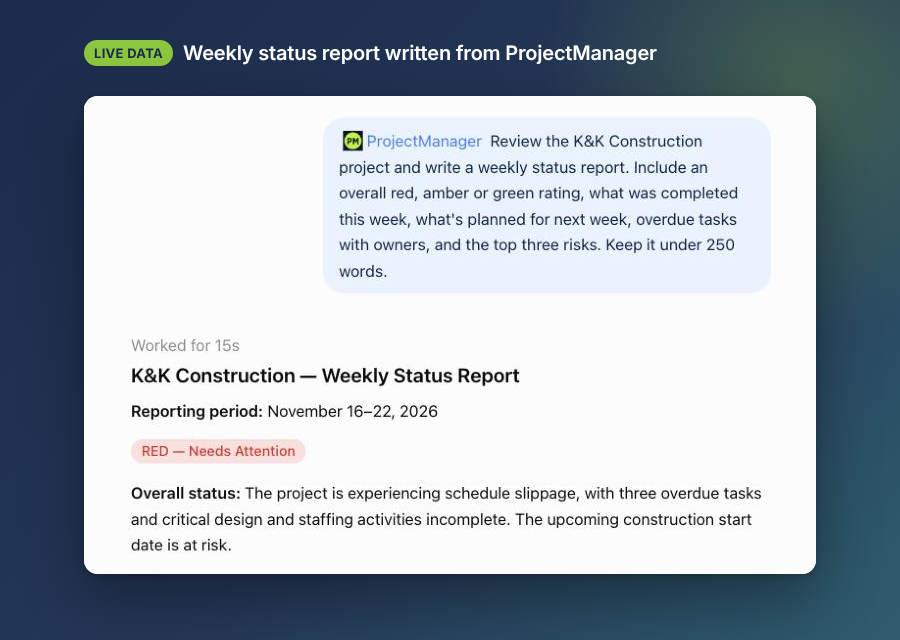
@ProjectManager Review the [project name] project and write a weekly status report. Include an overall red, amber or green rating, what was completed this week, what’s planned for next week, overdue tasks with owners, and the top three risks. Keep it under 250 words.
2. Multi-project status roundup
@ProjectManager For every project I manage, give me a one-line status: percent complete, number of overdue tasks and whether it’s on track. Put it in a table, sorted with the most at-risk project first.
3. Status report from pasted data
Act as a senior project manager. Using the data below, write a weekly status report with sections for summary, accomplishments, next steps, risks and decisions needed. Flag anything in the data that looks incomplete or inconsistent instead of guessing. [paste data]
4. Daily standup summary
@ProjectManager Give me a standup summary for [project name]. List tasks completed this week, tasks that are overdue and anything due in the next two days, with owners.
Executive and Stakeholder Reports
5. Executive summary
@ProjectManager Write a three-sentence executive summary of [project name] for [the CEO / the steering committee]. Lead with whether we’ll hit the [date] deadline and budget, then the biggest risk and any decision we need from them.
6. Client update email
@ProjectManager Write a client-friendly progress update for [client name] on [project name]. Focus on completed milestones and what’s coming next. Keep internal issues out unless they affect the client’s dates. Use a warm, professional tone.
7. One report, three audiences
Rewrite this status report three ways: a five-bullet version for executives, a detailed version for the project team and a plain-language version for the client. [paste report]
8. Board or steering committee slide notes
@ProjectManager Summarize [project name] as speaker notes for a five-minute steering committee update: progress vs. plan, budget, top risks and asks. Write it as short bullet points I can talk through.
Schedule and Progress Reports
9. Overdue and at-risk tasks report
@ProjectManager Which tasks in [project name] are overdue or due in the next [14] days and less than [50]% complete? Show the owner, due date and percent complete in a table, and explain which ones could delay the project.
10. Milestone report
@ProjectManager List the milestones in [project name] with their planned dates and current status. Which are on track and which are at risk? Write a short paragraph on what the team should focus on to protect the next milestone.
11. Explain the slip
@ProjectManager [Project name] is behind schedule. Look at the overdue tasks, their dependencies and the task comments. Write a short explanation of what caused the delay and suggest two recovery options.
Budget and Time Reports
12. Budget summary
@ProjectManager Summarize the budget for [project name]: total budget, costs to date and percent complete. Explain in plain language whether spending is on pace with progress.
13. Planned vs. actual hours
@ProjectManager In [project name], which tasks have used more hours than planned? List the top [10] by hours over, and write two sentences on what the pattern suggests.
14. Explain a variance
Here are our planned and actual cost and schedule figures, calculated by our project management software: [paste figures]. Explain what they mean for a non-finance audience and what questions leadership is likely to ask. Do not recalculate the numbers.
Resource and Team Reports
15. Team workload report
@ProjectManager Show each person on the [project name] team with their open, overdue and completed tasks. Who looks overloaded and who has capacity? Suggest one rebalancing move.
16. One-on-one prep report
@ProjectManager Summarize [name]’s work across my projects: tasks completed this month, open tasks and anything overdue. Suggest three talking points for our one-on-one.
Risk and Issue Reports
17. Risk report from the project
@ProjectManager Review [project name] for risks: overdue tasks, tasks over their planned hours, budget pressure and anything flagged in task comments. Group them into a risk table with likelihood, impact and a suggested response.
18. Discussion digest
@ProjectManager Summarize the comment threads on the [5] most active tasks in [project name]. What decisions were made, what’s unresolved and what needs escalation?
Closing Reports
19. Project closure report
@ProjectManager Write a closure report for [project name]: original goals, final schedule and budget compared to plan, key deliverables, what went well and what didn’t. Keep it to one page.
20. Lessons learned
Here are notes from our project retrospective: [paste notes]. Organize them into a lessons learned report with themes, root causes and three specific changes for the next project.
Tips for Better ChatGPT Project Reports
- Start with live data. The best prompt can’t fix a stale spreadsheet. Pull data from your project management system, not last week’s export.
- Name the audience. “For the CFO” and “for the delivery team” produce very different reports from the same data.
- Set the format and length. Ask for a RAG rating, a table, bullet points or a word limit so reports are consistent week to week.
- Let software do the math. Use your project management tool for variance, earned value and utilization figures, then have ChatGPT explain them.
- Ask it to flag gaps. Tell ChatGPT to point out missing or inconsistent data instead of filling in blanks.
- Check before you send. Review dates, numbers and names against your dashboard, especially in reports going to clients or executives.
- Follow your company’s AI policy. Don’t paste confidential client or financial data into unapproved chats.
ChatGPT Reporting FAQ
Can ChatGPT create a project report?
Yes. ChatGPT can write status reports, executive summaries, client updates and closure reports in seconds. The quality depends on the data you give it. Connected to ProjectManager, it reads your live project data so the report reflects what’s actually happening.
Can ChatGPT make charts and dashboards?
It can generate static charts from data you upload, but they don’t update when the project changes. For live, shareable dashboards and Gantt charts, use project management software and let ChatGPT write the summary that goes with them.
Is ChatGPT accurate with project numbers?
Not always. Language models can make calculation mistakes and present them confidently. Let your project management software calculate budgets, hours and variance, and use ChatGPT to explain the results.
Do I still need to upload spreadsheets?
Not with the integration. Once ChatGPT is connected to ProjectManager, it reads schedules, progress, hours, costs and workload directly. You just ask for the report.
Is my project data safe?
Each person signs in with their own ProjectManager account, so ChatGPT only sees what they can already access. It asks before changing data by default, and admins can turn access on or off by role.
Does this work with Claude too?
Yes. The same integration works with both ChatGPT and Claude.
Get the World’s Best AI and Proper Project Reporting Software
ChatGPT writes great reports. ProjectManager makes sure they’re built on real data. It’s award-winning project management software that more than 35,000 teams use to plan, track, and report on work, and it connects to ChatGPT at no extra cost across all editions. Connect ChatGPT to your live projects in minutes and stop rebuilding reports from spreadsheets. Try ProjectManager free for 30 days.