



ChatGPT can draft a project charter in 30 seconds, turn a messy kickoff call into a clean task list and write the status report you’ve been dreading. What it can’t do on its own is run your project: it has no Gantt chart, no resource calendar and no idea that Dave is out next week.
That’s why the smartest project managers aren’t choosing between AI and project management software. They’re connecting the two. In this guide, you’ll learn how to use ChatGPT for project management, where it falls short, why built-in “AI agents” inside PM tools often disappoint and how pairing ChatGPT with ProjectManager gives you the best of both. We’ve also included free, copy-and-paste ChatGPT prompts for every phase of your project.
Can You Use ChatGPT for Project Management?
Yes, and it’s very good at the thinking and writing parts of the job. ChatGPT is a large language model, which means it excels at turning loose ideas into structured documents, plans and messages. On its own, though, it’s a brilliant assistant with no office: it can tell you what should happen, but it can’t track what is happening.
| ChatGPT does well on its own | ChatGPT can’t do on its own |
|---|---|
| Draft project charters, scope statements and SOWs | Hold a live schedule with dependencies and a critical path |
| Build a first-pass work breakdown structure (WBS) | Know who’s available, overallocated or on PTO |
| Brainstorm risks and mitigation strategies | Track actual progress, hours and costs against the baseline |
| Summarize meeting notes into action items | Notify your team when a task changes or slips |
| Write status reports and stakeholder emails | Keep a single source of truth everyone can see |
| Explain PM methods (Agile, Waterfall, earned value) | Remember your project next week without re-pasting it |
The left column is why project managers love ChatGPT. The right column is why copy-pasting its output into spreadsheets gets old fast. The fix isn’t a weaker AI that lives inside your PM tool. It’s connecting the best AI to a real project management platform.
But planning is only half the job. ProjectManager is award-winning project management software that connects directly to ChatGPT. Ask ChatGPT to build your plan, and it creates real tasks with dates, dependencies, priorities and assignees in ProjectManager. Every change shows up in real time on your Gantt charts, kanban boards, workload views and dashboards, so your whole team works from the same live plan. Get started with ProjectManager today for free.
AI Project Management Software: Built-In Agents vs. Bring Your Own AI
AI project management software uses artificial intelligence to plan, schedule, track and report on projects. Nearly every PM vendor now claims to have it, but they’re taking one of two very different approaches.
Approach 1: Build an in-house AI and lock it inside the app. This is the route most tools have taken:
- ClickUp sells Brain AI as a per-member monthly add-on, and its Super Agents run on separate AI credits that don’t roll over. When premium model usage runs out, Brain falls back to a standard model (ClickUp).
- monday.com has moved its AI agents, sidekick and AI blocks onto AI credits bought on top of seats. A single complex agent task can burn 250+ credits (monday.com).
- Asana meters AI Studio by credits, too. When included credits run out, AI rules stop running unless an admin turns on on-demand billing (Asana).
- Smartsheet, Wrike and others have added their own assistants and agents as well.
The pattern is the same everywhere. The AI is a feature the PM vendor built around its own app, not the product. It only knows what’s inside that one tool, you’re limited to the models and skills the vendor decides to give you, and a usage meter is always running. These assistants are fine for summarizing a task or drafting a comment, but they aren’t as powerful as a dedicated AI that’s built, trained and improved by one of the world’s leading AI companies.
Approach 2: Connect the world’s best AI to proper project management software. This is the ProjectManager approach. Instead of asking you to settle for a homegrown chatbot, ProjectManager plugs directly into ChatGPT, the AI assistant hundreds of millions of people already use every day. You keep the AI you already know and trust, and you get a full-featured PM platform underneath it.
| Built-in PM AI (ClickUp, monday.com, Asana, etc.) | ChatGPT + ProjectManager | |
|---|---|---|
| AI power | Vendor’s own AI layer, limited to its skills and models | ChatGPT, a leading general-purpose AI |
| Where you work | Inside the PM app only | In ChatGPT or in ProjectManager, your choice |
| AI pricing | Add-ons and usage credits on top of seats | Use your existing ChatGPT plan |
| PM depth | Varies by tool | Gantt charts, dependencies, critical path, workload, timesheets, dashboards |
| Lock-in | AI and PM tool are one bundle | Best-in-class AI + best-in-class PM, connected |
How the ChatGPT + ProjectManager Integration Works
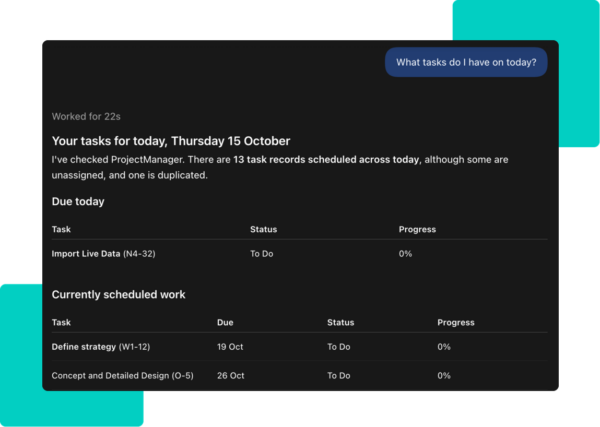
The ProjectManager app for ChatGPT connects your ProjectManager account directly to ChatGPT. Once it’s connected, ChatGPT stops being a smart notepad and starts doing real project work. According to ProjectManager’s AI integrations guide, you can:
- Find work: List projects, find tasks by project or date, see what’s assigned to you and pull up project or task details.
- Understand your team: See workspace members, who’s assigned to a project and who owns each task.
- Create work: Create projects, tasks and subtasks; assign team members; set planned dates, durations and costs; and manage task links and lag.
- Update work: Change task status and priority, update progress and reorganize tasks into subtasks.
- Use project files as context: Have ChatGPT review files attached to a project or task.
That means a plan you brainstorm in ChatGPT can become a real schedule in ProjectManager, complete with task hierarchy, dates, priorities and assignees. From there, it shows up on your Gantt chart, kanban board, workload view and dashboards for the whole team.
How to Connect ChatGPT to ProjectManager
- Open the ProjectManager app in ChatGPT and click Install.
- Sign in with your ProjectManager account. Each user connects their own account, so ChatGPT only sees the projects and tasks you can see.
- Start your first prompt with @ProjectManager so ChatGPT knows to use the app.
- Approve changes as you go. By default, ChatGPT asks permission before it changes project data. ProjectManager recommends always allowing read-only actions and requiring approval for writes and deletes.
For admins: Access is controlled by the “Access work from ChatGPT and Claude” role security setting. It’s on by default for every role except guests. (Prefer Claude? The same integration works there too.)
Don’t have ProjectManager yet? Start a free trial and connect ChatGPT in minutes.
Free ChatGPT Prompts for Project Management
Copy these prompts, swap in the details in [brackets] and paste them into ChatGPT. Prompts marked @ProjectManager use the integration to read or write real project data; the rest work in any ChatGPT chat.
Project Initiation Prompts
1. Project charter
Act as a senior project manager. Write a one-page project charter for [project name]. The goal is [goal], the budget is [budget], and the deadline is [date]. Include: purpose, objectives (SMART), scope, key stakeholders, high-level milestones, assumptions, constraints and success criteria.
2. Stakeholder analysis
Here are the stakeholders for [project]: [list names and roles]. Build a stakeholder analysis table with each person’s interest, influence, what they care about most and how often I should communicate with them.
3. Scope check
Review this project scope: [paste scope]. List anything vague, missing or likely to cause scope creep, and rewrite it with clear in-scope and out-of-scope items.
Project Planning Prompts
4. Work breakdown structure
Create a work breakdown structure for [project]. Break it into phases, deliverables and tasks, with estimated duration for each task and any dependencies between them.
5. Turn the plan into a real schedule (@ProjectManager)
@ProjectManager Create a new project called [project name] from the plan we just built. Organize the work into tasks and subtasks, set start and end dates starting [date], link dependent tasks, and set priorities.
6. Plan from a document (@ProjectManager)
@ProjectManager I’ve attached [an RFP / a statement of work / a client brief]. Pull out every deliverable and deadline, then create the project in ProjectManager with tasks, dates and priorities.
7. Risk register
Identify the top 10 risks for [project] in [industry]. For each, give the likelihood (low/medium/high), impact (low/medium/high), an owner role and a mitigation plan. Format it as a table.
8. Resource and budget estimate
Estimate the roles, hours and labor cost needed for [project] using these rates: [roles and hourly rates]. Show the totals by phase and flag where I’m likely to be underestimating.
Project Execution Prompts
9. Assign the work (@ProjectManager)
@ProjectManager Who is on the [project name] team? Assign the unassigned tasks in that project to the right people based on their roles, and show me the list before you make changes.
10. Meeting notes to action items (@ProjectManager)
@ProjectManager Here are my notes from today’s [meeting]: [paste notes]. Pull out every action item, owner and due date, then create them as tasks in the [project name] project.
11. Daily priorities (@ProjectManager)
@ProjectManager Show me all tasks assigned to me across my projects that are due this week, sorted by priority. Which three should I tackle first, and why?
12. Difficult conversation
I need to tell [stakeholder] that [deliverable] will be [X days] late because [reason]. Draft a short, honest message that explains the impact and offers two recovery options.
Monitoring and Controlling Prompts
13. Weekly status report (@ProjectManager)
@ProjectManager Review the [project name] project and write a weekly status report for executives: overall status (green/yellow/red), completed this week, coming up next week, overdue tasks, risks and decisions needed. Keep it under 200 words.
14. Spot trouble early (@ProjectManager)
@ProjectManager Which tasks in [project name] are overdue or at risk of slipping in the next two weeks? Who owns them, and what’s the knock-on effect on later tasks?
15. Update progress in bulk (@ProjectManager)
@ProjectManager Based on this progress update: [paste update], change the status and progress of the matching tasks in [project name] and create follow-up tasks for anything blocked.
16. Review attached files (@ProjectManager)
@ProjectManager Review the files attached to the [task name] task and list any open issues, missing approvals or deadlines I need to act on.
Project Closing Prompts
17. Lessons learned
Run a lessons-learned retrospective for [project]. Here’s what happened: [summary]. Organize the findings into what went well, what didn’t and what we’ll do differently, with one concrete recommendation per item.
18. Closeout report (@ProjectManager)
@ProjectManager Summarize the [project name] project for a closeout report: planned dates, task status and progress, completed deliverables, any open tasks and the team members involved.
19. Handoff checklist
Create a project closeout and handoff checklist for [project type], covering deliverable sign-off, documentation, contracts, budget reconciliation, team release and celebration.
Tips for Getting Better Results From ChatGPT
- Give it a role. Starting with “Act as a senior project manager in [industry]” gets you sharper, more relevant output.
- Feed it context. The more you share about scope, budget, team and deadlines, the less generic the answer. With the ProjectManager integration, ChatGPT pulls that context from your live project instead of your memory.
- Ask for a format. Tables, checklists and word limits make output easier to use and share.
- Iterate. Treat the first answer as a draft. Follow up with “make it shorter,” “add dependencies” or “what am I missing?”
- Review before you approve. ChatGPT asks permission before changing data in ProjectManager. Read what it plans to do, especially for bulk updates and deletes.
- Keep sensitive data in check. Follow your company’s AI policy and don’t paste confidential client data into chats your organization hasn’t approved.
- Stay the project manager. ChatGPT is fast, but it can be confidently wrong. Check estimates, dates and risk calls against your own judgment and your team’s input.
ChatGPT Project Management FAQ
Can ChatGPT replace project management software?
No. ChatGPT is excellent at planning, writing and analysis, but it doesn’t hold a live schedule, track resources or keep your team in sync. Connecting it to ProjectManager gives you both.
Can ChatGPT create a Gantt chart?
On its own, ChatGPT can only describe a schedule or generate a static chart. With the ProjectManager integration, it creates real tasks with dates, dependencies and lag that appear instantly on ProjectManager’s interactive Gantt chart.
Is ChatGPT a good AI project management tool?
It’s the strongest AI assistant most PMs have access to. Paired with ProjectManager, it becomes a true AI project management tool that can read, create and update your project data.
Is my project data safe?
Each user signs in with their own ProjectManager account, so ChatGPT only sees what that user can see. ChatGPT asks before changing data by default, and admins can turn access on or off by role.
Does the integration work with Claude too?
Yes. The same ProjectManager integration works with both ChatGPT and Claude.
Get the World’s Best AI Agent and Proper Project Management Software
You don’t have to settle for a PM vendor’s homegrown AI or a chatbot that forgets your project the moment you close the tab. ChatGPT brings the intelligence. ProjectManager brings the award-winning project management software that turns ChatGPT’s plans into real, trackable work. More than 35,000 teams already use it to deliver projects on time and on budget.
Here’s what’s waiting on the other side of every ChatGPT prompt.
Plan on Powerful Gantt Charts
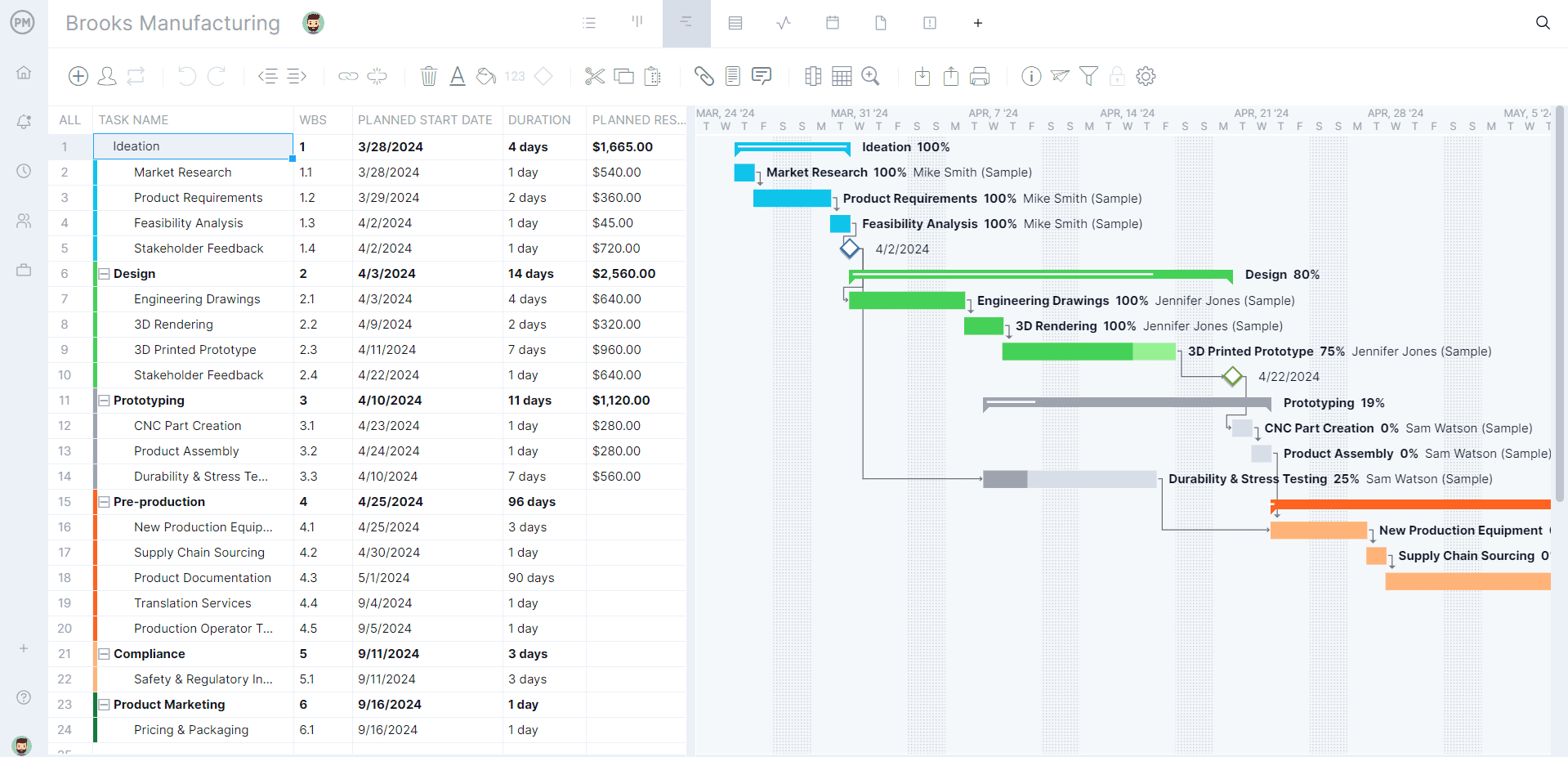
When ChatGPT builds your project, it lands on ProjectManager’s interactive Gantt chart, not in a static list. Link dependencies, set milestones, find the critical path and drag and drop dates as plans change. Already have a plan in Microsoft Project or Excel? Import it and keep working.
Give Every Team the View It Wants
The same live project data appears on Gantt charts, kanban boards, task lists, sheets and calendars. Your executives see the timeline, your team sees its board, and everyone works from one source of truth, whether they update tasks in ChatGPT or in ProjectManager.
Balance Workload and Track Time
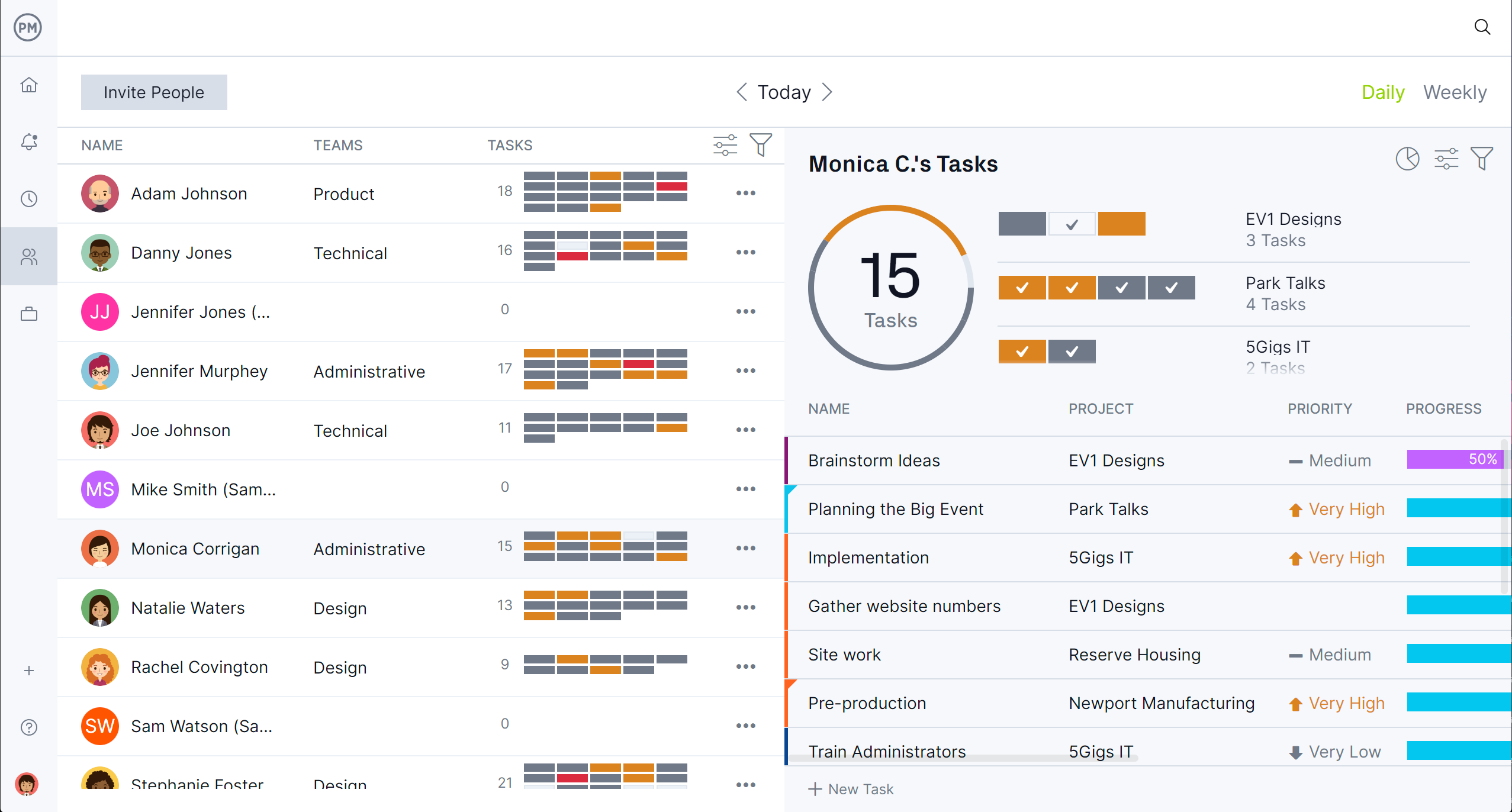
ChatGPT can assign the work, and ProjectManager makes sure nobody’s buried. Resource management tools show who’s available and who’s overallocated, so you can reassign tasks in a click. Timesheets fill in automatically from tracked time, and cost tracking keeps your budget honest.
Monitor Progress With Real-Time Dashboards and Reports
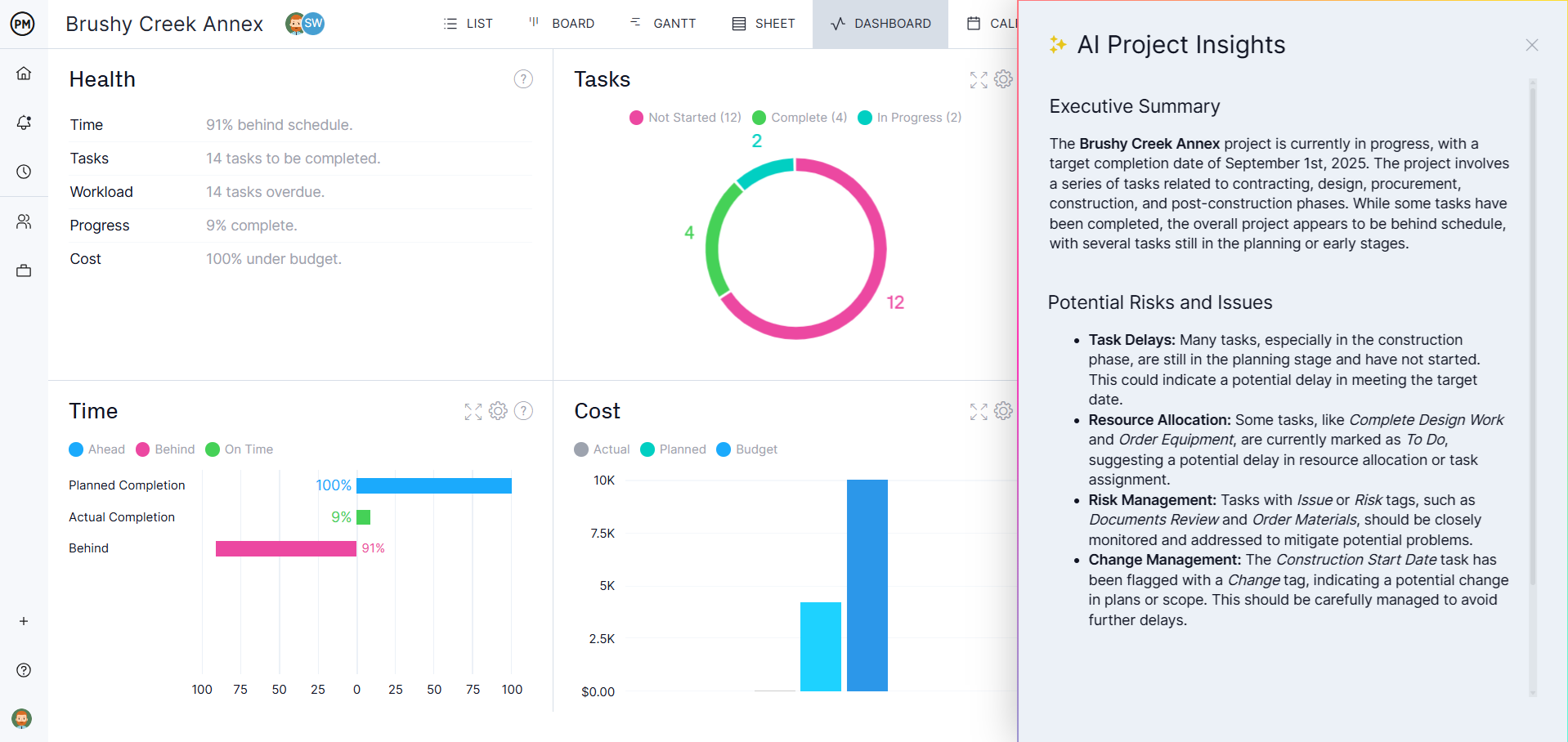
Ask ChatGPT for a status update, then share ProjectManager’s real-time dashboards and one-click reports with stakeholders. Need more AI help inside the app? AI Project Insights analyzes your project with one click and returns an executive summary, risk analysis and recommendations, included at no extra cost on Business and Enterprise plans.
Keep Work Secure and Connected
ProjectManager is SOC 2 compliant, with custom roles, user permissions and free guest licenses for stakeholders. It also connects to 1,000+ apps, including Microsoft Teams, Slack, Google, Jira and Zapier, so ChatGPT is just one of the tools your projects plug into.
Start Managing Projects With ChatGPT Today
The world’s best AI agent plus proper project management software. That’s the combo built-in AI agents can’t match. Try ProjectManager free for 30 days, connect ChatGPT in minutes and run your next project from a single prompt.
