



Project teams don’t all sit in the same office anymore. Some are hybrid, some are fully remote and some are spread across time zones. That makes communication the glue that holds a project together. Is it the only thing that matters? No, but without it, even the best project plan falls apart!
That’s where Microsoft Teams comes in. It’s one of the most widely used collaboration tools in the world, but many people only scratch the surface of what it can do. Below, we’ll explain what Microsoft Teams is, walk through its key features, show you how to use Microsoft Teams step by step and share tips for getting more out of it. We’ll also cover where Teams falls short for project management and how to fill those gaps.
What Is Microsoft Teams?
Microsoft Teams is a workplace communication and collaboration platform. It brings chat, video meetings, calls, file sharing and app integrations into one workspace. Teams is part of the Microsoft 365 suite, so it connects with tools like Outlook, Word, Excel, PowerPoint, OneDrive and SharePoint.
Organizations of every size use Teams, from small businesses to global enterprises. It’s available on desktop, web and mobile, so team members can stay connected wherever they work. There’s a free version for personal use and small groups, as well as paid business plans that add longer meetings, more storage and admin controls.
For project managers, Teams acts as a central hub for project communication. Instead of scattered email threads, conversations, files and meetings for a project can live in one place.
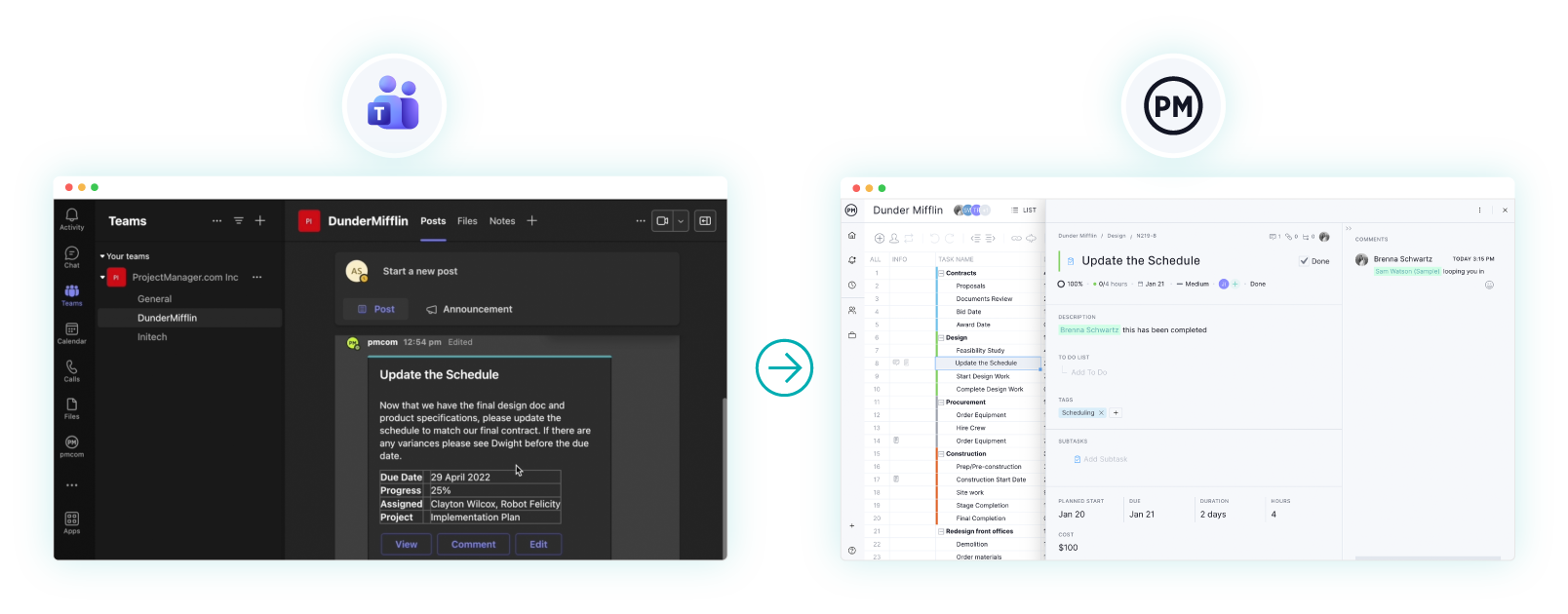
But communication is only half the job. To plan, schedule and track the work itself, you need project management software. ProjectManager is award-winning project management software that integrates with Microsoft Teams, so you can create, search, share and update tasks without leaving your Teams chats and channels. Every change syncs in real time with your Gantt charts, kanban boards and dashboards in ProjectManager. Get started with ProjectManager today for free.
Microsoft Teams Features
Before learning how to use Microsoft Teams, it helps to know what’s inside. These are the core features most teams rely on every day.
Chat
Teams offers one-on-one and group chat for quick conversations. You can format messages, share files, add emojis and GIFs, and @mention people to get their attention.
Teams and Channels
A team is a group of people working together, such as a department or project team. Each team is divided into channels, which are dedicated spaces for specific topics, workstreams or clients. Channels can be standard (open to all team members), private or shared with people outside the team.
Meetings and Calls
You can schedule video meetings, start instant meetings or make audio calls. Meetings include screen sharing, recording, live captions, breakout rooms, whiteboards and meeting chat.
File Sharing and Collaboration
Files shared in Teams are stored in SharePoint and OneDrive. Team members can open and co-edit Word, Excel and PowerPoint files without leaving Teams.
Apps and Integrations
Teams connects with Microsoft apps like Planner, Loop and Forms, plus hundreds of third-party apps. You can add apps as tabs in a channel, use them in chat or set up bots and workflows.
Calendar
The Teams calendar syncs with Outlook, so you can see your schedule, join meetings and send invites in one place.
How to Use Microsoft Teams: Step-by-Step Guide
Ready to get started? Follow these steps to set up Microsoft Teams and start collaborating with your project team.
1. Sign In or Download Microsoft Teams
Go to the Microsoft Teams website and sign in with your Microsoft account or work account. You can use Teams in a web browser, but the desktop and mobile apps offer the best experience. If your organization uses Microsoft 365, Teams is likely already included in your license.
2. Get to Know the Interface
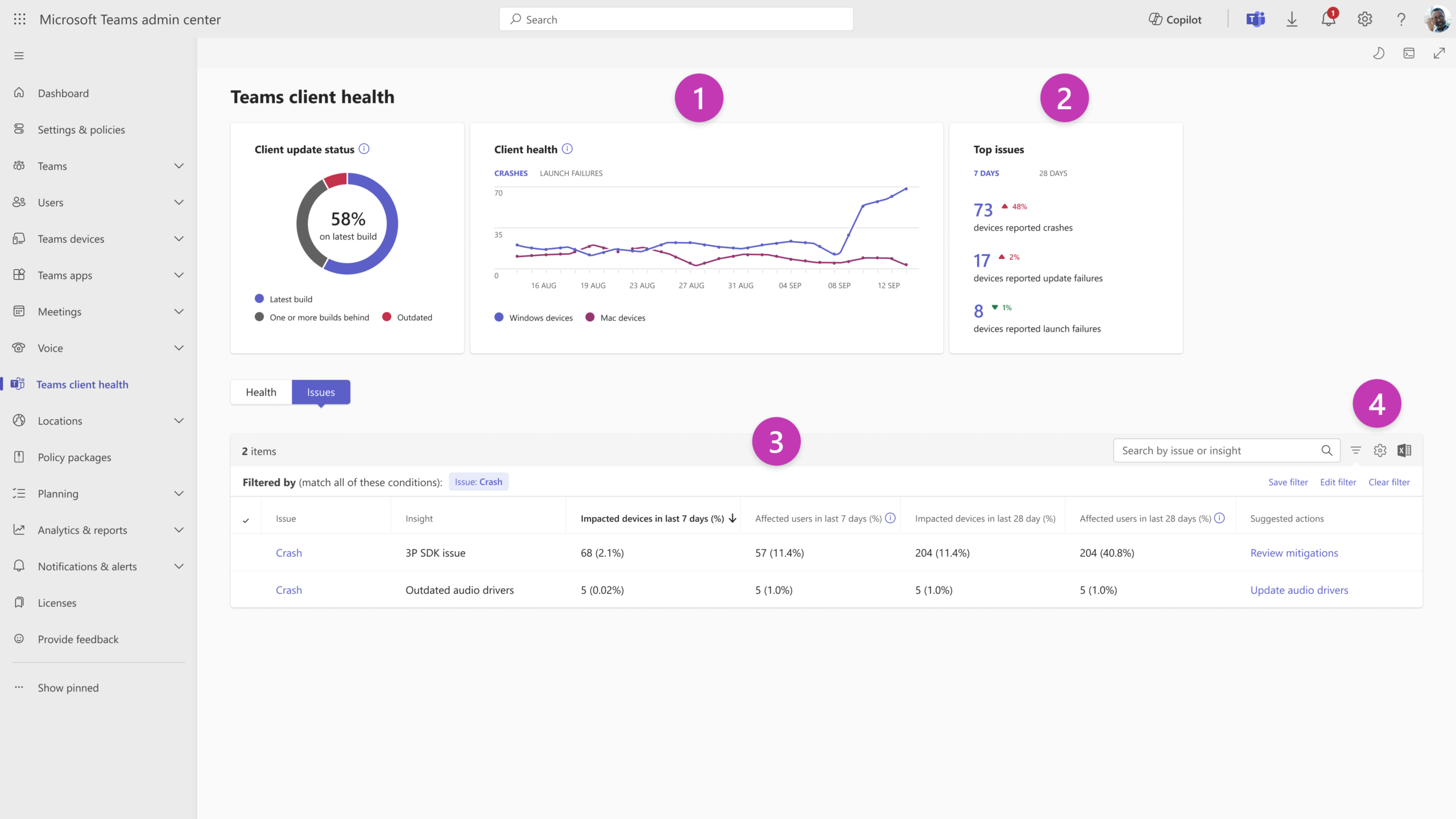
The left-side menu is your main navigation. It includes Activity (notifications), Chat, Teams, Calendar, Calls and Files. The search bar at the top lets you find messages, people and files. Take a few minutes to click through each area so you know where things live.
3. Create a Team
Click Teams, then select the option to create or join a team. You can build a team from scratch, from an existing Microsoft 365 group or from a template. Give it a clear name and description, then choose whether it’s private (members join by invitation) or public (anyone in your organization can join). For project work, it’s common to create one team per project.
4. Add Channels
Inside your team, add channels to organize conversations by topic. A project team might have channels for planning, design, development, client updates and announcements. Every team starts with a General channel, so use it for team-wide news and keep focused work in topic channels.
5. Invite Team Members
Open the team’s settings and select Add member. Enter names or email addresses for people in your organization. You can also invite guests, such as clients or contractors, using their email address. Assign owners who can manage settings and members.
6. Start Chatting and Posting
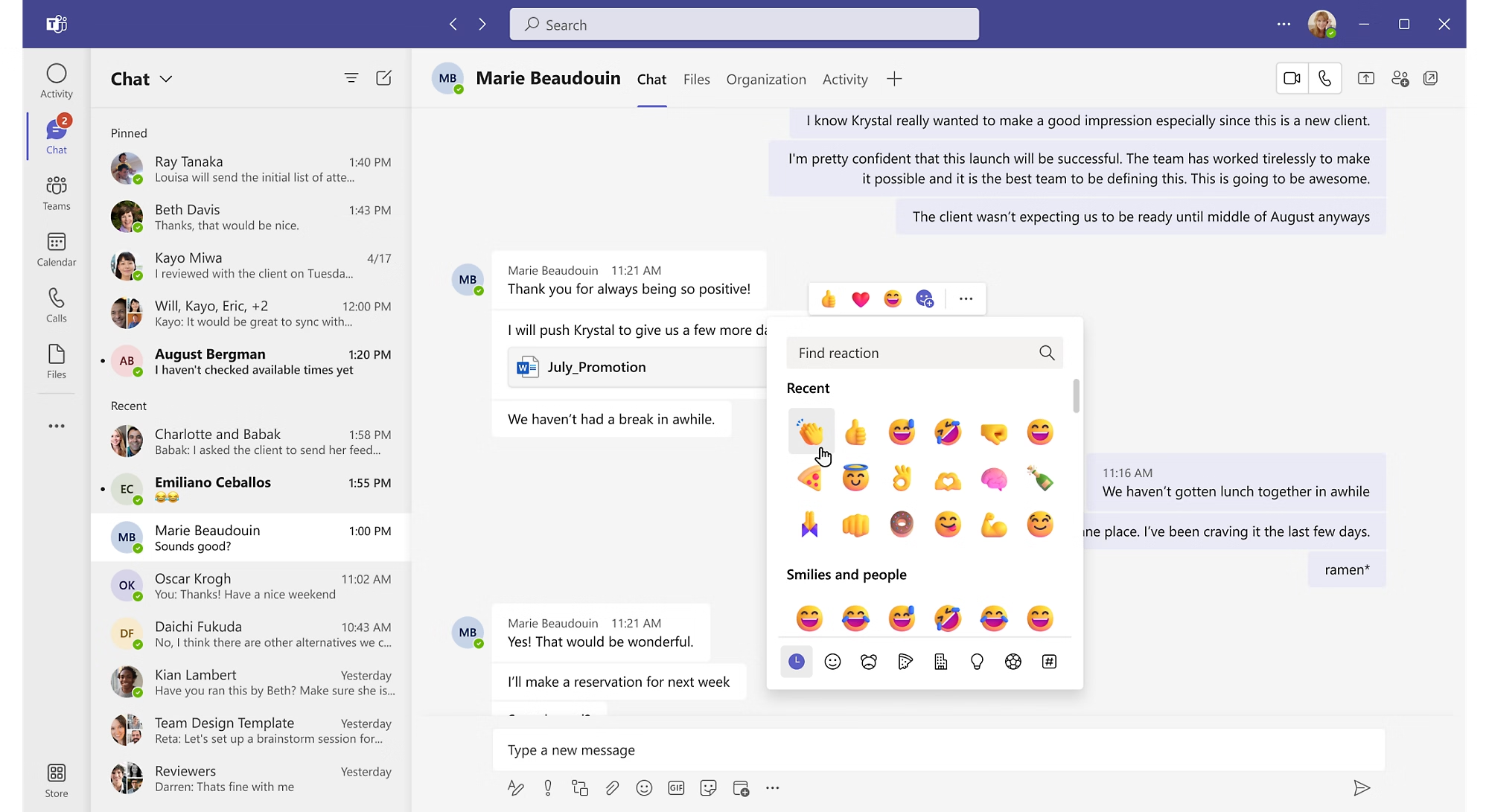
Use private chat for quick one-on-one or small group questions. Use channel posts for project conversations that the whole team should see. Start a new post for each topic and reply within its thread to keep discussions organized. @mention a person, channel or the whole team when you need attention.
7. Schedule and Join Meetings
Schedule a meeting from the Calendar, or click Meet in a channel to start one right away. Add attendees, set the date and time, and pick a channel if you want the meeting visible to the team. During meetings, share your screen, record the session and use meeting chat for links and notes. Recordings and transcripts are saved for team members who missed it.
8. Share and Co-Edit Files
Upload files to a channel’s Files tab or attach them to a chat. Team members can open documents and edit them together in real time. Because files are stored in SharePoint, everyone works from the same version instead of emailing attachments back and forth.
9. Add Apps and Tabs
Click the + icon at the top of a channel to add a tab. Pin a project plan, a whiteboard, a Planner board or a third-party app your team uses. Visit the Apps section to browse integrations, including project management software like ProjectManager.
10. Manage Notifications
Teams can get noisy fast. Go to Settings and adjust notifications so you see what matters. Turn notifications on for key channels, mute low-priority ones and set your status to Do Not Disturb when you need focus time.
Related: Microsoft Teams Integration: How to Use It
Microsoft Teams Tips and Best Practices
Knowing how to use Microsoft Teams is one thing. Using it well is another. These tips help keep your workspace organized and your team productive.
- Set naming conventions: Use consistent names for teams and channels, such as “Project – Client Name,” so they’re easy to find.
- Keep conversations threaded: Reply to existing posts instead of starting new ones on the same topic.
- Use @mentions wisely: Tag specific people rather than the whole team to avoid notification fatigue.
- Pin important channels and chats: Keep your most active projects at the top of your list.
- Use the search bar and commands: Find messages, files and people quickly instead of scrolling.
- Record key meetings: Save recordings and transcripts for stakeholders who can’t attend live.
- Archive finished projects: Archive teams when a project closes to reduce clutter while keeping a record.
- Set team etiquette: Agree on response times, when to use chat versus channels and when to schedule a meeting.
Pros and Cons of Microsoft Teams for Project Management
Many project managers use Teams as their main communication tool. It’s great for keeping people connected, but it wasn’t built to plan and track projects on its own.
Pros
- Centralizes project communication, meetings and files in one place
- Integrates tightly with Microsoft 365 apps like Outlook, Word and Excel
- Works on desktop, web and mobile for remote and hybrid teams
- Offers guest access for clients, vendors and contractors
- Includes enterprise-grade security and admin controls
Cons
- No native Gantt charts, task dependencies or critical path
- Limited resource management and workload tracking
- No built-in timesheets or project cost tracking
- Basic reporting with no project dashboards
- Important decisions can get buried in busy chat threads
That’s why many teams pair Microsoft Teams with dedicated project management software. Teams handles the conversation, while the project management tool handles the plan, schedule, resources and reporting.
ProjectManager Integrates With Microsoft Teams
Microsoft Teams keeps your team talking, but you still need a way to plan, schedule and track the work. ProjectManager is award-winning project management software that integrates with Microsoft Teams, so you can manage tasks without switching between apps. Get started with ProjectManager today for free.
Manage Tasks Directly in Teams
With the ProjectManager Microsoft Teams integration, you can create tasks by typing “task-create” in a direct message or channel. Search for any task with “task-search,” share tasks in chat to keep clients and team members informed and update them as soon as you get a progress report or approval. Changes sync in real time between Teams and ProjectManager, on desktop and mobile.

Plan Projects on Gantt Charts
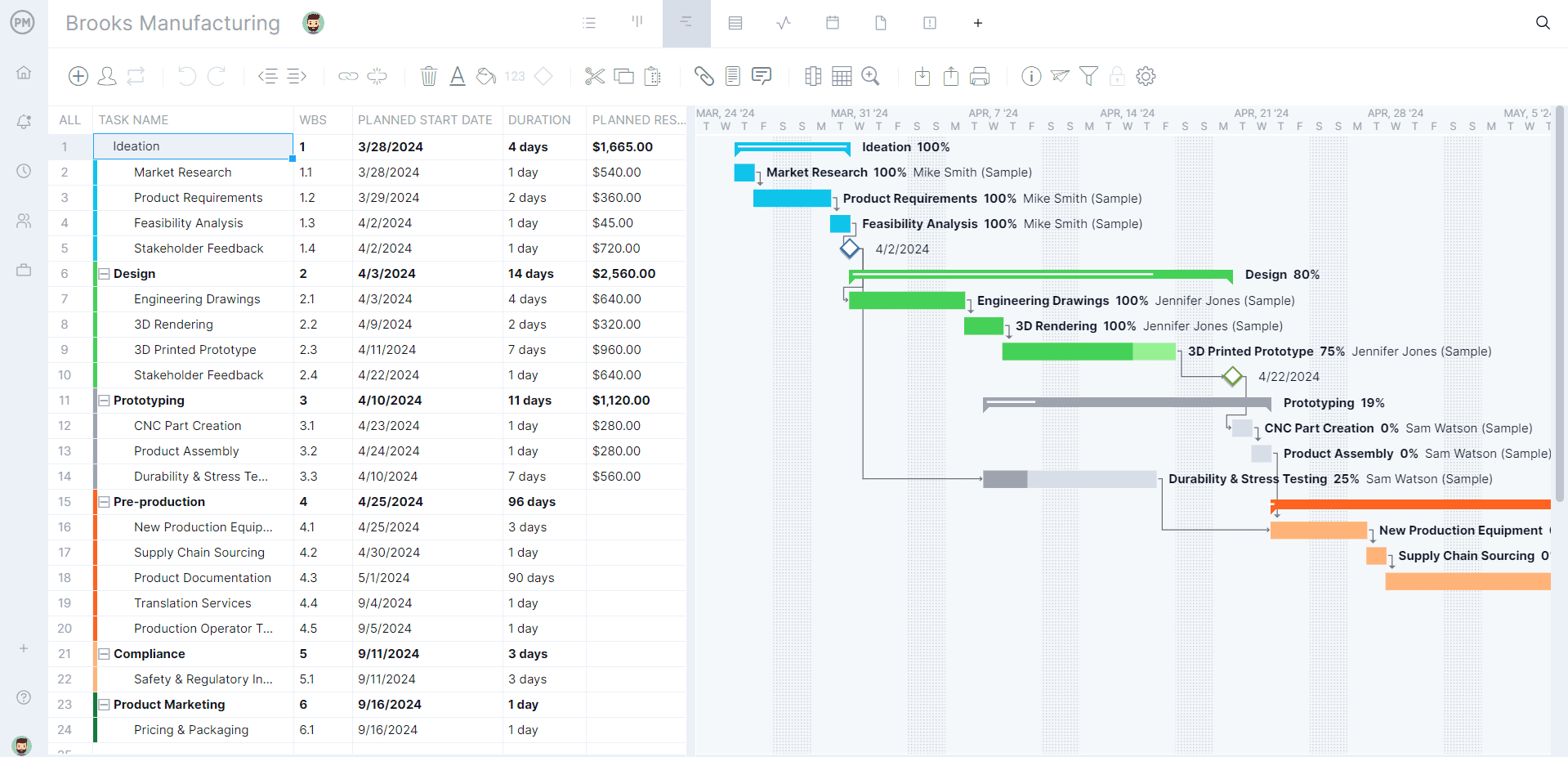
Teams doesn’t have a project schedule, but ProjectManager does. Our Gantt charts let you map every task on a timeline, link dependencies, filter for the critical path and set baselines to track planned versus actual progress. Team members can also work on kanban boards, list views and calendars, all updated in real time.
Track Resources, Time and Costs
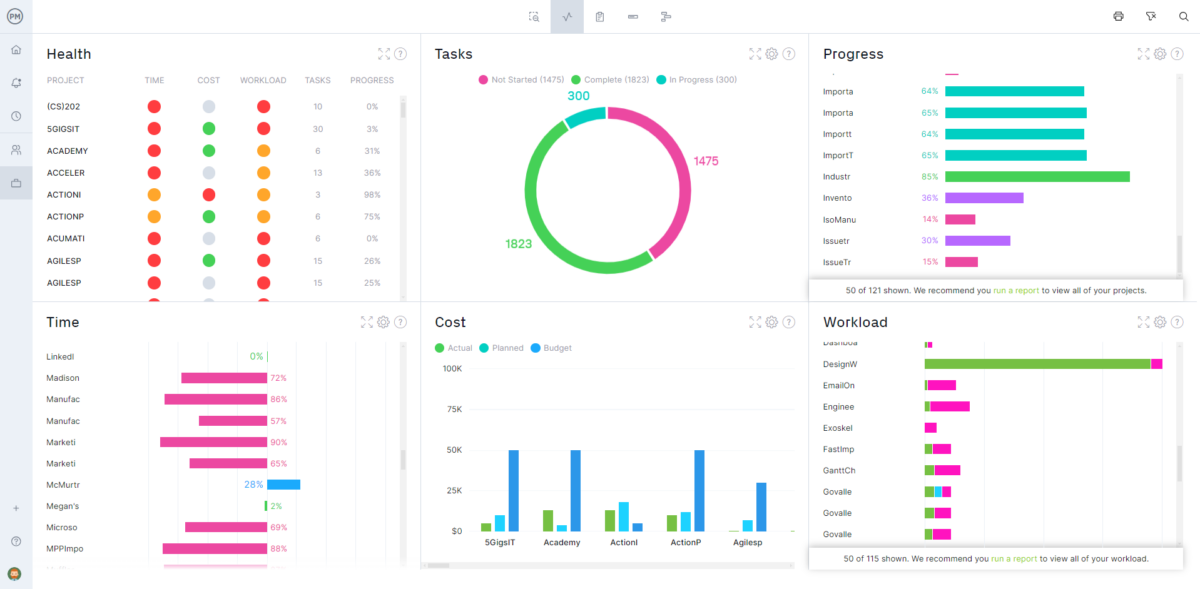
Keep your team’s workload balanced with color-coded workload charts and reallocate assignments right from the chart. Secure timesheets make it easy to track hours and labor costs, while real-time dashboards and one-click reports show project health, progress, costs and more. When your team chats in Teams and plans in ProjectManager, nothing falls through the cracks.
Microsoft Teams FAQ
Is Microsoft Teams free?
Yes, Microsoft Teams has a free version with core chat, meeting and file-sharing features. Paid plans, including Teams Essentials and Microsoft 365 business plans, add longer meetings, more storage and admin controls.
What’s the difference between a team and a channel?
A team is a group of people working together. Channels are topic-based spaces inside a team where conversations, files and apps are organized.
Can I use Microsoft Teams for project management?
Teams is great for project communication, but it lacks Gantt charts, resource management and project reporting. Pairing it with project management software like ProjectManager covers those gaps.
Can people outside my organization join Teams?
Yes. You can add guests to a team or invite external attendees to meetings using their email address.
