



A blank page is the hardest part of any project plan. You know the goal, but turning it into scope, tasks, dates, a budget and a risk list takes hours of thinking before you schedule a single task. ChatGPT can do a lot of that first-draft thinking for you in minutes, if you give it the right prompts.
In this guide, we’ll walk through how to write strong project planning prompts, how to keep your data secure, what project details to feed ChatGPT and how to work through the 10 traditional steps of project planning with AI as your assistant. Every step includes an example prompt you can copy, edit and use today. Then we’ll show you how to turn that plan into a live, trackable schedule with the ProjectManager ChatGPT integration.
Why Use ChatGPT for Project Planning?
Project planning is mostly structured thinking: breaking a big goal into smaller pieces, putting them in order and spotting what could go wrong. That’s exactly the kind of work a large language model like ChatGPT is good at drafting. It won’t replace a project manager’s judgment, but it can speed up the parts of planning that eat the most time.
- Beat the blank page. ChatGPT can turn a two-sentence project idea into a draft scope, work breakdown structure (WBS) and task list in seconds.
- Catch what you missed. Ask it to list overlooked tasks, stakeholders or risks, and it will surface items you might not have considered.
- Standardize your plans. Reusable prompts help every project manager on your team plan consistently, using the same sections and level of detail.
- Draft supporting documents faster. Project charters, communication plans, risk registers, and status reports all start with a template that ChatGPT can fill in.
- Think through what-ifs. Ask how the schedule changes if a vendor is two weeks late or the budget is cut by 10%, and get a starting point for your contingency plan.
The catch is that a plan sitting in a chat window isn’t a plan your team can work from. Tasks need owners, dates need dependencies and progress needs to be tracked. That’s where project management software comes in.
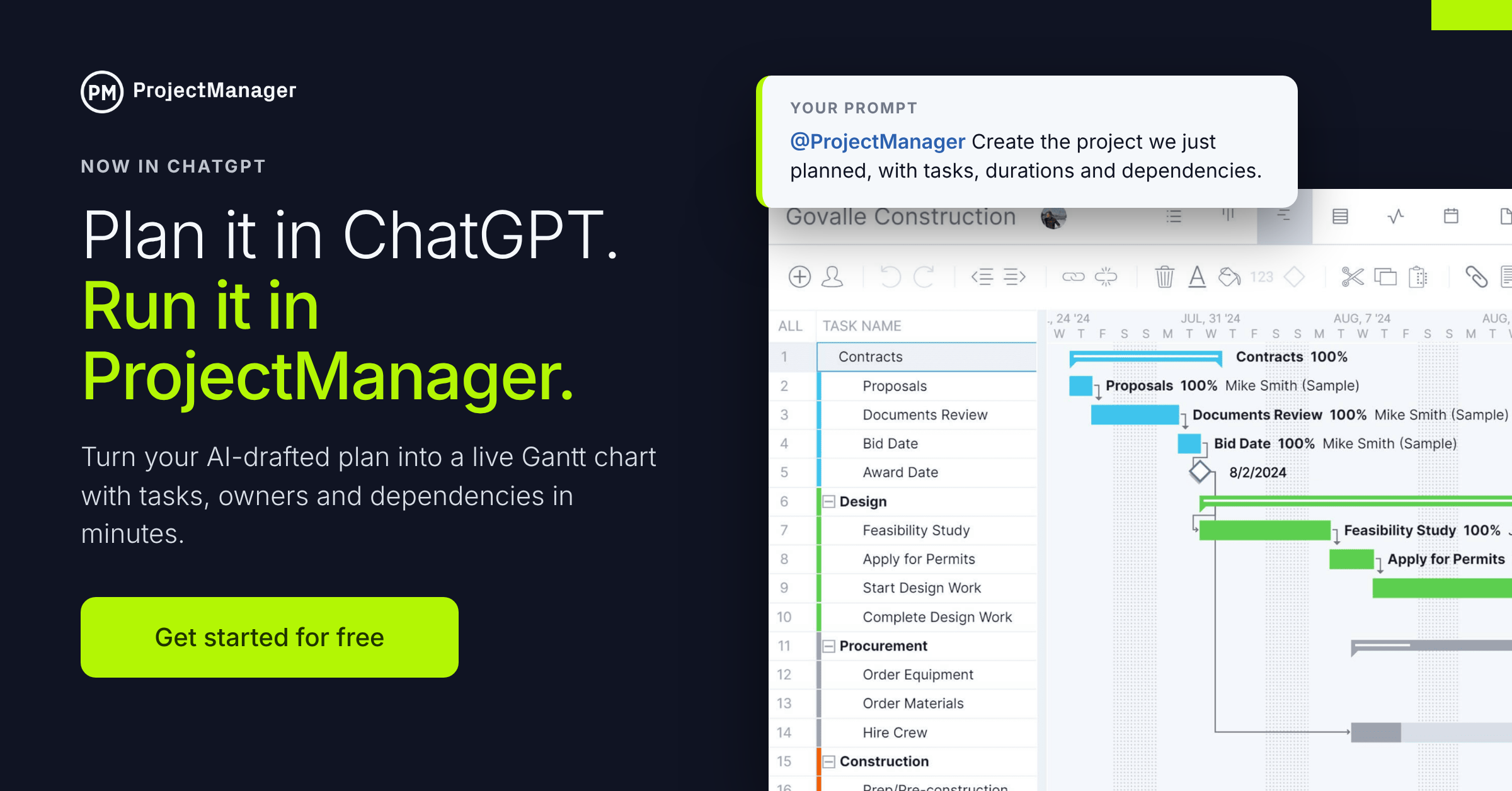
ProjectManager connects directly to ChatGPT, so you can turn your AI-drafted plan into a real project with tasks, assignees, dates and dependencies, then manage it on Gantt charts, kanban boards, task lists and real-time dashboards. The integration is included at no extra cost on every ProjectManager plan. Get started with ProjectManager for free today.
How to Write a Good ChatGPT Prompt for Project Planning
The quality of ChatGPT’s plan depends on the quality of your prompt. Vague prompts like “plan a website project” get generic answers. Specific prompts get plans you can actually use. A good project planning prompt has five parts.
- Role: Tell ChatGPT who to act as, such as “an experienced construction project manager” or “a PMP-certified IT project manager.” This sets the vocabulary and level of detail.
- Context: Describe the project, the industry, the team and any constraints like budget, deadline or required tools.
- Task: State exactly what you want, such as a WBS, a schedule, a risk register or a communication plan.
- Format: Ask for the output you need, such as a table with columns for task, owner, duration and dependency, or a numbered list grouped by phase.
- Constraints and follow-up: Set limits (“no more than 30 tasks,” “assume a five-day workweek”) and invite ChatGPT to ask clarifying questions before it answers.
Here’s what that looks like put together:
“Act as an experienced marketing project manager. I’m planning the launch of a new mobile app for a mid-sized fintech company. The launch date is March 2, the budget is $120,000 and the core team is six people: a product marketer, a designer, two developers, a content writer and me. Create a work breakdown structure grouped by phase. Present it as a table with columns for phase, task, estimated duration in days and dependencies. Keep it under 40 tasks. Before you answer, ask me up to five questions about anything you need to know.”
A few more tips will improve your results:
- Iterate. Treat the first answer as a draft. Ask ChatGPT to add detail to one phase, cut tasks or re-sequence the work.
- Keep one project per chat. ChatGPT uses the conversation history as context, so a dedicated chat keeps your plan consistent.
- Use a Project in ChatGPT. If your plan supports it, ChatGPT’s Projects feature lets you keep related chats and files together with shared instructions.
- Verify everything. ChatGPT can sound confident and still be wrong about durations, costs or regulations. Check its estimates against your team’s experience and historical data.
Be Sure Everything Is Secure in Your ChatGPT Account
Project plans often contain sensitive information: client names, budgets, salaries, vendor contracts and unreleased products. Before you paste any of that into ChatGPT, take a few minutes to lock down your account.
- Turn off model training. By default, personal ChatGPT accounts may use your conversations to improve OpenAI’s models. To opt out, go to Settings > Data Controls and turn off “Improve the model for everyone.” The setting applies to your whole account, so it syncs across web and mobile. (OpenAI)
- Use Temporary Chat for sensitive brainstorming. Temporary Chats aren’t used for training and are deleted from OpenAI’s systems within 30 days. (OpenAI)
- Turn on multi-factor authentication (MFA). Your chat history is a record of your projects. Protect it the same way you protect your email, under Settings > Security.
- Use a business workspace if you can. ChatGPT Business, Enterprise and Edu plans are built for organizations that need more control over their data, and admins can manage which apps and connectors employees use.
- Know what not to paste. Leave out passwords, API keys, personal employee data, customer financial details and anything covered by an NDA. Swap real names for placeholders like “Client A” when the detail doesn’t change the answer.
- Check your company’s AI policy. Many organizations have rules about which AI tools are approved and what data can go into them. Follow them.
The ProjectManager ChatGPT integration also respects your existing permissions. ChatGPT can only see projects and tasks you already have access to, and by default it asks for your approval before creating, updating or deleting anything.
Enter Your Project Details into ChatGPT
ChatGPT can only plan around what it knows. Before you ask for a schedule or a WBS, give it a project brief. Think of it as onboarding a new assistant project manager. The more context you share up front, the less you’ll need to correct later.
Include these details in your first message:
| Project detail | What to include |
|---|---|
| Project name and type | What you’re building or delivering and in what industry |
| Goal | The business problem the project solves and what success looks like |
| Deadline and key dates | Start date, final deadline and any fixed milestones or events |
| Budget | Total budget and any known fixed costs |
| Team | Roles, headcount and availability (full-time, part-time, contractors) |
| Stakeholders | Sponsor, client, approvers and anyone who needs updates |
| Constraints | Regulations, required tools, vendor lead times, blackout dates |
| Known risks | Anything that has gone wrong on similar projects before |
| Methodology | Waterfall, agile, hybrid or your organization’s own process |
If you already have a project charter, scope document or statement of work, you can upload it and ask ChatGPT to use it as the source of truth (after removing anything confidential).
Here’s an example project brief prompt:
“I’m going to give you the details of a project, and I want you to help me plan it over the next several messages. Don’t create anything yet. Just confirm you understand and list any missing information. Project: Renovating a 4,000-square-foot office for a 35-person accounting firm. Goal: Move the team into the new space with no more than two days of downtime. Start date: January 12. Move-in deadline: May 29. Budget: $380,000. Team: me as project manager, a general contractor, an architect, an IT vendor and the firm’s office manager. Stakeholders: the managing partner (sponsor) and all staff. Constraints: city permits required, no construction noise during tax season (March 1 to April 15) business hours. Methodology: waterfall.”
Asking ChatGPT to confirm and list gaps before it starts planning is a simple trick that makes every answer after it more accurate.
Follow These 10 Traditional Project Planning Steps (and Let ChatGPT Help)
AI doesn’t change the fundamentals of project planning. The steps that have worked for decades still apply. ChatGPT just helps you work through each one faster. Below are the 10 core steps of project planning, each with an example prompt that builds on the office renovation brief above.
1. Define Project Goals and Objectives
Every plan starts with a clear statement of what the project must achieve. Use ChatGPT to turn a broad goal into SMART objectives (specific, measurable, achievable, relevant and time-bound).
“Based on the project brief, write three to five SMART objectives for this office renovation. Include a measurable success criterion for each.”
2. Identify Stakeholders
Stakeholders are anyone affected by or able to influence the project. Missing one early can mean costly rework later.
“List every stakeholder group for this project, internal and external. For each, describe their interest, their level of influence (high, medium or low) and what they need from the project manager. Format it as a stakeholder register table.”
3. Define the Project Scope
The project scope sets the boundaries of the work: what’s included, what’s not and what will be delivered. A clear scope statement is your best defense against scope creep.
“Write a project scope statement for this renovation. Include deliverables, acceptance criteria, exclusions, assumptions and constraints.”
4. Create a Work Breakdown Structure (WBS)
A WBS breaks the project’s deliverables into smaller, manageable work packages and tasks. It’s the foundation for your schedule, budget and resource plan.
“Create a work breakdown structure for this project with three levels: phases, deliverables and tasks. Number each item (1.0, 1.1, 1.1.1). Keep it under 50 tasks.”
5. Estimate Durations and Build the Schedule
Once you have tasks, estimate how long each will take, identify task dependencies and set milestones. ChatGPT can draft estimates, but check them against your team’s real experience.
“For each task in the WBS, estimate the duration in working days and list its predecessor tasks. Mark the key milestones. Assume a five-day workweek starting January 12 and no construction noise during business hours from March 1 to April 15. Identify the critical path.”
6. Plan Resources and Assign Roles
Resource planning covers the people, equipment and materials the project needs. Defining who does what also prevents tasks from falling through the cracks.
“Create a RACI chart for the major deliverables in this project, using the roles on my team. Then list the equipment and materials we’ll need to source and when we’ll need them.”
7. Estimate Costs and Set the Budget
A project budget adds up labor, materials, equipment, permits and a contingency reserve. ChatGPT can help you structure the budget and find cost categories you forgot.
“Build a budget template for this renovation organized by WBS phase. Include labor, materials, equipment, permits and fees, and a 10% contingency reserve. Use placeholders where I need to fill in quotes. Total budget is $380,000.”
8. Identify and Plan for Risks
Risk management planning means identifying what could go wrong, how likely it is and what you’ll do about it. ChatGPT is especially good at brainstorming risks you haven’t thought of.
“Create a risk register for this project with 10 to 15 risks. For each, include a description, likelihood (1 to 5), impact (1 to 5), a risk score, an owner and a response strategy (avoid, mitigate, transfer or accept).”
9. Create a Communication Plan
A communication plan defines who gets what information, how often and through which channel. It keeps stakeholders informed without burying them in updates.
“Using the stakeholder register, write a communication plan. Include the audience, the information they need, the format, frequency, channel and who is responsible for sending it.”
10. Set Up How You’ll Monitor and Control the Project
A plan is only useful if you can track progress against it. Decide up front which metrics you’ll monitor and how you’ll handle changes.
“Recommend the project KPIs I should track for this renovation, how often to review them and what thresholds should trigger action. Then outline a simple change control process for scope, schedule or budget changes.”
Print It Out, or Better Yet, Build a Schedule with the ProjectManager ChatGPT Integration
Once you’ve worked through all 10 steps, you’ll have a solid draft plan in your chat. You could copy it into a document or print it out. But a static plan goes stale the moment work begins. Dates slip, tasks get reassigned and nobody updates the PDF.
The better option is to send the plan straight into ProjectManager, where your team can execute it. With the ProjectManager ChatGPT integration, the plan you built becomes a live project with tasks, subtasks, assignees, planned dates, durations, costs and task dependencies. Changes appear in ProjectManager immediately across Gantt charts, kanban boards, task lists and dashboards.
Getting set up takes a few minutes:
- Install the app. In ChatGPT, go to Settings > Plugins (or open Plugins from the sidebar) and search for ProjectManager.
- Connect your account. Click Connect, sign in with your ProjectManager login and authorize the connection.
- Build your project. Start your prompt with “@ProjectManager” to send the plan you created.
Then try prompts like these:
“@ProjectManager Create the project we just planned. Organize the work into tasks and subtasks using the WBS, and add the durations and dependencies from the schedule.”
“Assign each task to the owner in the RACI chart and set the start date to January 12.”
“Which tasks on the Office Renovation project are overdue, and who owns them?”
“Mark the permit review task 100% complete and set the next task to In Progress.”
Because the integration works with your existing ProjectManager permissions, ChatGPT only sees what you can already access, and it asks for your approval before making changes. It’s included at no extra cost on every ProjectManager plan.
From there, ProjectManager takes over where ChatGPT leaves off. Set a baseline and track planned versus actual progress on the Gantt chart. Balance your team’s workload with resource management tools. Monitor time, cost and progress on real-time dashboards. Your AI-drafted plan becomes a project your whole team can deliver.
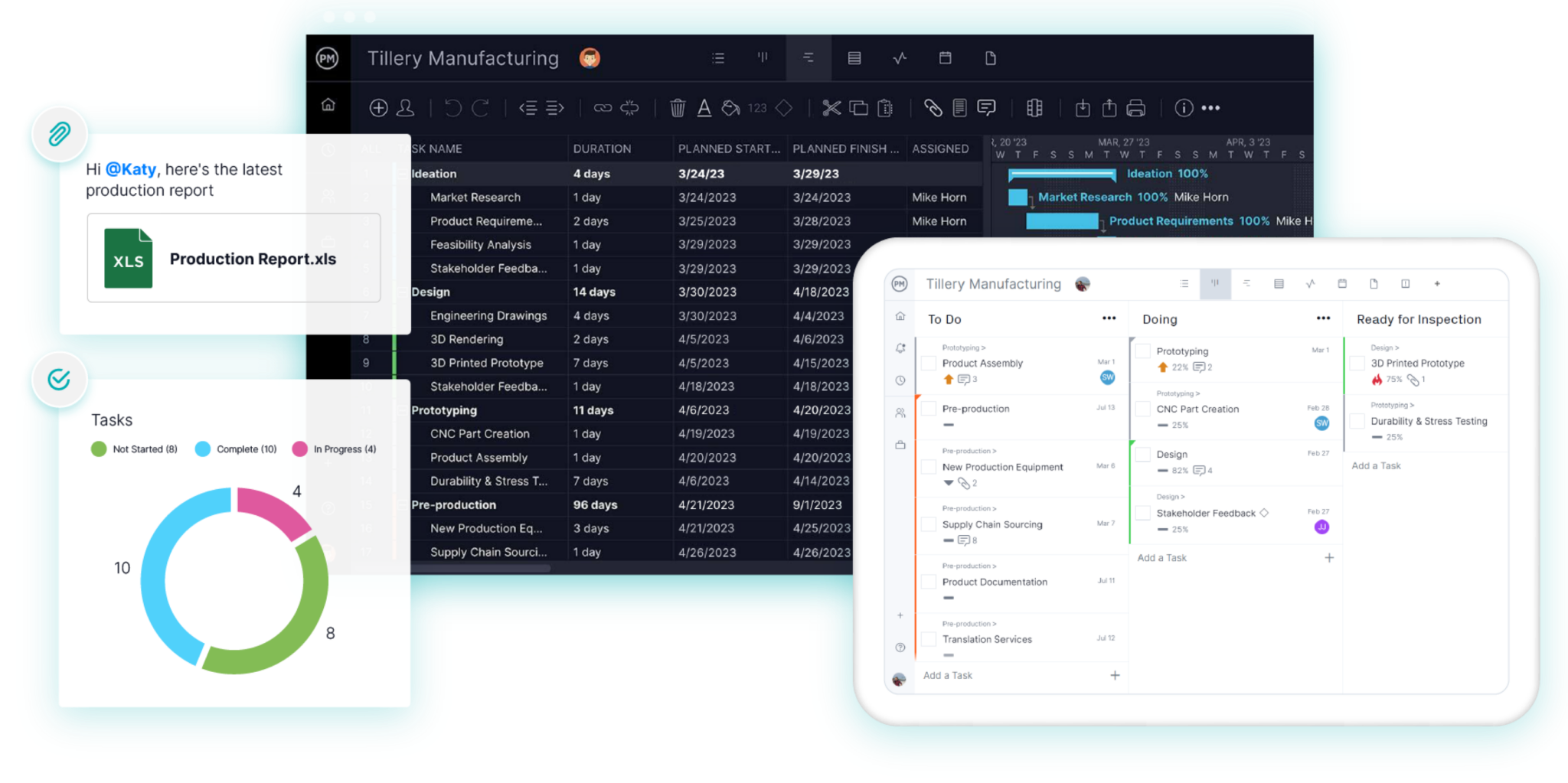
Turn your ChatGPT project plan into a schedule your team can work from. Get started with ProjectManager for free today.
Related Posts
- How to Use the ProjectManager ChatGPT Integration (With Examples)
- ChatGPT Project Management: How to Use It (Free Prompts)
- How to Write a Project Plan: Step-by-Step Guide
- Project Planning Phase: Key Activities and Outcomes
- AI Project Management: Use Cases, Tools & Best Practices
- Project Planning Process Explained: Tips & Best Practices
