



Last updated: November 3, 2026
The best Microsoft Project alternatives are ProjectManager, Microsoft Planner and Project Plan 3, Smartsheet, TeamGantt, Wrike, Primavera P6, ProjectLibre and monday.com. ProjectManager is the best fit for most teams replacing Microsoft Project, because it imports and exports MPP files and keeps critical path scheduling and baselines in a browser on any operating system, while Planner and Project Plan 3 suits teams staying in Microsoft 365, Smartsheet suits spreadsheet-minded teams, TeamGantt suits small teams that want a simple online Gantt, Wrike suits teams that want cross-project work management, Primavera P6 suits enterprise programs, ProjectLibre suits individuals who want a free desktop tool and monday.com suits teams that want simple boards. Microsoft retired Project Online on September 30, 2026, so many teams are choosing a new home for their schedules now.
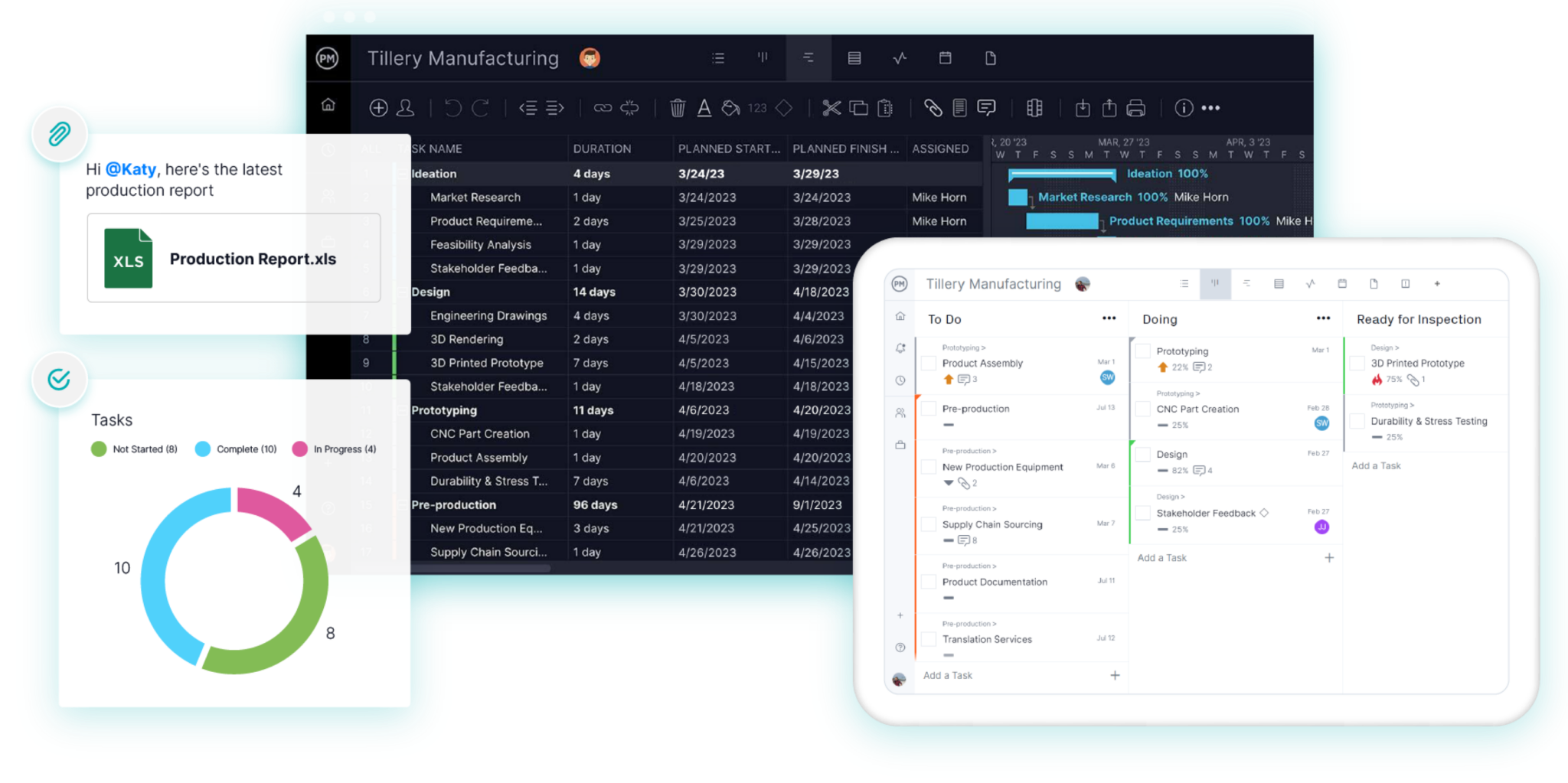
ProjectManager is online project management software that opens your Microsoft Project files. Import an MPP file, filter for the critical path and set a baseline in minutes. Get started with ProjectManager today for free.
What Happened to Microsoft Project?
Microsoft Project still exists as a Windows desktop app, but Microsoft has retired its cloud versions and moved its cloud project tools into Planner. Here’s the current lineup:
- Project Online is retired. Microsoft stopped selling Project Online to new customers on October 1, 2025, and retired it on September 30, 2026. Microsoft says projects and Project Online data are no longer accessible through Project Online after retirement, and it asked customers to export or migrate their data before that date. See Microsoft’s Project Online retirement guide.
- Microsoft suggests several replacements, not one. It asks Project Online customers to evaluate Planner, Project desktop, Project Server Subscription Edition (which runs on your own servers) and Dynamics 365 Project Operations, and notes that these aren’t necessarily a one-to-one replacement.
- Project for the web is now Planner. Project for the web retired on August 1, 2025, and its features moved into Planner’s premium plans: Planner Plan 1 ($10/user/month) and Planner and Project Plan 3 ($30/user/month). Microsoft ended sales of Planner and Project Plan 5 on May 1, 2026.
- Project desktop continues. Project Standard 2024 ($679.99) and Project Professional 2024 ($1,129.99) are one-time purchases for one Windows PC, supported until October 2029. Support for Project 2021 ended on October 13, 2026. There’s no Mac version and no Project mobile app.
For existing users, this means two things. Project Online teams need a new home for their projects, and Planner can’t open MPP files directly, so moving a desktop schedule into Planner goes through the Planner Power App or a partner tool. Desktop users aren’t forced to move, but many are reviewing whether a Windows-only, per-PC tool still fits a team that works across Macs, phones and other companies. For a closer look at each Microsoft product, see Microsoft’s project management tools compared.
Why Teams Look for Microsoft Project Alternatives
Teams look for Microsoft Project alternatives when they need the schedule in a browser, outside Windows or in front of people without a Project license. Microsoft Project is still a capable scheduler, with all four dependency types, lag, constraints, critical path and up to 11 baselines in the desktop app, and MPP is a common file format across many industries. These are the main reasons teams move anyway:
- The cloud version is gone. Project Online’s retirement forced its users to export and choose a new tool, and Planner works differently from Project Online.
- Windows only. Project desktop runs on Windows PCs, so Mac users need a virtual machine or another tool. See Microsoft Project for Mac for the workarounds.
- Per-user licensing. Every editor needs a $10 to $30 monthly Planner plan or a desktop license per PC, and plans have been renamed and repackaged several times.
- One person holds the file. With an MPP file on one scheduler’s computer, the rest of the team works from PDFs or emails. When a product launch slips or an IT rollout hits a delay, updates come in by message and someone re-enters them.
- Learning curve. Reviewers on G2 and Capterra describe Microsoft Project as complex, with a steep learning curve for occasional users.
If you schedule alone on Windows and Project desktop does what you need, nothing forces a change. If your team used Project Online, works on Macs or needs more people in the schedule, it’s a good time to compare alternatives. Construction teams can also see the Microsoft Project alternatives for construction, which compares scheduling tools built for job sites.
What to Look for in a Microsoft Project Alternative
A good Microsoft Project alternative opens the files you already have, keeps the scheduling logic your plans depend on and lets more people work in the schedule. Check for these features:
- MPP import and export. Check whether the tool reads MPP files directly or needs an XML or Excel export first, what comes through (dependencies, lag, resources, constraints) and whether you can export back to MPP for partners who still use Microsoft Project.
- Gantt with all four dependency types and lag. Finish-to-start, start-to-start, finish-to-finish and start-to-finish, plus lag for things like concrete cure time on a construction schedule or a review period before a product launch.
- Critical path. The tool should calculate the critical path from durations and dependencies, so you can see which tasks drive the finish date.
- Baselines. Save the approved plan and compare it with actual progress to report variance.
- Resource management across projects. See each person’s workload across every project, not one file at a time, so an IT rollout and a manufacturing project don’t book the same engineer twice.
- Browser and Mac access. A browser-based tool works on Windows, macOS and Linux without a virtual machine.
- Collaboration for people without a scheduler license. Team members, clients and subcontractors should be able to view and update their work.
- Predictable pricing. Compare per-user pricing, flat pricing and quote-only licensing, and count everyone who needs access.
Microsoft Project Alternatives Compared
| Tool | Best for | MPP import | Critical path | Baselines | Mac/browser access | Starting price |
|---|---|---|---|---|---|---|
| ProjectManager | Most teams replacing Microsoft Project or Project Online | Yes, MPP and XML; exports MPP and XML | Yes, critical path filter | Yes, with variance reports | Browser on any OS, iOS and Android apps | $15/user/month (Team), $28/user/month (Business), billed annually |
| Microsoft Planner and Project Plan 3 | Teams staying in Microsoft 365 | Project desktop opens MPP; Planner needs the Planner Power App | Yes (Plan 3) | One baseline in Planner (Plan 3); up to 11 in Project desktop | Planner in a browser; Project desktop on Windows only | $10/user/month (Plan 1), $30/user/month (Plan 3), paid yearly |
| Smartsheet | Teams that like working in spreadsheets | Yes, MPP, MPX and XML; exports XML from Gantt sheets | Yes (Pro and above) | Yes (Business and above) | Browser, iOS and Android apps | $9/user/month (Pro), billed annually |
| TeamGantt | Small teams that want a simple online Gantt with flat pricing | Yes, MPP (no resources); exports MPP | Yes | Yes (Business and above) | Browser, iOS and Android apps | $59/month for 1 manager (Base) |
| Wrike | Teams that want cross-project work management | Yes, MPP and XML (Business and above); no export | Yes | No; Gantt snapshots only | Browser, Windows and Mac apps, iOS and Android apps | $10/user/month (Team), billed annually |
| Primavera P6 | Professional schedulers on very large programs | Microsoft Project XML and MPX, not MPP | Yes, by total float or longest path | Yes | P6 EPPM in a browser; P6 Professional on Windows | Quote only |
| ProjectLibre | Individuals who want a free desktop scheduler | Yes, opens MPP; saves Microsoft Project XML | Yes | Yes | Desktop for Windows, Mac and Linux; ProjectLibre Cloud in a browser | Free (desktop); Cloud from $9.99/user/month |
| monday.com | Teams that want simple boards more than detailed schedules | No; import through Excel | Yes (Pro and above) | Yes (Pro and above) | Browser, Windows and Mac apps, iOS and Android apps | $9/seat/month (Basic), billed annually, 3-seat minimum |
Prices are list prices as of November 2026 and change often. Check each vendor’s site before buying.
8 Best Microsoft Project Alternatives
1. ProjectManager
ProjectManager is the best Microsoft Project alternative for most teams, because it opens your existing MPP files and keeps the scheduling features Microsoft Project users rely on, in a browser that works on any operating system. Its Gantt chart supports all four dependency types with lag, a critical path filter shows which tasks drive the finish date, and baselines and variance reports show how far the plan has drifted. When a vendor delays hardware for an IT rollout, the linked configuration, testing and go-live tasks move with it.
ProjectManager also puts the schedule in front of the whole team. Team members update tasks in a browser or on the iOS and Android apps, the workload page shows each person’s hours across all projects, and equipment can be added as a resource without a license. Sheet, Gantt, board, list and calendar views show the same plan, and ProjectManager exports back to MPP and XML when a partner still uses Microsoft Project. For a feature-by-feature comparison, see Microsoft Project vs. ProjectManager.
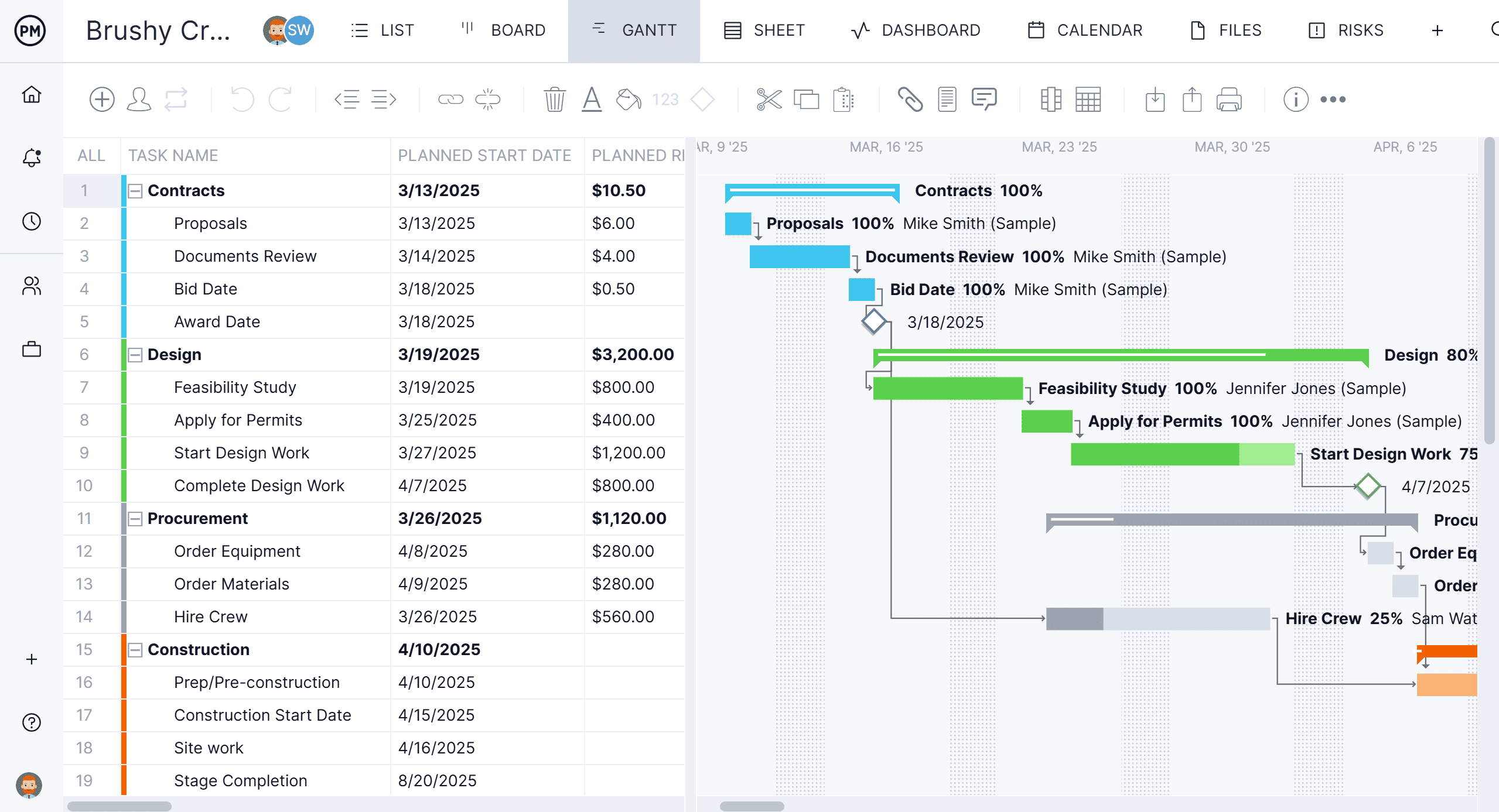
Best for: Most teams replacing Microsoft Project or Project Online that want to keep MPP files, critical path and baselines while giving the whole team access in a browser and on mobile.
Key features
- Import of MPP, Microsoft Project XML, Excel and CSV files, and export to MPP, XML, Excel and CSV
- Gantt charts with finish-to-start, start-to-start, finish-to-finish and start-to-finish dependencies, plus lag
- Critical path filter, baselines and variance reports
- Workload page showing hours across all projects (Business plan and above)
- Sheet, Gantt, board, list and calendar views
- Timesheets, dashboards and portfolio views
- Integrations including Microsoft Teams, Power BI, Excel, QuickBooks Online, Acumatica and ChatGPT
Pros
- Opens and exports MPP files, so you don’t rebuild schedules or lose partners who use Microsoft Project
- Runs in any modern browser on macOS, Windows and Linux, with iOS and Android apps
- Published per-user pricing and a 30-day free trial
Cons
- No XER import or export, so programs that require Primavera P6 files need P6 or a tool that writes XER
- The workload page needs the Business plan, and the Team plan is limited to 10 users and 20 projects
- No free plan, and the Teams, Power BI and Excel integrations are paid add-ons on the Business plan
Pricing: Team $15/user/month, Business $28/user/month (billed annually), Enterprise by quote. 30-day free trial.
2. Microsoft Planner and Project Plan 3
Microsoft Planner and Project Plan 3 is the option for teams that want to stay with Microsoft. It combines Planner’s premium features, including a timeline (Gantt) view, all four dependency types with lead and lag, critical path, a baseline and the assignments view, with the Project desktop client for detailed schedules. Planner Plan 1 adds the timeline and dependencies at a lower price, without critical path.
The catch is that Planner and Project desktop work differently. Project desktop opens MPP files as before, but Planner can’t import an MPP file directly; Microsoft documents that path through the Planner Power App. Planner captures one baseline at a time, and Microsoft doesn’t document the timeline or critical path in Planner’s mobile app. For a full comparison, see Microsoft Planner vs. Project and Planner vs. ProjectManager.
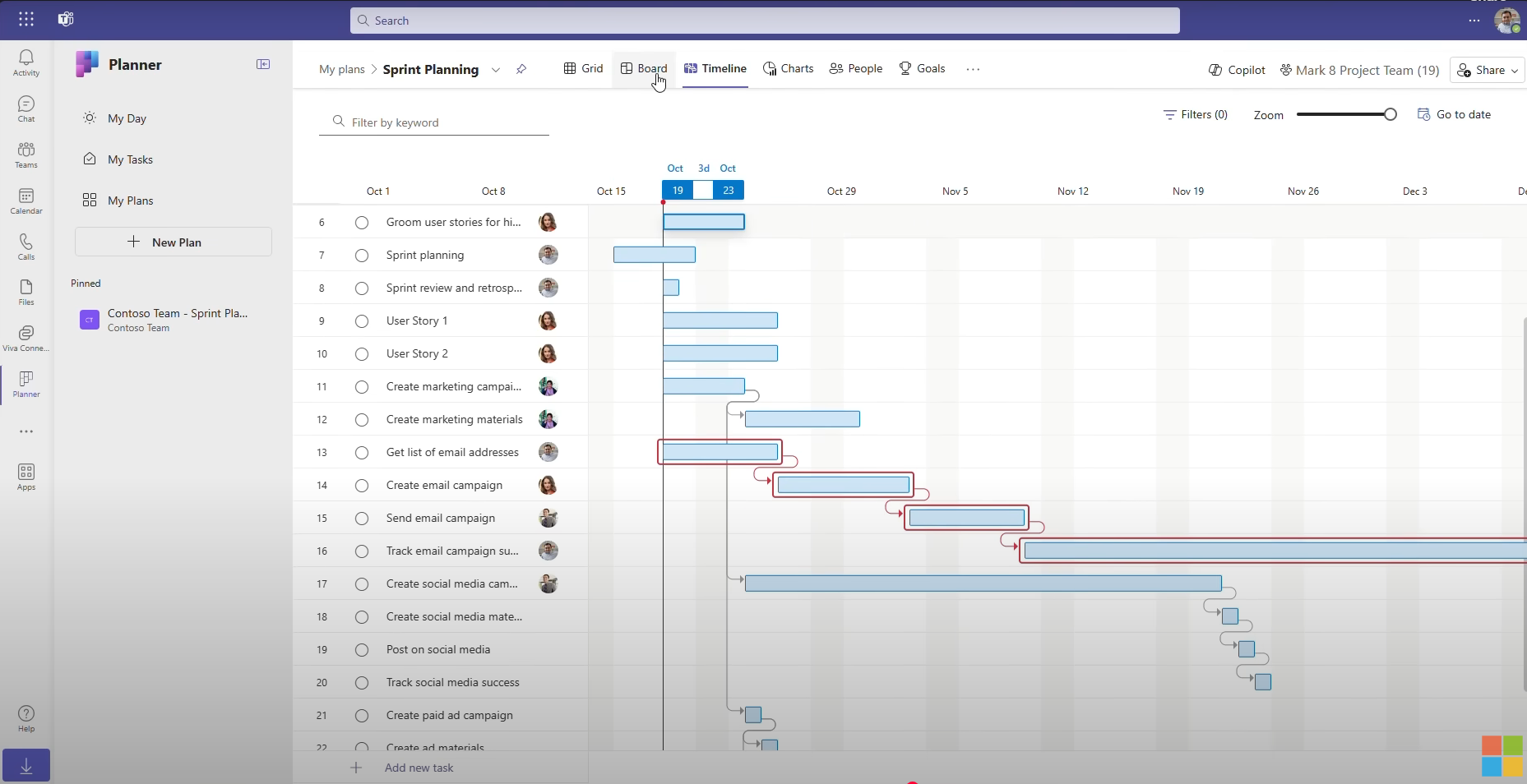
Best for: Teams already on Microsoft 365 that want to keep projects in Microsoft’s tools, with Teams and Outlook, one vendor and one sign-in.
Key features
- Timeline (Gantt) view with dependencies (Plan 1 and above)
- Critical path, advanced dependencies with lead and lag, a baseline and the assignments view (Plan 3)
- Project desktop client included with Plan 3
- Works with Teams, Outlook and other Microsoft 365 apps
Pros
- Keeps you in Microsoft 365, and basic Planner is included with Microsoft 365 business plans
- Project desktop still opens your existing MPP files
- Familiar for teams that already use Microsoft tools
Cons
- Planner can’t open MPP files directly, so desktop schedules need a migration step
- Critical path needs Plan 3, Planner holds one baseline, and Project desktop runs on Windows only
- Licensing has changed several times, and Planner and Project Plan 5 is no longer sold
Pricing: Basic Planner included with Microsoft 365 business plans (from $7/user/month, paid yearly). Planner Plan 1 $10/user/month and Planner and Project Plan 3 $30/user/month, paid yearly. Project Standard 2024 $679.99 and Project Professional 2024 $1,129.99, one-time.
3. Smartsheet
Smartsheet is a spreadsheet-style work management platform with Gantt charts, all four dependency types with lag, and critical path highlighting on the Pro plan and above. It imports MPP, MPX and Microsoft Project XML files directly, and sheets with a Gantt chart can be exported as Microsoft Project XML, which makes it easy for teams that like grids and forms to bring schedules over.
Its scheduling is lighter than Microsoft Project’s. Smartsheet notes that Microsoft Project constraints aren’t supported on import and imports are limited to 20,000 rows. Baselines need the Business plan, full resource planning and time tracking come from Resource Management by Smartsheet, a paid add-on, and the Gantt view is available for reports only in the mobile app. For more options, see the best Smartsheet alternatives.

Best for: Teams that like working in spreadsheets and want to bring MPP schedules into a flexible grid with forms and dashboards.
Key features
- Grid, Gantt, card and calendar views
- All four dependency types with lag; critical path on Pro and above
- Direct import of MPP, MPX and XML files; Microsoft Project XML export for Gantt sheets
- Baselines (Business and above), forms, automations and dashboards
Pros
- Familiar to anyone who works in spreadsheets
- Imports MPP files without Microsoft Project installed
- 30-day free trial
Cons
- Microsoft Project constraints don’t carry over on import
- Full resource planning and time tracking need the paid Resource Management add-on
- The Gantt view is available for reports only on mobile
Pricing:
- Pro: $9/user/month, billed annually ($12 billed monthly), up to 10 users
- Business: $19/user/month, billed annually ($24 billed monthly), minimum of 3 users
- Enterprise: contact sales for a custom quote
- Advanced Work Management: contact sales for a custom quote
4. TeamGantt
TeamGantt is an online Gantt chart tool for small and mid-size teams. It imports MPP files to create a new project, bringing over tasks, dependencies, dates and percent complete, and it can export a project back to MPP. Its Gantt supports all four dependency types with lag and lead, and it shows the critical path.
TeamGantt is priced per account rather than per seat, which suits teams with many occasional collaborators, but every plan has a project limit. MPP imports don’t bring over resources or assignments, baselines and the cross-project workload report need the Business plan, and the iOS app shows a list view rather than the Gantt chart.
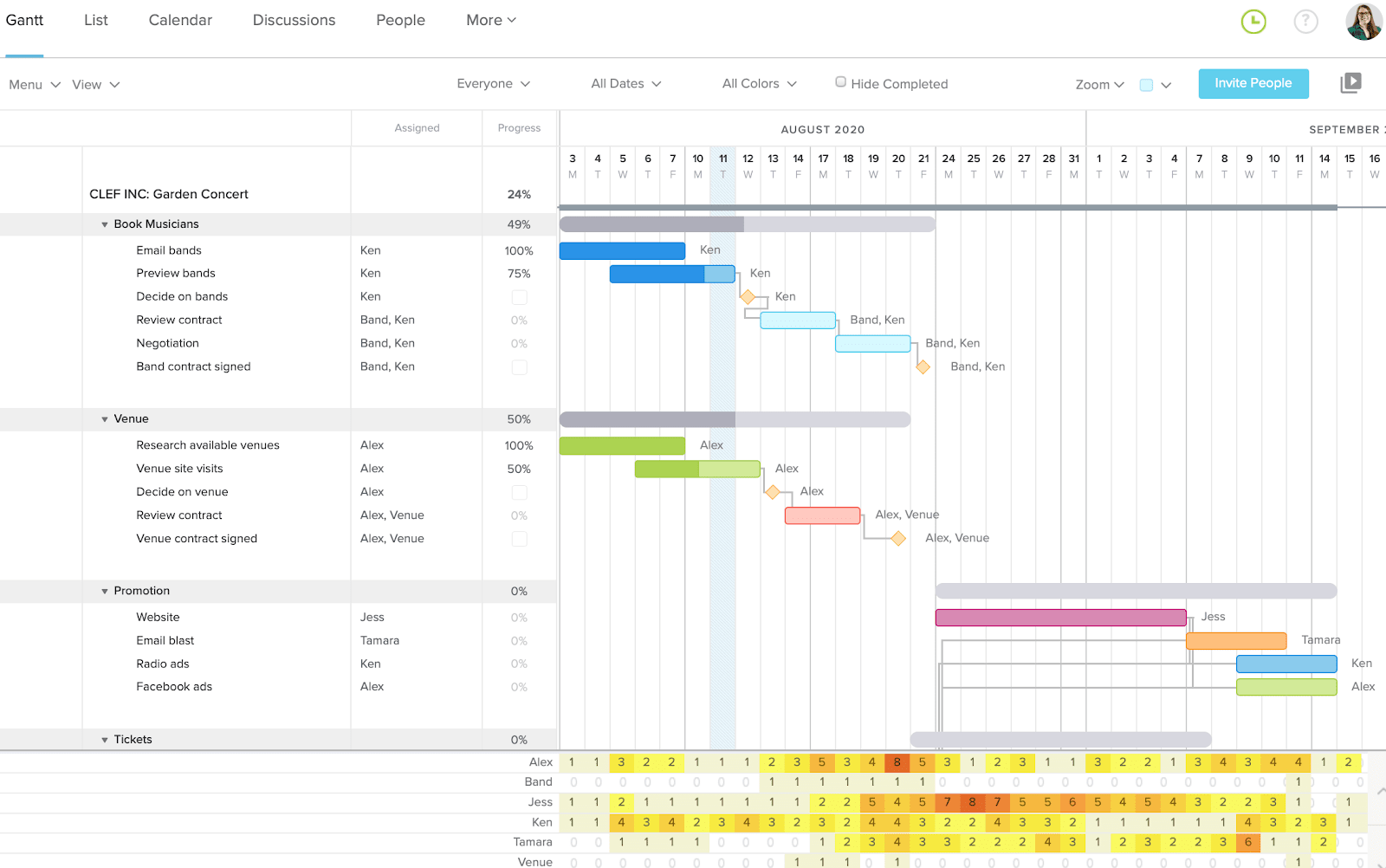
Best for: Small teams that want a simple online Gantt with MPP import and export and flat account pricing instead of per-seat licenses.
Key features
- MPP import and export
- All four dependency types with lag and lead, and critical path
- Unlimited baselines and a cross-project workloads report (Business and above)
- iOS and Android apps
Pros
- Easy to learn for people who don’t schedule full time
- Flat pricing with unlimited collaborators on Business
- Exports back to MPP
Cons
- MPP imports don’t include resources or assignments
- Every plan has a project limit (Business includes 5 projects, up to 20 with add-ons)
- No Gantt view in the iOS app
Pricing: Personal free (1 user, 1 project). Base $59/month (1 manager, 10 collaborators, 5 projects), Business $120/month (unlimited managers and collaborators, 5 projects included) and Builder Edition $199/month, billed monthly; annual billing saves 20%. Enterprise by quote. 14-day free trial.
5. Wrike
Wrike is a work management platform for teams that run many projects and requests across departments. On the Business plan and above, it imports Microsoft Project files, including tasks, durations, dependencies, lag and assignees, and its Gantt chart supports all four dependency types and a critical path view. Workload charts show capacity across projects on Business and above.
For Microsoft Project users, the gaps are baselines and file round-tripping. Wrike doesn’t document a baseline comparison, only static Gantt snapshots, and it can’t export back to Microsoft Project. Imported lag can be removed but not edited, custom fields don’t come across and files over 5 MB fail to import.
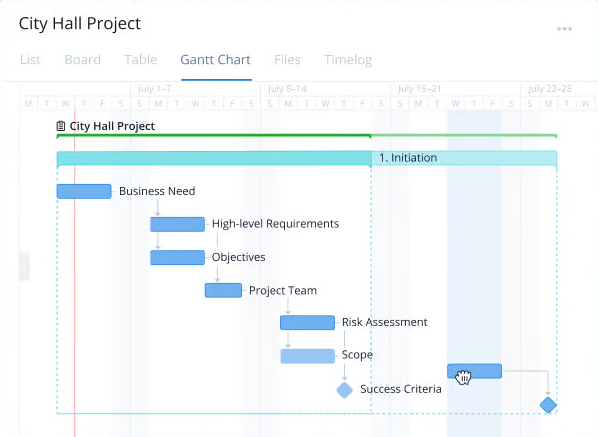
Best for: Teams that want cross-project work management, request intake and workload views, and don’t need baselines or MPP export.
Key features
- Microsoft Project import (Business and above)
- Gantt with all four dependency types, lead and lag, and a critical path view
- Workload charts across projects (Business and above)
- Web, Windows and Mac desktop apps, and iOS and Android apps
Pros
- Keeps dependencies and lag from imported Microsoft Project files
- Request forms, approvals and cross-team workflows
- Free plan and 14-day free trial
Cons
- No documented baselines, only Gantt snapshots
- No export to MPP or XML
- Microsoft Project import needs the Business plan, which has a 5-user minimum
Pricing: Free plan. Team $10/user/month (2 to 15 users) and Business $25/user/month (5 to 200 users), billed annually. Pinnacle and Apex by quote. 14-day free trial.
6. Primavera P6
Primavera P6 is the alternative for professional schedulers running very large programs in construction, engineering, energy and infrastructure. Oracle’s scheduling software calculates the critical path by total float or longest path, handles tens of thousands of activities and produces the XER files many owners require. It comes as P6 Professional, a Windows desktop application, and P6 EPPM, which runs in a browser.
P6 does more than most Microsoft Project users need. It imports Microsoft Project XML and MPX files, not MPP, so each schedule goes through an XML export first, and it has a steep learning curve that usually needs formal training. For more options in this category, see the best Primavera P6 alternatives.
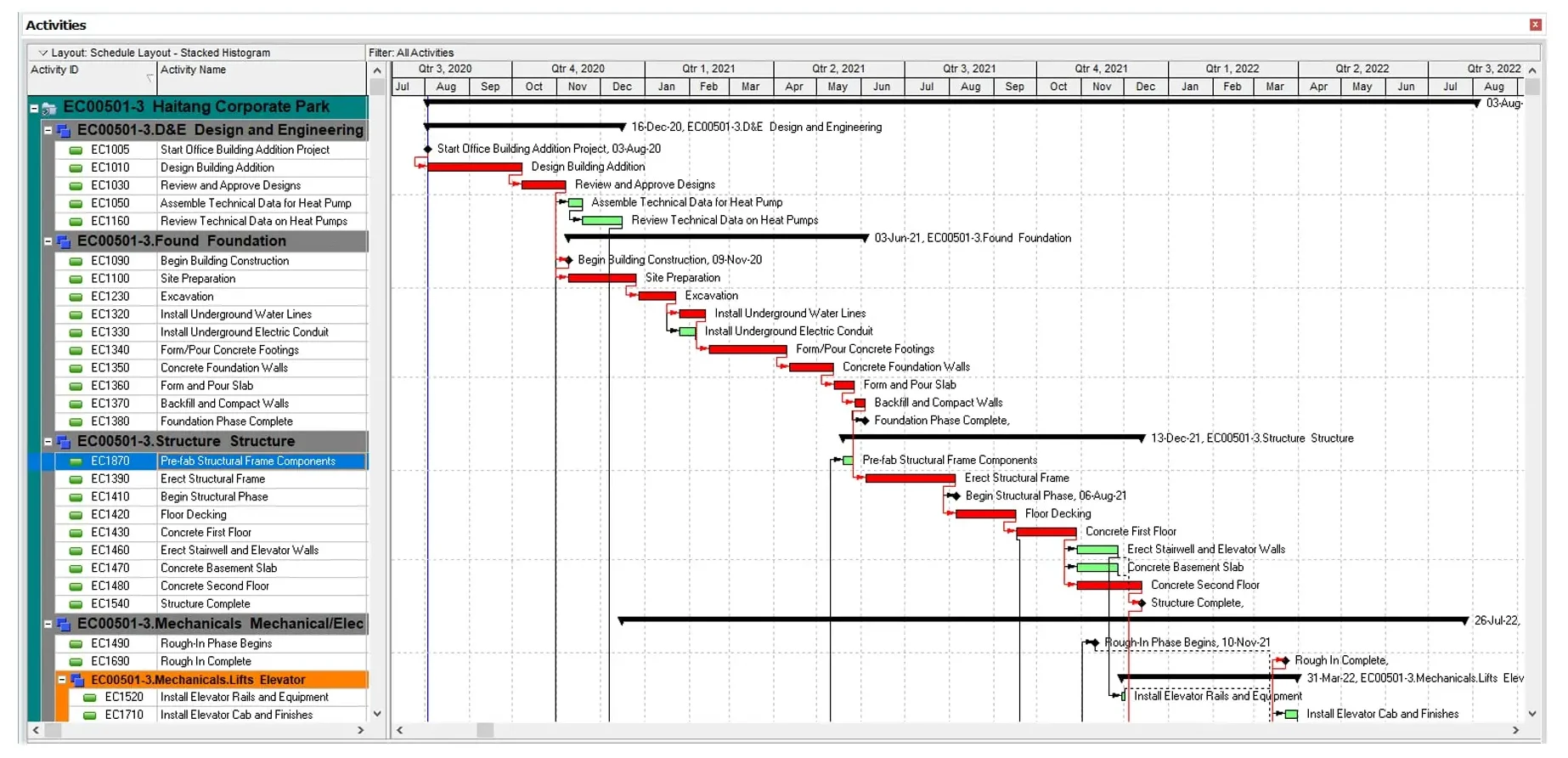
Best for: Professional schedulers on very large or owner-mandated programs that need P6 or XER files.
Key features
- CPM scheduling with critical path by total float or longest path
- Detailed resource loading and enterprise project structures
- Import of Microsoft Project XML and MPX files
- P6 mobile apps for updating assigned activities and entering time
Pros
- The standard for large construction, infrastructure and energy schedules
- Produces XER files for owners who require them
- Handles schedules far larger than most tools can
Cons
- No direct MPP import
- Steep learning curve, usually needing formal training
- Oracle doesn’t publish current prices
Pricing: By quote through Oracle or a reseller.
7. ProjectLibre
ProjectLibre is a free, open-source desktop scheduler that looks and works much like Microsoft Project. It opens MPP files directly, saves to Microsoft Project XML, and supports all four dependency types with lag, critical path and baselines on Windows, macOS and Linux. That makes it a common choice for individuals who want Microsoft Project’s scheduling without the license cost.
The desktop app is built for one person and one project at a time. It has no collaboration or shared resource pool, and it can’t save back to MPP. ProjectLibre Cloud adds browser access, collaboration and cross-project resources for a per-user fee. For more free options, see the free and open-source Microsoft Project alternatives.

Best for: Individual schedulers who want a free, Microsoft Project-style desktop app that opens MPP files on Windows, Mac or Linux.
Key features
- Opens MPP files and saves Microsoft Project XML
- All four dependency types with lag, critical path and baselines
- Desktop apps for Windows, macOS and Linux
- ProjectLibre Cloud for browser access and cross-project resources
Pros
- Free desktop app with a familiar Microsoft Project layout
- Runs on Mac and Linux as well as Windows
- Opens existing MPP files
Cons
- The desktop app is single-user, with no collaboration
- Can’t save back to MPP, only XML
- No mobile apps
Pricing: Desktop free. ProjectLibre Cloud Core $9.99/user/month and Enterprise $29.99/user/month, billed annually.
8. monday.com
monday.com is a board-based work management platform that many teams use for task tracking, intake and simple project plans. Its Gantt view is available from the Standard plan, and the Pro plan adds dependencies with all four types, critical path, baselines and the workload view.
monday.com doesn’t import MPP or Microsoft Project XML files, so Microsoft Project schedules come across through Excel and dependencies are rebuilt. The Gantt and workload views are available in the browser and desktop apps, not the mobile app. For other options, see the best monday.com alternatives.
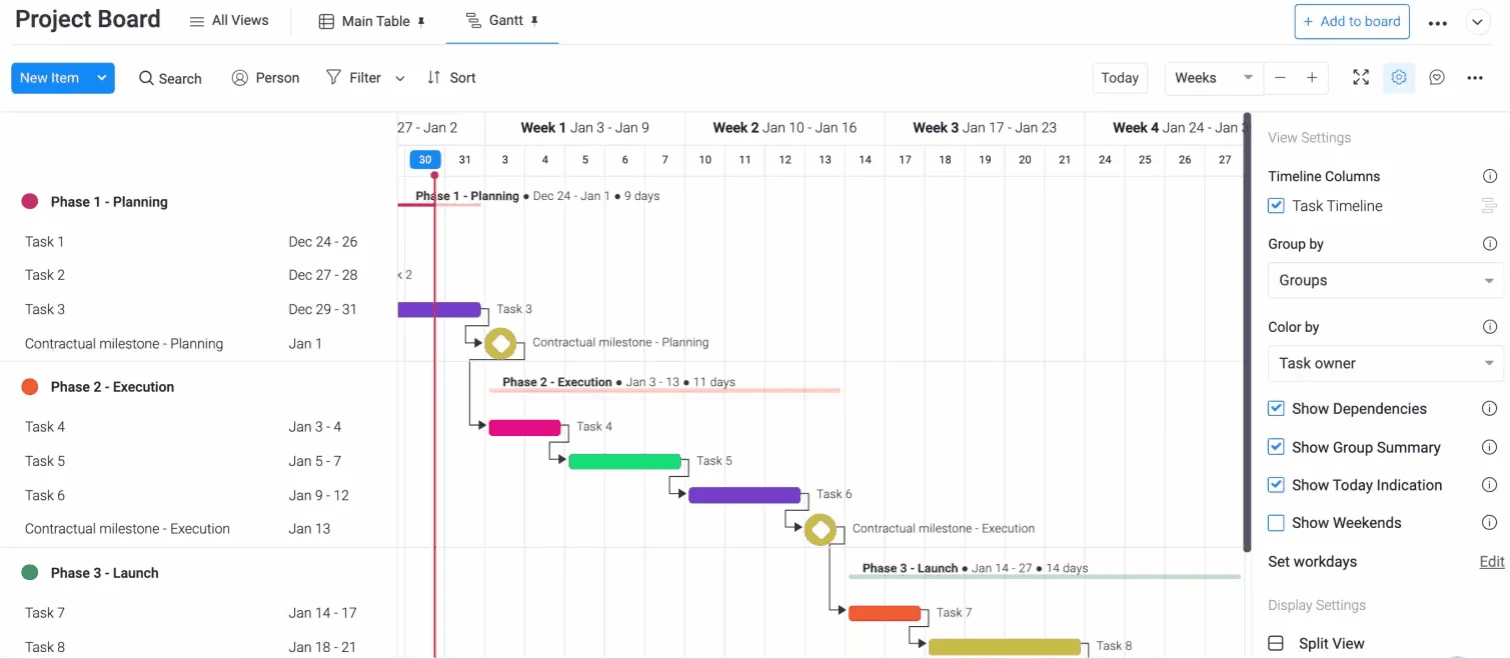
Best for: Teams that want simple, visual boards and light Gantt scheduling more than detailed Microsoft Project-style schedules.
Key features
- Boards, tables, timeline, calendar and Gantt views (Gantt from Standard)
- All four dependency types, critical path and baselines (Pro and above)
- Workload view (Pro and above)
- Automations, forms and dashboards
Pros
- Easy to adopt for teams new to project management software
- Flexible boards for many kinds of work
- Free plan for up to 2 seats and a 14-day free trial
Cons
- No MPP or Microsoft Project XML import or export
- Dependencies, critical path and baselines need the Pro plan
- No Gantt view in the mobile app
Pricing: Free plan (up to 2 seats). Basic $9, Standard $12 and Pro $19 per seat per month, billed annually, with a 3-seat minimum. Enterprise by quote.
How to Move a Microsoft Project Schedule Into ProjectManager
To move a Microsoft Project schedule into ProjectManager, set up a new project with matching working days, import the MPP or XML file and check the logic. ProjectManager imports MPP files and XML files saved from Microsoft Project, bringing over tasks, assignees, dependencies and planned dates, so you don’t need Microsoft Project installed to open the file.
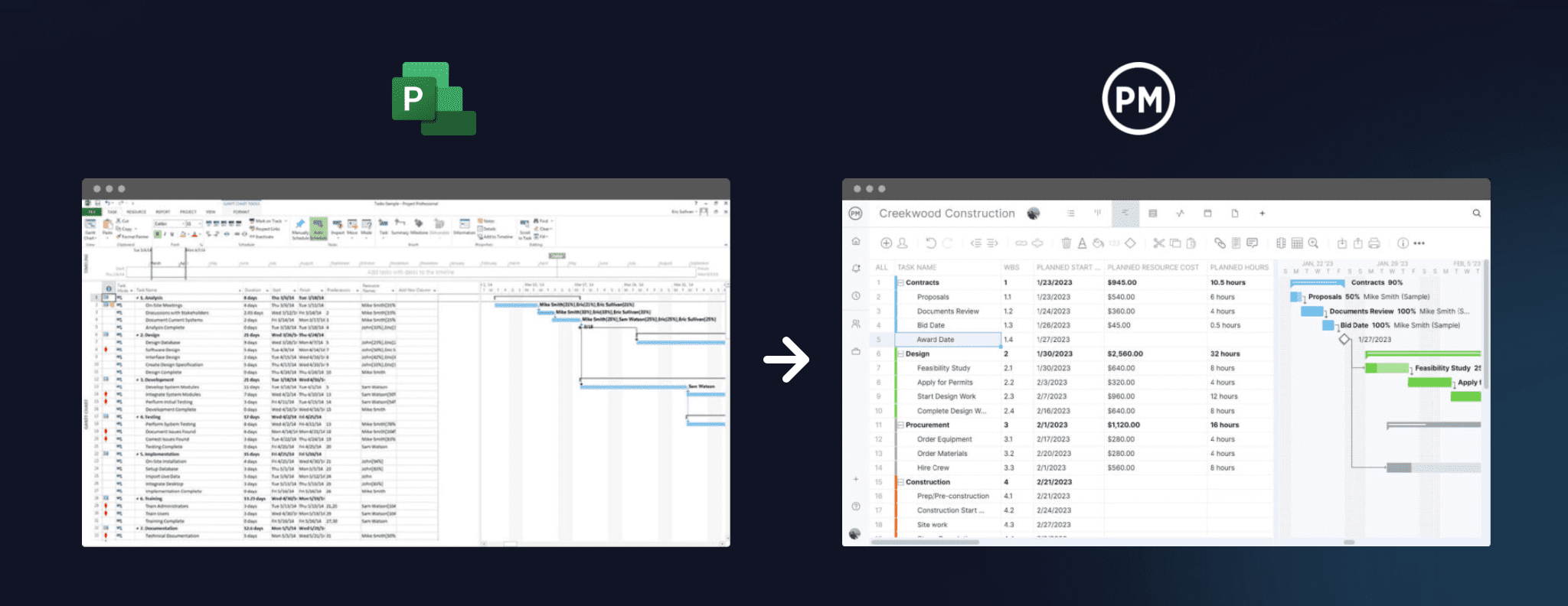
- Get your files. For desktop schedules, use your existing MPP files, or open them in Project desktop and choose File, Save As, then Project or XML as the file type. Microsoft says Project Online data is no longer accessible through Project Online after its September 30, 2026 retirement, so for Project Online projects, use the MPP or XML files your team saved before retirement, or ask your Microsoft 365 admin what was exported or migrated.
- Set working days first. In ProjectManager, click the + button and choose Project, then set your working days to match the calendar in your Microsoft Project file, such as a five-day or six-day work week. Working days are hard to change once the project exists. Add any global holidays now too, since they can’t be added to existing projects.
- Import the file. Choose Import File when creating the project, or click the import icon on the Gantt ribbon of an existing project. Click select file, upload your MPP or XML file and click next. If you’re importing into an existing project, choose Keep and append with the imported data or Replace with the imported data. Replace removes everything already in the project.
- Choose what to import. Choose the task list only to bring over the schedule structure and dates, or all data to also bring over assignees and other details.
- Check the logic. Compare durations and dependencies with the original schedule. Pay attention to lag and to any constraint dates from Microsoft Project. Imported actual hours don’t go into timesheets, so add those separately if you need them.
- Filter for the critical path. Turn on the critical path filter and check that it matches the critical path in Microsoft Project. If it doesn’t, look for missing links, lag or constraints that didn’t carry over.
- Set a baseline. Once the schedule matches, set a baseline in Gantt settings so you can track variance from the start.
Keep the original MPP files. If a client or partner asks for the schedule in Microsoft Project format, ProjectManager can export to MPP and XML.
Want to see your schedule in ProjectManager? Start a free 30-day trial, import an MPP file and turn on the critical path filter to compare it with Microsoft Project. Get started with ProjectManager today for free.
Microsoft Project Alternatives FAQ
What replaces Project Online?
Microsoft asks Project Online customers to evaluate Planner (including Planner and Project Plan 3), Project desktop, Project Server Subscription Edition and Dynamics 365 Project Operations, and notes that none is necessarily a one-to-one replacement. Project Online was retired on September 30, 2026. Teams can also move to other tools, such as ProjectManager, which imports Microsoft Project files and runs in a browser.
What is the best free alternative to Microsoft Project?
ProjectLibre is the closest free alternative for individuals, because its desktop app opens MPP files and supports all four dependency types, critical path and baselines. For teams that need collaboration, free plans such as TeamGantt’s, Wrike’s and monday.com’s are limited, so most teams use a free trial of a paid tool instead. See the free and open-source Microsoft Project alternatives for more.
Can I open MPP files without Microsoft Project?
Yes. ProjectManager, Smartsheet, TeamGantt and ProjectLibre open MPP files directly, and Wrike imports them on its Business plan. Microsoft Planner can’t open MPP files directly, and Primavera P6 imports Microsoft Project XML instead. You can also use an MPP viewer; see the best Microsoft Project viewers.
Is there a Microsoft Project alternative for Mac?
Yes. Microsoft Project desktop runs only on Windows, but browser-based tools such as ProjectManager, Smartsheet, TeamGantt, Wrike and monday.com work on a Mac, and ProjectLibre has a Mac desktop app. Planner also runs in a browser on a Mac. Read more in Microsoft Project for Mac.
Is Microsoft Planner the same as Microsoft Project?
No. Planner is Microsoft’s cloud project tool, and its premium plans now include the features of the retired Project for the web, such as the timeline, dependencies and, on Plan 3, critical path. Microsoft Project desktop is a separate Windows application that saves MPP files and offers deeper scheduling, such as up to 11 baselines. Planner and Project Plan 3 includes both.
Related Content
- Best Microsoft Project Alternatives for Construction (2026)
- 10 Microsoft Project Management Tools Compared (2026)
- 6 Free & Open-Source Microsoft Project Alternatives: Ranked
- Microsoft Project for Mac: How to Run MS Project Files on Mac
- Best Microsoft Project Alternatives for Mac (2026)
- Microsoft Project Viewer Software: 10 Best MPP Viewers
- 5 Best Primavera P6 Alternatives for Construction Projects (2026)
- 6 Best Smartsheet Alternatives (2026)
- 11 Best Gantt Chart Software of 2026 (Free and Paid)
- ProjectManager vs TeamGantt: Software Comparison (2026)
