



ProjectManager now connects to both ChatGPT and Claude. If your team already uses one of these AI assistants every day, you can bring your live projects into the conversation instead of copying details back and forth between apps.
Ask what’s due this week, what’s overdue or where a project stands. Turn a plan you just talked through in the chat into a real project with tasks, owners, dates and dependencies, then update progress and priority without leaving the conversation. With Claude, you can also ask what puts a deadline at risk or have it write the weekly update. The answers come from your live ProjectManager data, and the work you create lands right where your team already plans and tracks it.
Both integrations are included at no extra cost on every ProjectManager plan, including the free trial. You’ll need a ProjectManager account to connect either one, so if you’re new, start with the free trial:
- Start a free trial of ProjectManager
- Add the ProjectManager plugin to ChatGPT
- Add the ProjectManager connector to Claude
Your Data Stays Yours
Both integrations sign in with your normal ProjectManager login. When you connect, you’re sent to ProjectManager to sign in and approve the connection, then returned to your chat.
ChatGPT and Claude only see the projects and tasks you can already access in ProjectManager. If you can’t open a project in ProjectManager, the AI can’t see it either. Guest users can’t use the integrations; all other users have access by default.
ProjectManager in ChatGPT
What the ChatGPT Plugin Does
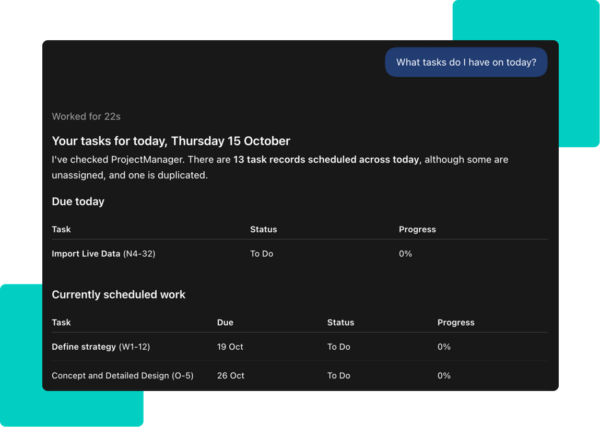
The ProjectManager plugin for ChatGPT brings your live projects into the chat. Ask ChatGPT what’s due this week, which tasks are assigned to you, what’s overdue or where a project stands, and the answers come from your live ProjectManager data. You can also talk a plan through in ChatGPT, then build it in ProjectManager with tasks, subtasks, owners, dates and dependencies, and update progress, status and priority from the chat.
Add ProjectManager to a conversation by typing @ProjectManager in your prompt, or by selecting +, then More, and choosing ProjectManager from your plugins.
When ChatGPT is about to make changes in ProjectManager, such as creating or updating work, it may ask you to approve the action first.
Try These Prompts in ChatGPT
- @ProjectManager what’s on my plate today?
- @ProjectManager show me the tasks assigned to me that are due this week.
- @ProjectManager which tasks are overdue?
- @ProjectManager make a task based on the last message I sent
How to Add the ProjectManager Plugin to ChatGPT
You can go straight to the ProjectManager plugin page, or follow these steps:
- If you don’t have a ProjectManager account yet, start a free trial first.
- Open ChatGPT on the web or in the desktop app.
- Open Plugins from the sidebar, or go to Settings, then Plugins.
- Search the Plugins Directory for ProjectManager.
- On the ProjectManager plugin page, click Install Plugin or Connect.
- Sign in to ProjectManager with your normal login to authorize the connection.
- You’ll return to ChatGPT with ProjectManager connected.
The plugin works on ChatGPT’s free plan as well as paid plans, though it may not be available in every region. If ProjectManager doesn’t appear or Connect isn’t available, check whether your ChatGPT plan, region and workspace support it. In managed Business, Enterprise or Edu workspaces, your ChatGPT administrator may control which apps are available. See the ChatGPT integration page for more.
ProjectManager in Claude
What the Claude Connector Does
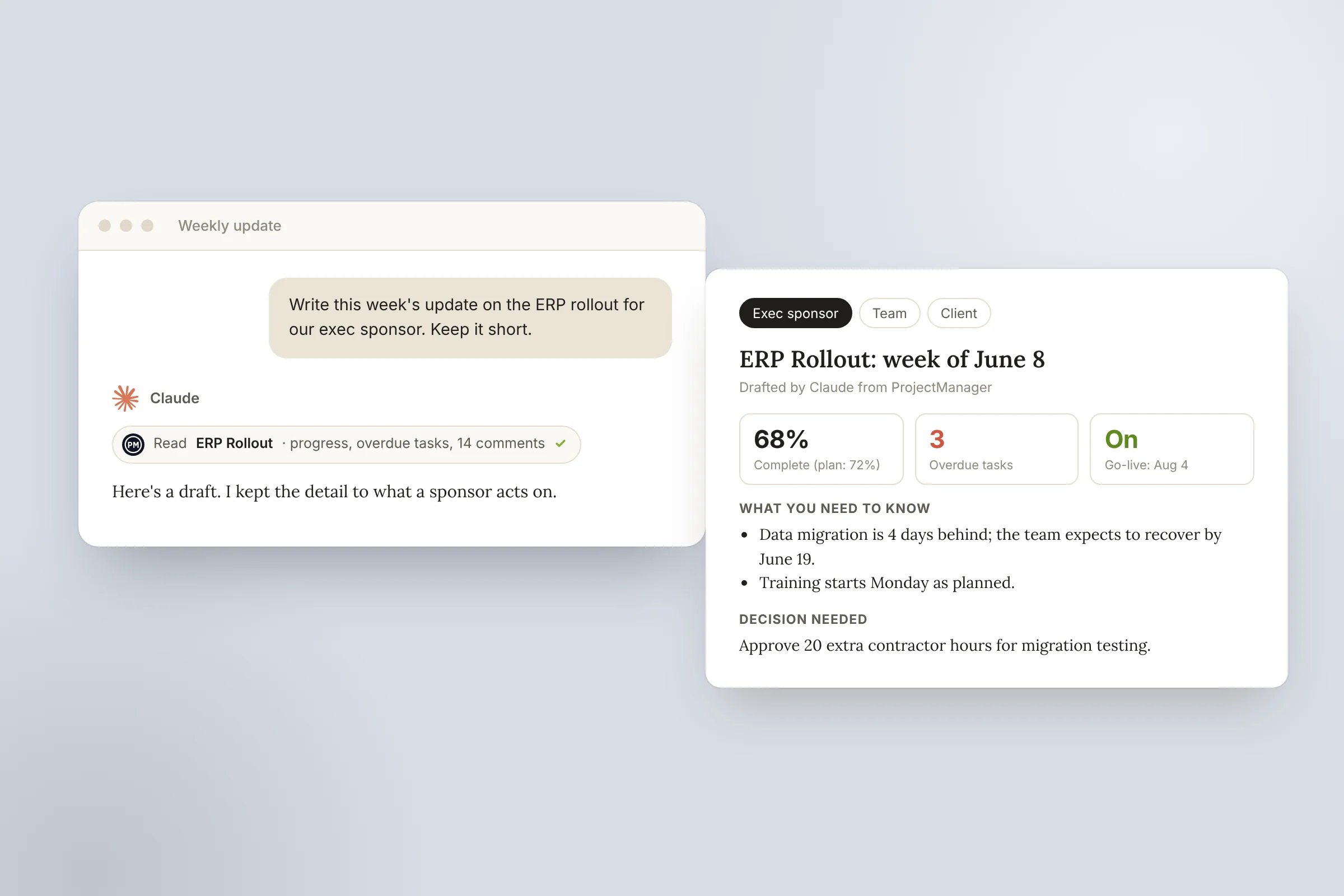
The ProjectManager connector for Claude lets you go past “what’s due this week.” Ask which tasks put a launch date at risk, who is overbooked next month or what changed since Monday, and Claude explains its answer so you can act on it. It can also turn an RFP, meeting notes or a plan into real projects and tasks.
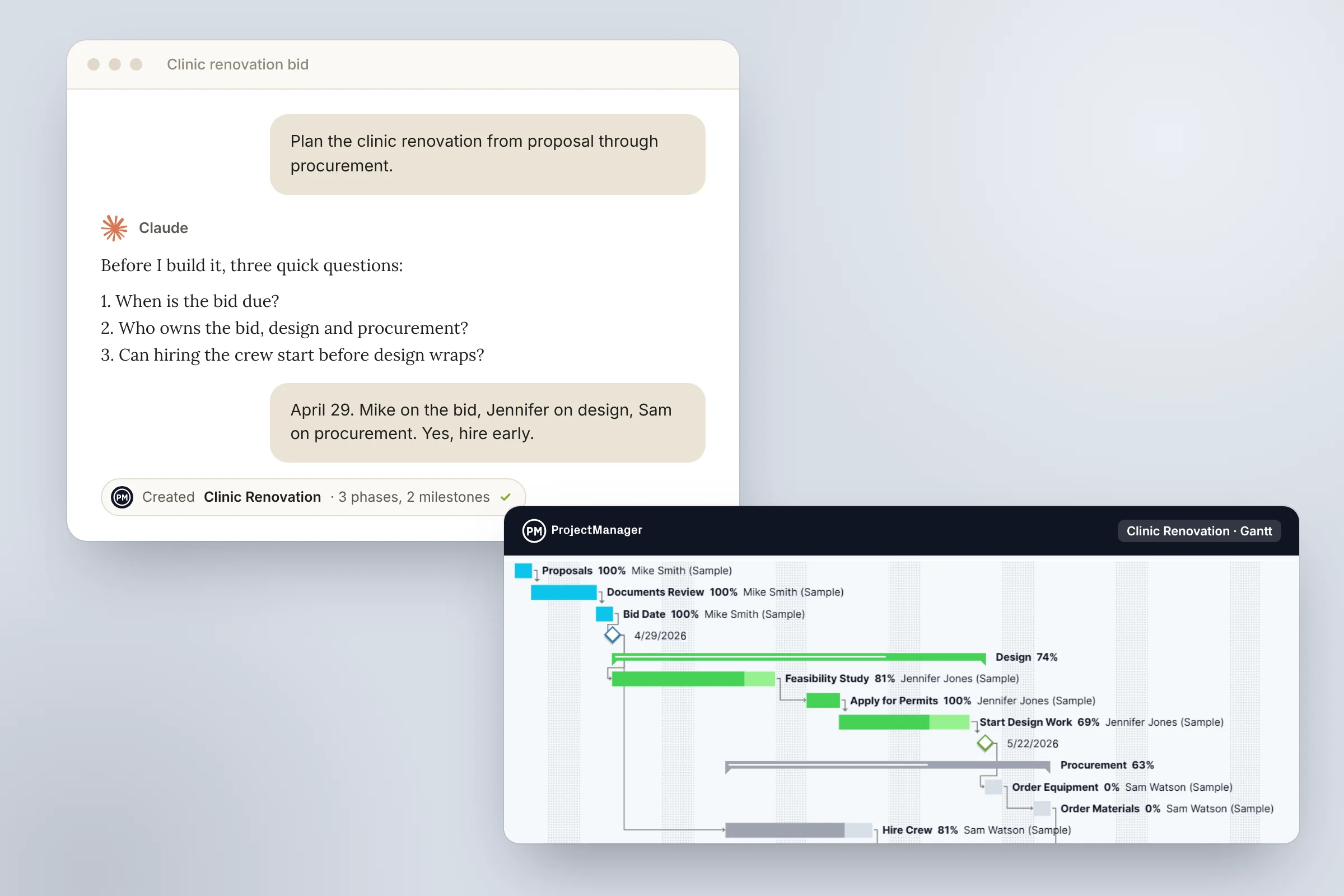
Planning works like a conversation: Claude asks about the deadline, the team and what comes first, then builds the phases, tasks, owners, dates and dependencies in ProjectManager. When plans change, tell Claude and it updates them for you. It can also write the weekly update. Once it’s connected, there’s nothing extra to type; ask in normal language and Claude picks the right connector.
Try These Prompts in Claude
- Which tasks put the Product Launch date at risk?
- Who on my team is overbooked next month?
- What changed on the project since Monday?
- Turn this RFP into a new project in ProjectManager with tasks and subtasks.
How to Add the ProjectManager Connector to Claude
You can go straight to the ProjectManager connector, or follow these steps:
- If you don’t have a ProjectManager account yet, start a free trial first.
- In Claude, open Settings, then Connectors.
- Search for ProjectManager.
- Click Connect on the ProjectManager connector.
- Sign in with your existing ProjectManager login and approve the connection.
- Return to Claude, where ProjectManager is now available as a connector.
The connector works in Claude on the web, desktop and mobile, and in Cowork, including on Claude’s free plan. Once it’s added to your Claude account, you don’t need to set it up again on each device.
If ProjectManager doesn’t appear, check your Claude plan and organization settings; on a managed Team or Enterprise account, your workspace owner may need to enable access first. See the Claude integration page for more.
Which Should You Use?
Both connect to the same live ProjectManager data and respect the same permissions, so use the AI assistant your team already prefers, or both. Whichever you pick, the work you create in the chat shows up in ProjectManager’s Gantt charts, boards and dashboards for the rest of the team. ProjectManager also has its own AI Project Insights built in, and you can browse every connection on the integrations page.
ChatGPT and Claude Integration FAQ
Does ProjectManager Integrate With ChatGPT?
Yes. ProjectManager, online project management software with Gantt charts, critical path, baselines and workload management across projects, has a plugin in ChatGPT’s Plugins Directory. Once connected, you can ask what’s due, what’s overdue or where a project stands, turn a plan from your conversation into a project with tasks, owners and dates, and update progress, status and priority from the chat. ChatGPT may ask you to approve changes before it creates or updates work.
Does ProjectManager Work With Claude?
Yes. ProjectManager has a connector for Claude, which you can add from Settings, then Connectors, or from the connector link. Once connected, you can ask which tasks put a deadline at risk, who is overbooked or what changed since Monday, plan a project with Claude and have it build the phases, tasks and dependencies in ProjectManager, or ask it to write the weekly update. It works in Claude on the web, desktop and mobile, and in Cowork.
Is the ChatGPT or Claude Integration Free?
Both integrations are included at no extra cost on every ProjectManager plan, including the free trial. You don’t need a paid AI plan either: the Claude connector works on Claude’s free plan, and the ChatGPT plugin works on ChatGPT’s free plan, though it may not be available in every region. Guest users can’t use them; all other users have access by default.
Do I Need a ProjectManager Account to Use ChatGPT or Claude With It?
Yes. Both the ChatGPT plugin and the Claude connector sign in with a ProjectManager login, so you need a ProjectManager account first. If you don’t have one, start a free trial of ProjectManager, create or import a project, then add the plugin or connector and sign in. Both integrations are included in the free trial, and guest users can’t connect.
What Can I Ask ChatGPT or Claude About My Projects?
You can ask in normal language about the projects and tasks you can access: what’s due this week, what’s overdue, where a project stands or what’s on your plate today. Both assistants can turn a plan into a project with tasks, owners and dates and update work from the chat. Claude can also tell you which tasks put a launch date at risk, who is overbooked next month and what changed since Monday, and write the weekly update.
Can ChatGPT or Claude See All My Company’s Projects?
No. Both integrations sign in with your own ProjectManager login, so ChatGPT and Claude can only see the projects and tasks you can already access in ProjectManager. If a project isn’t shared with you in ProjectManager, the AI can’t see it. Guests can’t connect at all, and in ChatGPT you may be asked to approve changes before any work is created or updated.
Try ProjectManager with ChatGPT and Claude on your own projects. Both integrations are included at no extra cost on every plan, including the free trial. Start your free trial of ProjectManager.
