
Latest Upgrades
Welcome to the October release! As always, we have made changes based entirely on customer feedback and feature requests so please check out what’s new below.
Apple Mobile App Upgrade
We know you love having access to your project information on the go, so we’ve worked hard this month to add new features to our mobile app for your iPod, iPhone and iPad. The latest version is currently in the Marketplace awaiting release from Apple and will be available for you in the next few days!
New mobile features and changes include:
- Access to all of our Project Management videos so you can watch while you’re out and about
- Daily Tips from our experienced Project Management team
- A Contacts area where you can access Contact information from your ProjectManager account, and add new Contacts as needed
- You can now share your love of ProjectManager with friends and colleagues, inviting them to try
- Ability to create new tasks directly from the Mobile app
- Summary Task info now displays for all Tasks
Prepay
When you click on the ‘Accounts’ page under the main menu, you’ll notice that you can now prepay your account quickly and easily by charging the card on your account. If you prepay for 36 months then you get a whopping 30% discount on the price of your account. After you prepay, you can change the number of licenses if you wish but this will reduce your term if you need to add licenses and retain your term, or pay by purchase order, check or wire transfer, please contact us (support@projectmanager.com) with any questions at all.
Tasks Report
Customers have told us they need more options on the Tasks report to easily run a Daily or Weekly task update. You can now select to include the following options in this report:
- Include Tasks due Today, This Week, This Month and Overdue (just like your MyTasks page view)
- Report on Tasks that are Not Started, Started or Complete
- You can run the Tasks report across a selection of projects by clicking the Cogwheel icon
- You can also choose to include Tasks assigned to multiple selected resources
Planned Expenses
You can now enter Planned Expenses for each of your Projects. You have the option when creating an Expense to set the Status (as Planned or Actual) and you can sort the table by the ‘Status’ field. Your Planned Expenses are included in the Expenses report, so you can easily track your Planned vs Actual and the Project Dashboard displays your Planned Expenses as part of your total Planned cost.
Risks, Issues and Changes
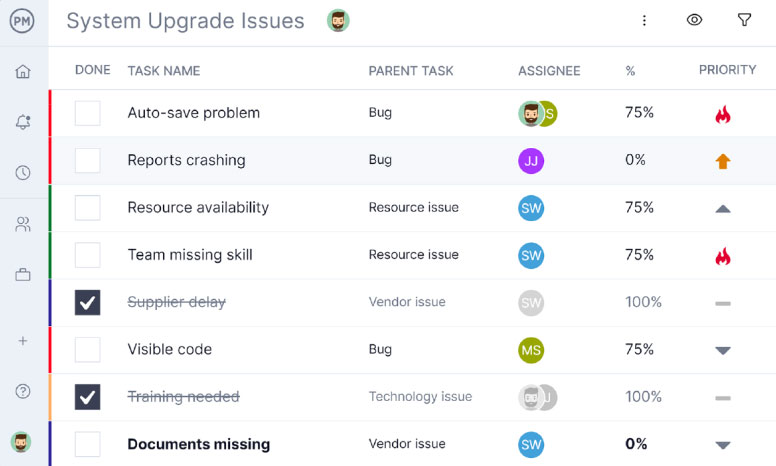
You can now change a Risk, Issue or Change to another type – for example you can change a Risk into an Issue. There is a new dropdown to specify the ‘Type’, which means you can easily change an item from one type to another.
Security Page Hovers
We have added information hovers for each of your user security settings. You can access your security profiles by going to the main Menu and selecting ‘Security’. When you hover your mouse over any setting (for example the All Tab Dashboard setting of ‘Show’) you will see information on what this security setting covers, how it works and the impact of changing the setting.
If you need any help at all setting security for your users, please just let us know.
Minor Changes – Small but important changes requested by customers that we have included in the October release:
- Inactive resources no longer show in the ‘Resource’ dropdown on Risks, Issues and Changes.
- We have added a new immediate alert ‘a new project is created’ which sends out to all people that are granted access to it, inviting them to check out any new project created. If the user does not have access to the project, they of course will not receive an alert.
- You can now click on the profile photo of any user to send them a message. You can do this from your MyTasks Activity stream on the right hand side.
- We have updated the table dimensions for Project Discussions, Expenses, Issues, and Resources on the All tab to adjust dynamically depending on your screen resolution. This means you can view longer lists and bigger tables, and use more of your screen space. If you are working on a laptop or smaller view, we of course also adjust the lists to a smaller more user friendly size.
- Creating a new user will also automatically create a resource with the same name, and associate that resource with the user ID.
- Project names have been added to the subject line of all email alerts.
In our latest release we’ve added Email Integration, improved Template management, as well as a long list of upgrades requested by you! Every release we aim to address as many of your requests, suggestions and feedback as we can – and the August release has been no exception. Below are highlights of the changes in this upgrade, if you have any questions at all please email us to ask one of our team to call you and walk you through any of the changes.
Email Integration
You asked and we delivered! Now you can store your project emails directly on your project, by simply copying in this email address when sending project mail.
We have added an email feature to your MyHome page and each Project page, to allow you to store emails on your MyHome area and within any of your projects. When team members are corresponding with others in the project they simply copy in this email address and we will instantly recognise this has come from you and store the email against your account. In addition to this, you can put the project name in square brackets in the email subject line and the email will be stored against the project under the email tab. You can send mail from any email client, but always make sure you forward mail from the email address you use to login with, so we know it comes from you!
The Account Administrator needs to enable Email Integration for your account by going to the main Menu and selecting the Accounts page, then the Settings tab. Once email integration is enabled you can set access for your users by updating the roles under the Security tab. If you have any questions or need help setting up your email integration please contact us using the Support link.
Templates
You can now manage your templates directly from the All>Projects page. Any existing templates can be moved to the new templates folder (this means they will be removed from Dashboards, Reporting and the Workload grid). You will also see on the project creation page there is an option to create a new project directly from one of your templates.
Once you have your templates stored in the Template folder, when you create a task list for a new project, you have the option to copy tasks from an existing template. To do this select the option “Copy a project template”. A list of all available templates will be displayed to select from.
For more information you can check the Help or contact one of our friendly Support team.
More features – We’ve listened to your feedback and improved the following areas:
Faster Project Open
From the main Menu you can now select “Open” to see a pop up box of all your projects. You can filter the list by project status, or use the search to find the project you need. From there it’s a single click to quickly open your Project. If you need to edit summary level project information you can go to the All>Projects page, but the new Open area makes it quick and easy to open a project.
Password Security
Password security has been greatly improved. When a user now requests a password reset we send out an email with a link in it that is specific to that user, which directs them to a password reset page. When the user types in their new password they go straight into ProjectManager. Please note: the reset password link that gets mailed out to the user expires immediately after the user has reset their password. The same process now applies to any new user sign ups or when you add users to your account.
New Project fields
When you create a project you can now choose to complete all of the project information fields. There is a “Show Details” link on the bottom right of the screen which you can use to display all fields (eg Customer, Project Manager etc) and complete when you create the project. If you prefer you can simply click to “Hide Details” and complete the high level information only. The other fields can be completed at any time by going to the All>Projects page.
Client Photos
Your clients can now upload a picture of themselves to personalise their profile! They can do this from their Messages area by clicking on the “Change my picture” button.
Portfolio Report
You can now filter the Portfolio Report by your project status – including any custom statuses you have created.
Dashboard Settings
We’ve made the Dashboard settings icon much easier to see – it’s a great way to filter the projects you want to see in the Dashboard view.
Timesheet Report
The timesheet report is heavily used, and we have improved the View option, as well as formatting in the Excel version.
There are lots of other features released in this major free upgrade, so if you have any questions then please email us to get in touch. We’re here to help.
This latest May Release “packs a punch” by giving you loads of exciting new features. So keep sending those feature requests using the link in the top right corner. Here’s what’s included in this latest major release:
Risks and Changes
Do you wonder where your Risks and Changes have gone? Check out the Issues page. People wanted to simplify these 3 pages into one, so that’s what we’ve done. That way you can simply click a button to navigate between them more easily.
Actual Effort
We made a major change to the way that actual effort is recorded in the system. Before, the total actual effort on the My Home and Tasks pages was not linked to the Timesheet page entirely. But they are now. So as you add actual effort on the My Home and Tasks pages, new Timesheet entries are created automatically for you. It doesn’t matter if you don’t use timesheets at all, but the most important thing is that if you do then all areas of the system are now kept in sync. This is a key change to the way that actual effort data is managed in the system so if you have any questions then please use the Support link in the top right corner to ask one of our team to call you and walk you through the changes.
iPad App
We’ve now released Projectmanager.com on the iPad. See http://www.projectmanager.com/project-management-app.php for all our new mobile apps. We’re also working on loads more apps for you right now, so watch this space!
Custom Issues, Risks and Changes
On the Issues page, there is now a small cog settings button. When you click it, you will be able to select the fields that display in the table on the left, and add new custom fields to the form on the right. For instance if you want to add a new field called “Issue Notes” then you can simply use the settings button to add it.
Custom Expenses
Just like the Issues page, there is now a small cog settings button which allows you to choose the columns that display in the expense table on the left, as well as the fields that are listed in the expense form on the right. You can also add custom expense fields, so that you can track any information relating to your project expenses. Have questions? Please click the Support link in the top right to get in touch.
Editable Projects Page
When you click the All, Projects page, the project information you see is now editable. If you are a project manager or administrator, you can click on any of the project information on the screen such as the project manager, customer, status and priority data cells and edit them within the page (without having to go to the Project Info page). This allows you to make bulk changes at the same time. In addition, you can add new columns to the table by clicking the small cog settings button on the top right corner. This allows you to add new custom fields and columns (such as “Revenue” or “Department”) at project level and then sort by that information as you wish.
More Features
- Roadmap: When you print the Roadmap page, if you have the project hierarchy expanded on the left, then that expanded hierarchy will now be visible in the print view (whereas before it only printed at the project level). Also, if you have filters applied to your roadmap, then those filters will also be applied in the print view. And lastly, if you have the roadmap hierarchy expanded and then you leave the page, then when you return to the page that hierarchy will have been saved for you.
- Task Updates: In larger accounts, it is more likely that there’s a chance that multiple people are updating the Tasks page at the same time. So that people don’t override each others work, we now have a “Who’s Online” image appear so that you can see when others are editing the same tasks page as you are, at the same time. Note: This happens very infrequently anyway, but as it was requested for peace of mind we thought it was a great idea.
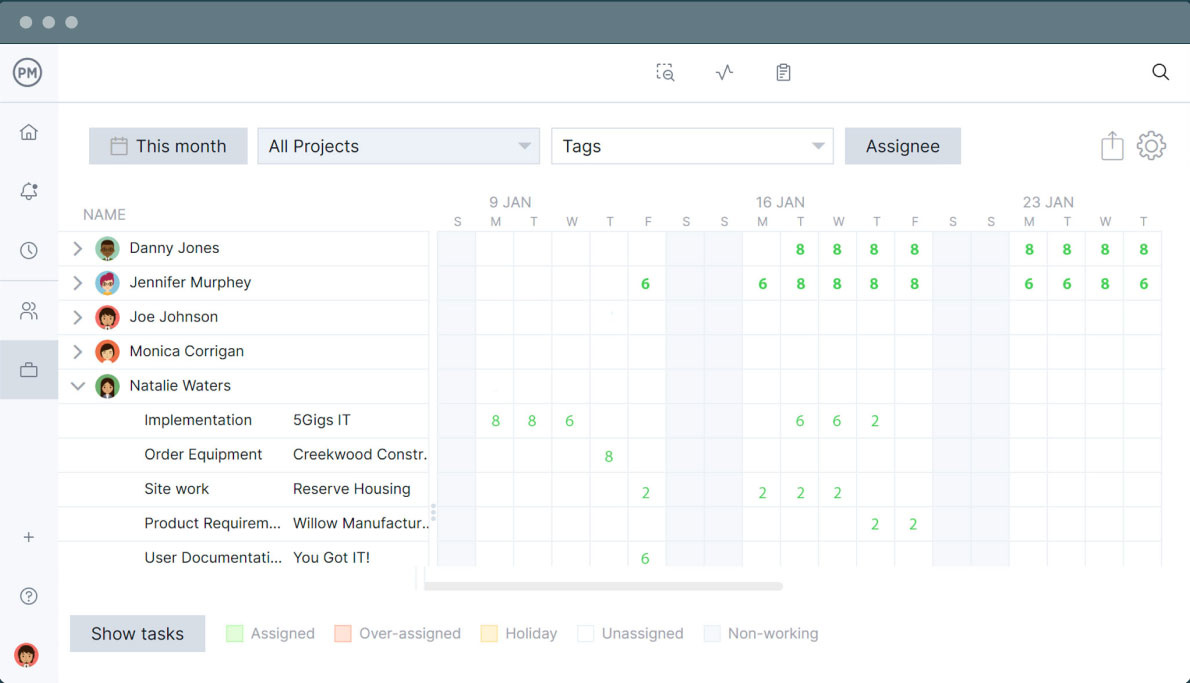
- Workload: If you have access to view the Workload page, then you can now filter the list of resources to just those that are assigned to particular projects.
- Speed: You may not realize it, but we’ve actually rebuilt the Timesheet, Issues, Expenses and Projects pages to make them faster for you to open. We’ve also upgraded our system hardware to further improve speed. We currently upgrade all of the hardware every year, to the latest most powerful servers available on the market.
- Report Settings: To save you time, we have made it so that when you choose particular report settings, we remember those settings for the next time you visit the reports page.
- Timesheet Report: The timesheet report now includes all of the fields from the Tasks page, so that you can choose to include task related information for each timesheet entry that you report on.
- Tasks Report: You can now report on custom columns that you created on the Tasks page, in the tasks report.
- Exports: When you export tasks using the menu/export option, you can now choose to just export tasks for specific resources.
- Clients: When you go to assign free client logins for your project, a new field has been created called “Company” as lots of people requested it.
- Login Details: Before, only the administrator could change a users e-mail address. Now you can update your login details (i.e. your e-mail address and password) by clicking the “My Home” tab and then opening the “settings” page.
There are lots of other features released in this major free upgrade, so if you have any questions then please click the Support link in the top right to get in touch. We’re here to help.
In this first release of 2012, there are lots of new features for you to enjoy…
NEW Mobile Apps!!
We’ve just released new mobile phone apps for the iPhone, iPod Touch and Google Android platforms:
- iPhone: Click here to see the app on the Apple iTunes store.
- Android: Click here to see the app on the Google Android store.
- Google Apps: And remember we’re also in the Google Apps marketplace.
- iPad: In just 1 month, we’ll release our new iPad app too!
Support Center
If you go to ProjectManager.com and click the Support link at the top, you will see our newly launched Support Center. It has the following features which are intended to help you to learn ProjectManager.com to an advanced level:
- Home: Click here to visit the new Support Center.
- Video Tutorials: You can now watch a suite of video tutorials to learn how to use each of the pages in ProjectManager.com. Watch here
- Webinars: Every Tuesday and Wednesday we run free introductory and advanced one-hour training webinars. The purpose of these webinars is to learn how to use ProjectManager.com for your business. The Webinars are run by our specialist training team and you can ask questions live. Join here
- FAQs: If you are new to using ProjectManager.com and you have a general question, then chances are it will be answered in these popular FAQs
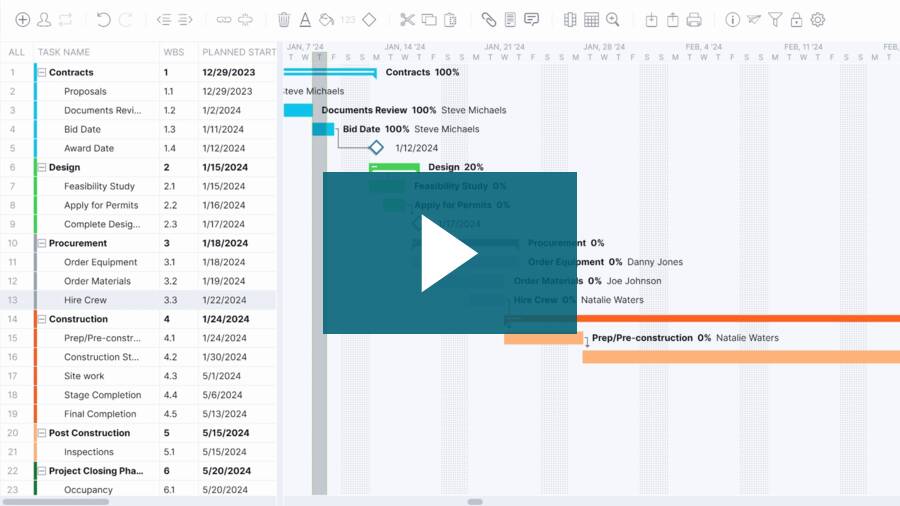
Gantt Printing
These new Gantt Printing features have been released.
- Display Gantt gridlines: You can choose whether to display the gridlines on the printout.
- Display task names on all pages: If you are printing across multiple pages horizontally, then you can choose to display the task names on all of the pages that are printed.
- Automatically change timescales: This complex little feature tries to change the timescales automatically to suit your paper size and the length of your tasks, so that your project plan is as readable as possible. As it was a tough one to build, please give us feedback on whether it works correctly for your needs or not and we’ll continue to improve it for you.
- Task name column only: If you are viewing multiple data columns on the screen but only want to print the Task Name along with your Gantt chart, then have this option selected.
Timesheets
We have improved the timesheet feature to try and make it simpler and quicker for you to add tasks across multiple projects. Here are the latest changes:
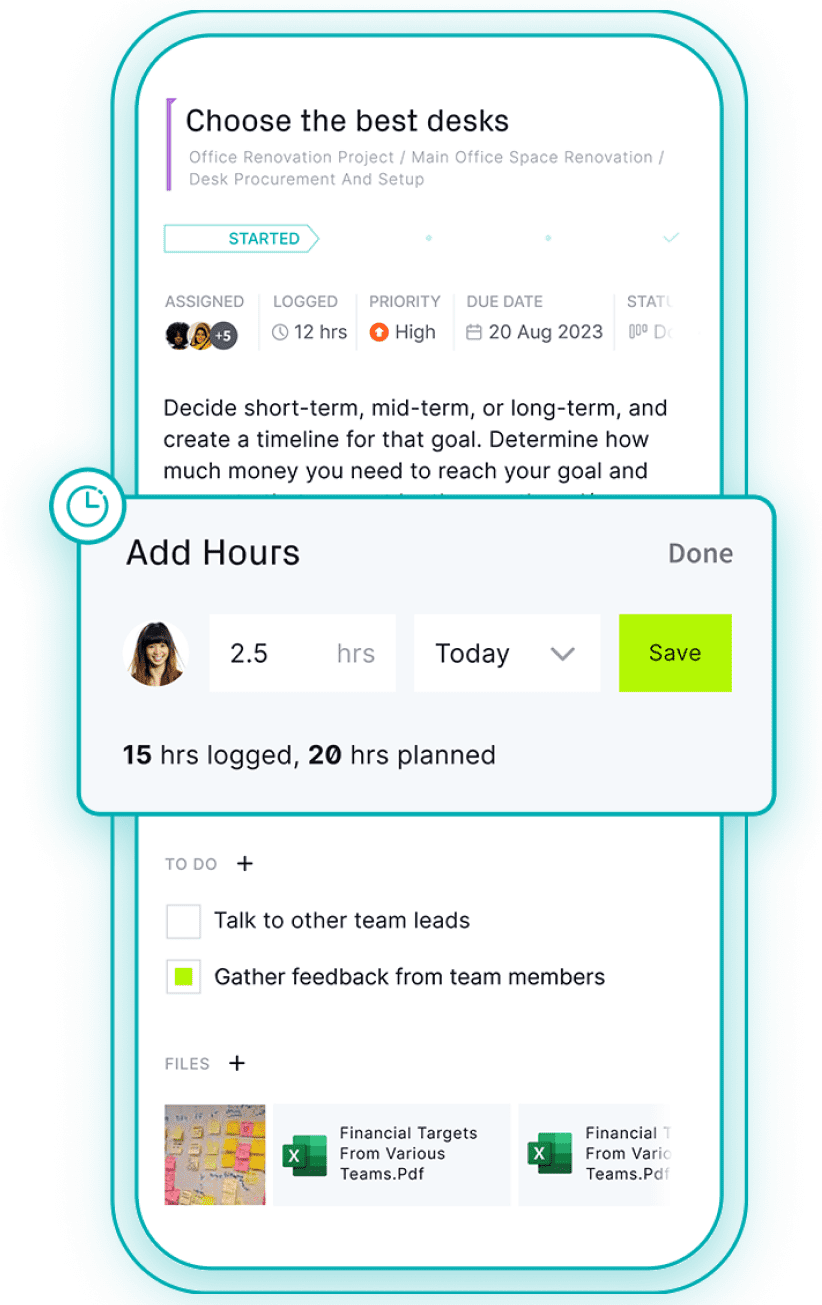
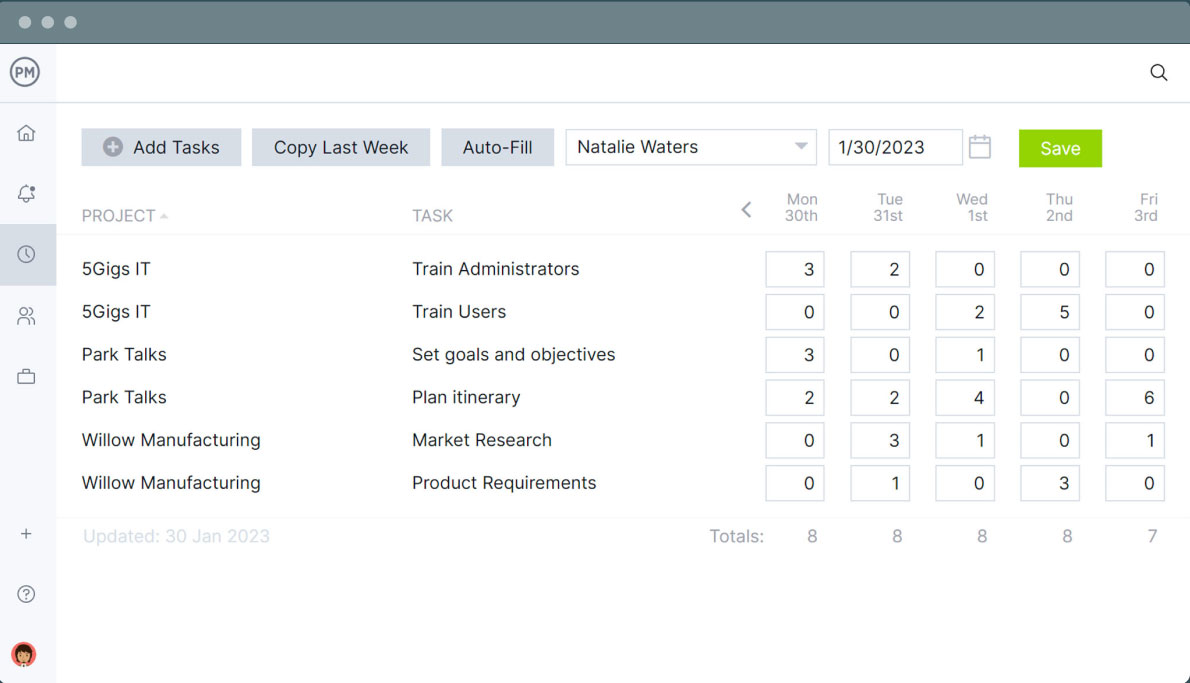
- Selecting Tasks: When you select tasks to add them to your timesheet, the resulting pop-up has been greatly enhanced. You can now search for your project and tasks quickly and easily. If your project search string matches a project name exactly, then the tasks will automatically be displayed on the right-hand panel. By using the search field to find projects and tasks quickly, you should be able to add tasks to your timesheet more quickly.
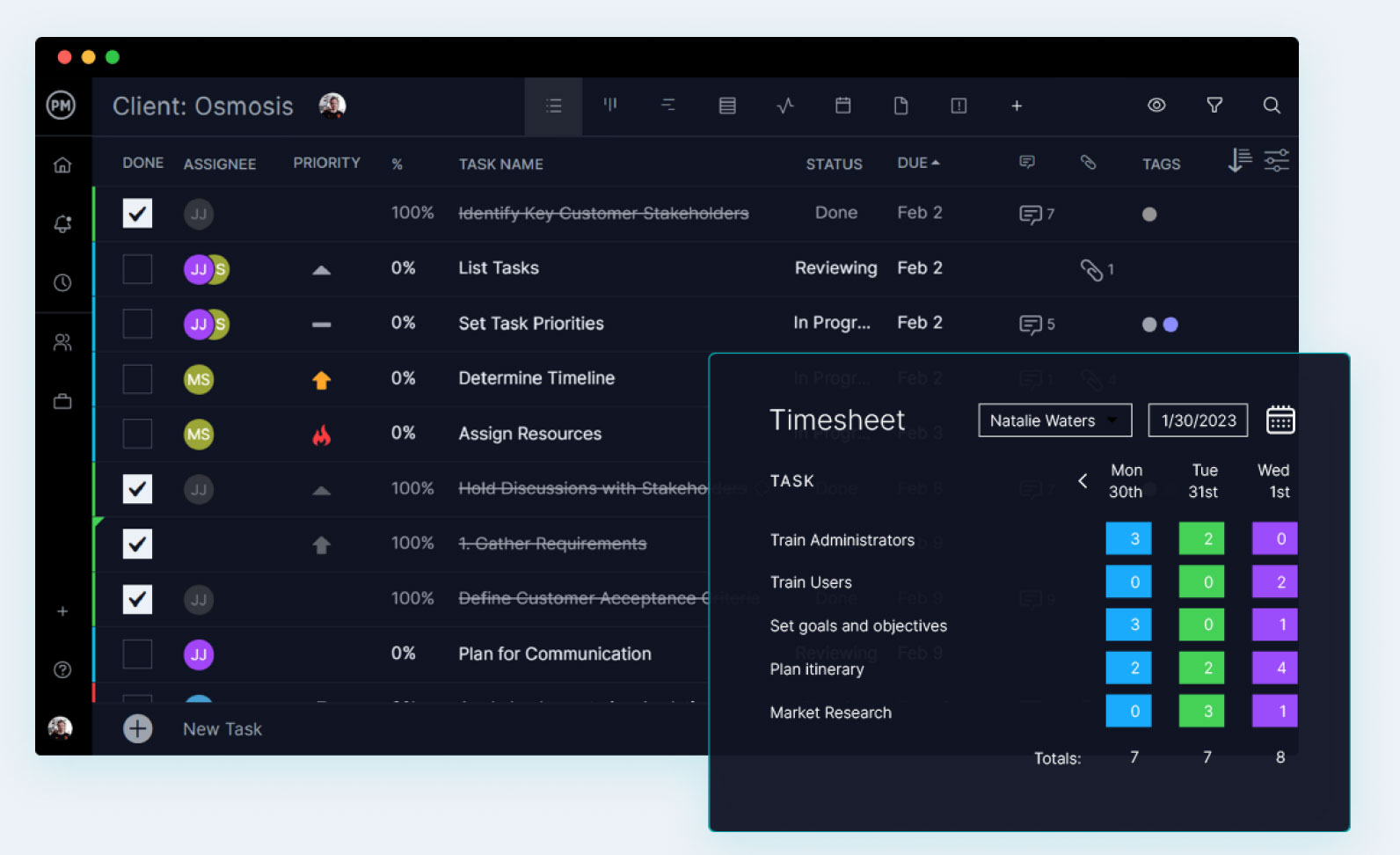
- Settings: Before, only your account Administrator was able to see the settings button which allows you to add tasks which are not displayed on your project plan (like leave, meetings, workshops etc). Now, all non-client users can see the settings button. This feature has been provided after an overwhelming number of requests from our customers.
Calendars
You can now add events to your My Home and Project Calendars. Simply click the New button to add an event to your calendar. You can also click on a particular day and the New Event pop-up will appear. When adding events, you can choose to receive a reminder by e-mail or receive a message (on the messages page) prior to the meeting. You can also add notes and then invite your colleagues. Your colleagues will receive an invitation to join the event by e-mail.
My Contacts
Under the My Home tab we have added a new Contacts page. This allows you to add both personal and company contacts to the system. You can add as many personal contacts as you wish and only you will be able to see those contacts when you login. Any company contacts will be made available to the entire account.
Request a Feature
In the top right corner, you can see a new Request a Feature link. Click it to request any features you might need and we’ll be in touch.
Critical Path Filter
If you’re on the Tasks page and you click “Filter” and then “Critical Path Filter” then this new filter allows you to see the tasks that are on the critical path for your project. The critical path is the longest path through the project, based on the linked tasks and their durations. They are the tasks that are typically deemed (according to the standard “Critical Path Method”) to complete. The critical path tasks are certainly important, but so are others that are not on the critical path, so use the filter as a general guide only.
In this latest release, you’ll find the most popular new features requested by customers:
Documents & Timesheets have Moved
The Documents and Timesheet pages have moved to the “My Home” tab. The reason is that they are heavily used pages in the system, so people want to access them from their Home page more quickly and easily than before.
New Document Features
- My Docs: This folder contains files that only you have access to. That way, you can add files from your PC or Laptop to access them from anywhere, anytime.
- Security: Click a folder or file and select the Security button to choose who can access your files online.
- Shared Docs: If someone shares files with you, then a “Shared” folder will appear in your folder list, which contains the files you now have access to
- Trash can: If you delete a file, it will now go to the trashcan. You can then move it back to your personal folder structure anytime you want. If you delete it from your trashcan, it will be deleted permanently.
- Rename button: Click on a file or folder and use the new rename button to change its name.
- Attachments: On the timesheets, expenses, risks, issues and changes tabs you can now attach a file of any type. When you do, it will show on the Documents page as well.
- File Types: We’ve added 50 more types of files that you can store online. If you have a file type that isn’t accepted, then contact us and we’ll add that file type for you.
New My Home Features
As mentioned above, the Documents and Timesheets pages have been moved to the My Home. We’ve also added these new features:
- My Tasks: On the Home page, you can now enter the % complete, effort, notes and docs directly on the page.
- Calendar: This page shows your scheduled tasks across all of the projects you have been assigned to. In the near future, it will also allow you to set and share personal appointments and meetings.
- To Do List: This page allows you to create and manage your To Do lists day-to-day.
- Settings: Here you can turn off tabs in the system that you don’t want to use day-to-day.
Email Alerts
You can now receive an email alert every time you receive a message in your account.
Security
You can now change these additional security settings if you are the Admin for your account: Turn on or off the Roadmap, Project Calendar, Personal Calendar and Messages tabs for your team.
Timesheets
There is now a small round settings button at the top of the Timesheet page. Using it, you can add Admin tasks to your timesheet like Annual Leave or Sick Leave as well as create ones of your own. Note: Only an Admin or Project Manager can change this.
Reports
- You can now view your Timesheet report online.
- The Availability report has changed to a new format.
- All reports list your tasks once, as opposed to multiple times.
Coming Up
In the next 2 weeks we’re swapping over to a new content delivery platform called Akamai. You’ll notice that this website will run twice as fast when we do. We’re also building a mobile app for the iPhone, Android and Microsoft Mobile marketplaces. It will be released in the next few months.
Feature Requests
Have feature requests? Email Kathleen (kathleens@projectmanager.com) and she will add them to the list for implementation. Note: 100% of the features above have been requested by customers – so keep them coming!
This month we have released one of the largest new feature sets ever. With a big focus on “collaboration”, check out these new exciting features:
My Home
On the “My Home” page, you can now see in the right-hand column a list of all of the “activity” in your account. It looks just like Facebook. You can see every time someone adds new data their account, to keep you informed of your colleague’s activity. The small settings icon in the top right allows you to choose the type of content that you want to see on your activity page. You can also click to “comment” on any activity, keeping your colleagues informed along the way.
Messages
The new “messages” feature also works just like Facebook and LinkedIn. You can create a new message and send it to one of your colleagues in your team. Rather than having to rely on e-mail for your projects, why not send messages to your team instead? That way all your messages are kept in one place, online.
Roadmap
Under the “All” tab, there is a new page called “Roadmap”. This page allows you to see a high-level roadmap of all of your projects in one place. You can see when projects are due to start and finish, so that you can better manage them at the portfolio level. This popularly asked for feature also allows you to drill-down into each project. If you wish to edit the project then simply click on the “Edit” button and it will take you straight to the Tasks page for update.
Pre-pay
When you click on the “Accounts” page under the main menu, you’ll notice that you can now pre-pay your account quickly and easily. If you pre-pay for 36 months then you will get a whopping 30% discount on the monthly price of your account. After you pre-pay, you can still change the number of users if you wish. We have also added the ability to pre-pay by purchase order, check and wire transfer. Contact us (support@projectmanager.com) if you have any questions.
Calendar
Due to popular request, each project now has a separate “Calendar” tab. On the Calendar page you can see all of the tasks that are scheduled for your project, per month. You can change the view from “Tasks” to “Resources” in order to see who is working on which tasks on which days in the month. This new powerful feature allows you to see the work scheduled ahead.
Other new features
- Help: The help system now loads much faster than before.
- Login: You can now choose to stay logged in if you wish.
- Groups: The resource and workload tabs have been added to the project group level.
- Alerts: There is a new e-mail alert that tells you when your tasks have changed.
- Timesheets: If you delete tasks that have timesheets attached, the timesheets won’t be deleted.
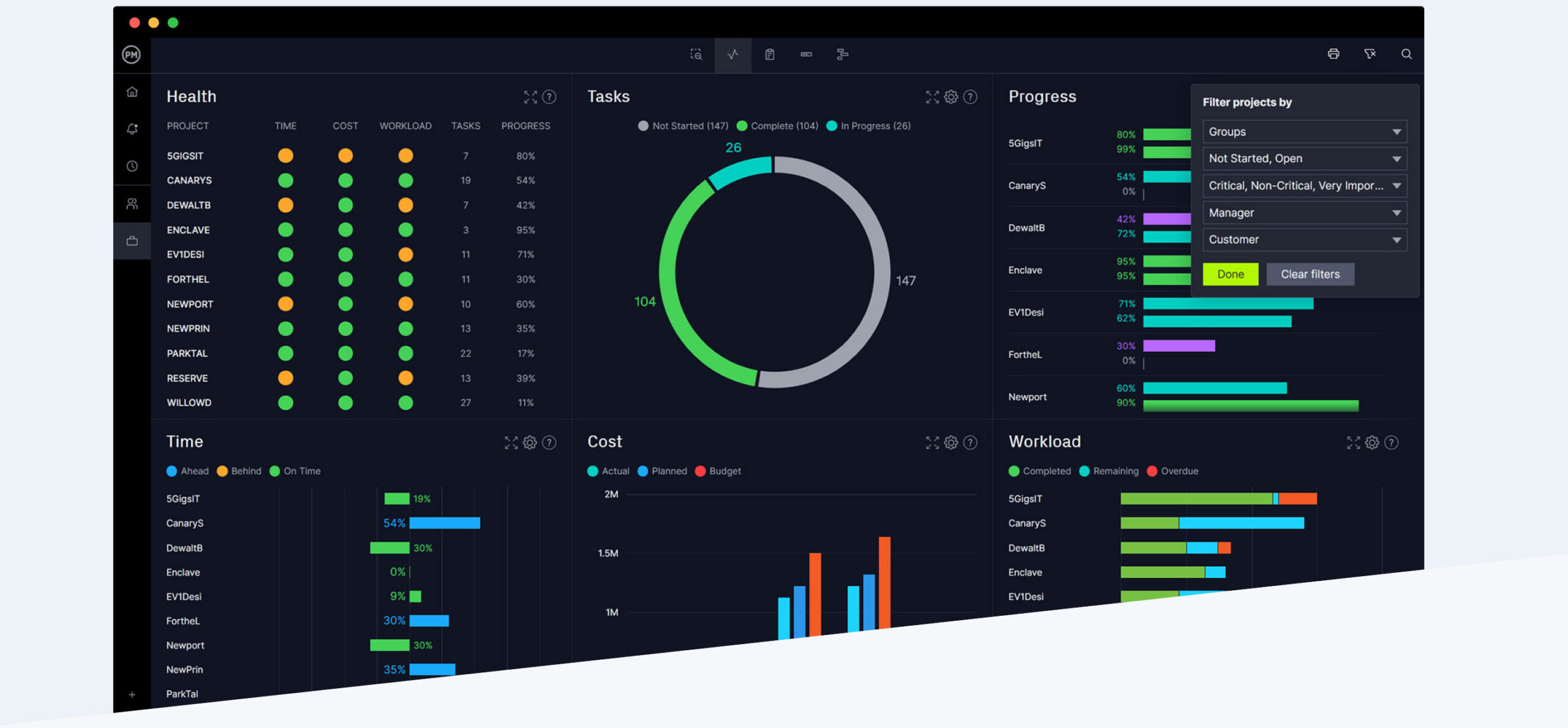
- Dashboard: There is a new settings button on the top right corner of the portfolio and project group dashboards which allows you to choose the project status types that are included.
- Imports: The import of Excel spreadsheets and Microsoft project plans is even more efficient than before.
For more information, go to the relevant page and click “Help” to read more about it. Then send your first message to your colleagues to start collaborating on your projects.
This month, we’ve released an exciting suite of new features and the great news is that 100% of these features have come from our customers. So keep giving us feedback and we’ll keep releasing new features that you need to manage projects.
New Reports
We’ve released a suite of new reports and also made the existing reports customizable. Here’s a summary of what’s been done:
- Custom Reports: Every report now has the ability to turn columns on and off as you wish.
- New Reports: We’ve released new Expense, Timesheet, Workload, Risk, Issue and Change reports.
- All Projects: You now have the ability to report across all projects.
- Project Groups: When you create a new project group, you can now report on it easily.
All Projects and Project Groups
Due to overwhelming demand from our customers, we have changed how project groups work. They use to be virtual views of projects and each person had to create groups themselves. In this way, you never knew whether you were looking at the same data as your colleagues.
However now, when you click on the “All” tab at the top and then select “Projects”, you will see a number of options which allow you to create new groups. Project Managers and Administrators can create as many groups as they wish, and there is one hierarchy per account. They can move projects into groups so they are easier to find. In large companies, you might group by department (“IT projects”, “HR projects” etc) or you might want to group projects by the project manager’s name, by priority or other.
You can open a group and view a group report or dashboard by clicking on the “New” tab at the top and selecting the “Open a Group” option.
One great thing now is that everyone sees the same group structure. It’s easier to manage large volumes of projects and the group hierarchy is created only once for the entire account. That way, everyone can report on groups more easily, all viewing the same data.
Simplified Tasks
When you click on the Tasks tab, you’ll notice these changes:
- Menu Changes: We’ve simplified the menu so it’s easier to use. The extra menu options have been moved to the new “Settings” button.
- New Custom Field: If you click on the “Columns” button and select “Custom Columns”, then we’ve added a new type called “Checkbox”.
- Discuss: The new “Discuss” button allows you to hold discussions about tasks.
- Attach: If you click “Attach” then you can attach any documents to tasks more easily.
Discussions
The Discussions feature has also been changed, due to popular request:
- Discussions Tab: When you create a new discussion you’re now automatically subscribed, so you’ll receive discussion comments as they happen.
- Alerts Tab: If you set a Discussions alert on the Alerts page (under the main Menu) for a certain role, then anyone with that role will automatically be subscribed to new Discussions created from that point onwards.
Speed
You might have noticed that after logging in a few times after this release, it gets much faster to use. That’s because we’ve implemented a new Content Delivery Network. This means that the software is operating from a server near you, as opposed to our central server farm at Liquidweb in Michigan, USA. This is only phase 1. We’re rolling out the 2nd phase in a couple of weeks time, so it will then get faster still. Let us know if you find it faster to use and where you’re from. We’d appreciate the feedback.
This month, we’ve tried to focus on improving the features that already exist by either rebuilding them and making them faster, or adding lots of tweaks to make them simpler to use. Here’s what we’ve done:
Documents
We have completely rebuilt the Documents page, to make it dramatically faster:
- Speed: You can now navigate folders and select documents instantly.
- Search: We have added a search tab on the left and made it easier to use.
- Upload: You can now upload has many files as you want at the same time.
- Download: You can also download multiple files at the same time.
- Moving: You can select files and move them easily into other folders.
- Delete: You can delete multiple documents at the same time.
- Ease: It’s now easier to create a hierarchical folder structure.
Timesheets
We have also made a lot of changes to the Timesheet page, to make it easier to use:
- Select Tasks: Now, when you select tasks they will appear much faster in the pop-up.
- Auto-fill: We’ve added the ability to auto-fill your timesheet with all of the tasks that you are assigned, across all projects, for the current week. This saves you having to go and find them manually.
- Export: Now when you export timesheets, you can specify the users, date range and format you want the exported timesheet entries to be in.
- Summary: The total amount of time per task and per day is now displayed in the column and row summary cells at the end. This saves you having to calculate them.
Restoring Projects
Often, people delete projects accidentally and they want them to be restored. To save us having to restore your projects manually, you can now do yourself. On the “All”, “Projects” page you can click the new settings icon beside the Export button and select to view Deleted projects. When you do this, you can see a list of all of the projects that have been deleted since 1 June. There is a small icon to the far right for each project which allows you to restore the project. You can then change your settings to hide deleted projects and your list will resume to normal, with the deleted project restored.
Other Features
We have also made these changes for you:
- Copy a project: When you create a new project and use the “copy existing projects” feature, you can choose to copy all of the data, or just the task list only.
- All project settings: On the “all projects” page, there is now a new settings button beside the export button. When clicked, it will allow you to select the projects you wish to view. That way you can filter the view to only see open, closed and/or deleted projects.
- Workload: The calculations for the workload page have been changed so that they match the calculations for the resource reports. Before, they were slightly different. Now they are exactly the same, to the decimal place!
- Email Alerts: When e-mail alerts are sent to you, they now include a link which takes you to exactly the right place in ProjectManager.com
- Discussions: Before, when you created a new discussion, you had to manually set the e-mail alerts and these sometimes conflicted with the alert set on the Alerts page under the main menu (only Administrators can view this). We have now changed it so that any user can “subscribe” to any discussion on a project which they have access. This means that you will only receive comments for a discussion if you click the subscribe button. You have to subscribe to each discussion manually, even ones that you create yourself.
- Closed projects: On the project Info page, you can change the project status to “closed”. When you do this, it will be removed from the dashboard and reports automatically.
- Pop-ups: Most of the pop-ups in the system are now dramatically faster than before.
Our latest release includes a stack of new features that are designed to make your life easier when managing projects. Here is what we’ve released this month:
New Task Features
On the tasks page, we have released a stack of new features as follows:
- Undo / Redo: You can now undo and redo any changes on the tasks page.
- Task Colors: On the timescale pop-up, you can choose to colour code tasks if they are late.
- Copy / Paste in: You can now copy and paste data from external applications, into the tasks page. That way, you can quickly and easily create tasks within an existing project, by using task information that you already have.
- Copy / Paste between: You can now also copy and paste task information between projects. Simply copy tasks from one project and go to another project and click paste.
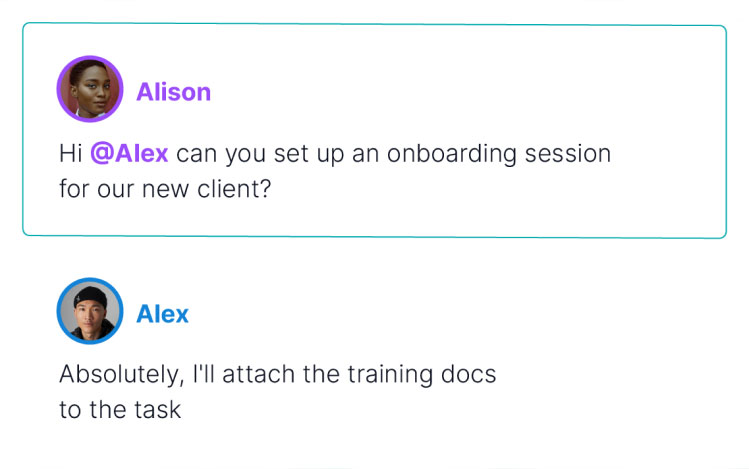
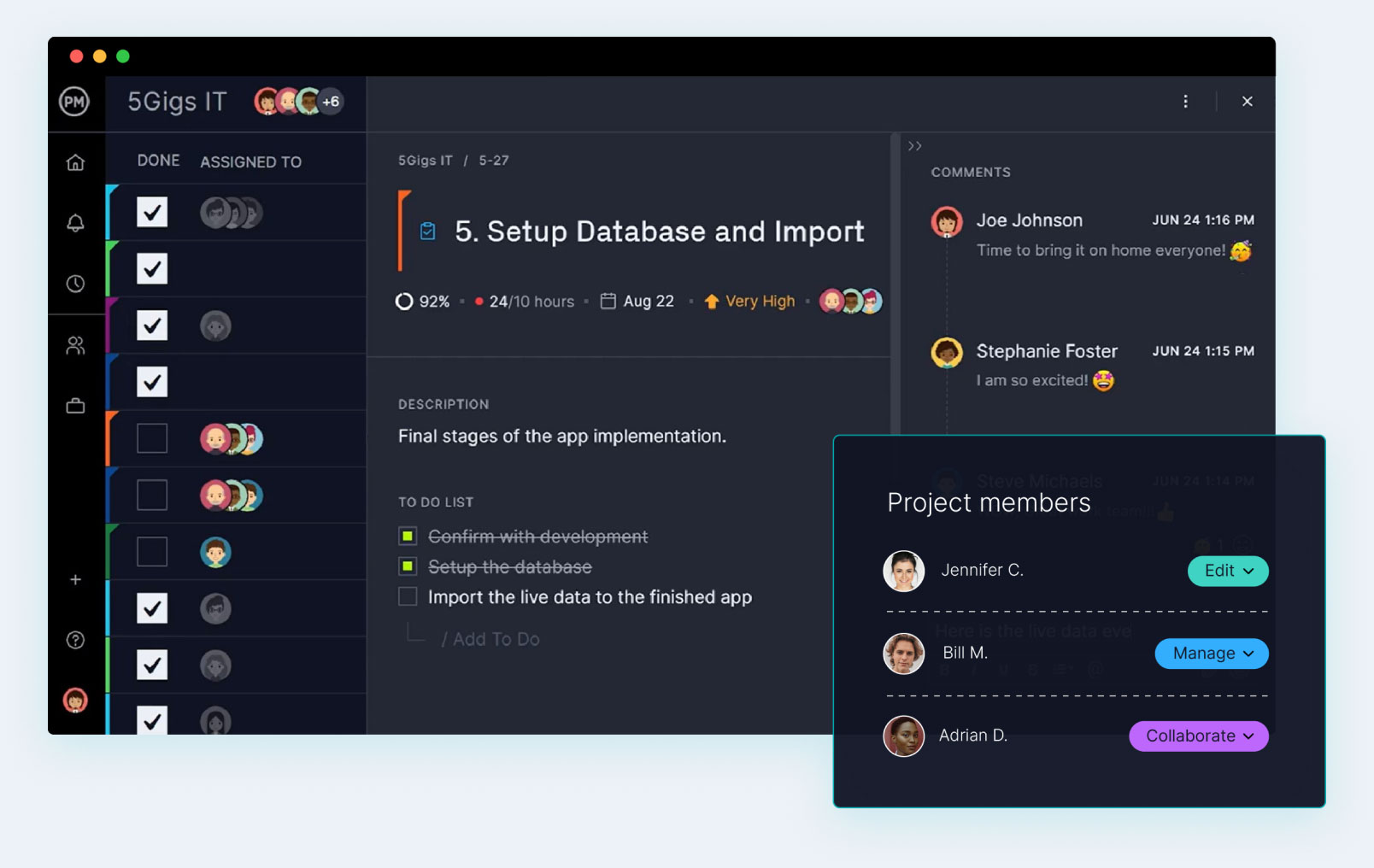
- Comments: You can now add comments to tasks just like adding notes. Comments allow multiple people to hold discussions on a particular task.
- Documents: You can now add documents to each task, so that you can add additional content explaining the status of the tasks in your plan.
- Integration: It is now easy to integrate ProjectManager.com with another application. Simply use the new integrate tab on the tasks page, to create a URL for that task. Then copy that URL into any other application and when clicked, it will take you straight back to ProjectManager.com to that specific task.
- Timescales: You no longer have to set the timescales for the project. The system will automatically update the timescales that you view in the Gantt, based on the tasks that are displayed on the screen.
Google Apps
If you use Google apps (e.g. Gmail, Google Docs, Google Calendars or Google Spreadsheets) then we have integrated ProjectManager.com with Google apps suite. This first release allows you to login to ProjectManager.com automatically when you are using any Google application. To do this, sign into your Google Apps account and then add ProjectManager.com to your apps suite.
Documents
On the documents page, you can now import multiple documents at the same time. This allows you to upload documents from your PC in bulk. We have also doubled the upload speed so that you can upload documents faster than before.
Miscellaneous
Login and click on the “What’s New” page to see loads more features that we’ve released just now…
Coming in 2 months time – stacks more features that help you manage projects easier than before!
This month we have released one of the largest upgrades since the company started. We have completely rewritten the “Tasks” page so that it is faster, more reliable and easier to use.
Speed
We have dramatically improved the speed of the tasks page for the medium to large sized projects. Before, if you had more than 200 tasks your project plan would be split into multiple pages. Now, you can import up to 10,000 tasks, have it on a single page and be able to scroll your plan quickly and easily.
If you have a plan that is heavily linked, has lots of resources assigned and is also heavily indented, then the lavest Tasks page will also perform much faster for you. We have engineered it so that the logic for this page is downloaded to your PC each time you use it, so that it can work faster than before.
Please note that the speed improvements are only gained on the newer browsers like IE 7/8, Google Chrome and Firefox, not IE 6. Using ProjectManager.com on Google Chrome is almost as fast as using a desktop application.
Usability
We have radically improved the way you use the Tasks page. Now you can use all of the standard navigation techniques that come with Microsoft Excel and Microsoft Project. For instance: You can use all of your normal keyboard controls to cut, copy, paste and delete as well as navigate using the home and the end buttons. You can tab across cells and use the arrow keys to be able to navigate up, down, left and right.
In addition, you can click on each of the row numbers and use the shift and control keys to select multiple rows at the same time and lastly, you can click and drag rows and columns to reorder them.
Reliabilty
The biggest change with this release is with reliability. Now, we resolved 100% of the prior known bugs and the great news is that with the new architecture, any small remaining bugs that you find can quickly and easily be fixed. So if you do see anything unexpected, then simply e-mail us and we will fix it for you as a priority.
Printing
While we were rebuilding the tasks page, we also rebuilt the print function. You can now print your project plan to PDF and use all of the normal print functions that Microsoft Project has to offer. The first time you print, you may experience a browser security alert which requires that you click to proceed and then have to reprint your document. However once you have passed the stage, you will be able to print your can chart quickly and easily, fitting the content and to any number of pages you wish.
Overall, we’re ecstatic about this new release and hope you find it helps you to manage projects easier than before.